Introduction: The Necessity of Great Audio
As filmmakers and video creators, we spend thousands of dollars on mirrorless cameras, cinema lenses, and elaborate lighting setups. We obsess over 10-bit color depth, dynamic range, and perfectly buttery bokeh. Yet, many beginners overlook the single most important factor that separates amateur videos from professional films: pristine audio quality.
When your audience hears tinny, hollow, echoey audio recorded from a camera's built-in microphone 10 feet away, their brain immediately registers the content as "cheap" or "unprofessional." The solution is simple: get the microphone as close to the subject's mouth as possible. You can use a boom microphone mounted just above the frame line, or a wireless lavalier microphone clipped to the talent's shirt.
However, when you do this, you are no longer recording audio directly into the camera's internal memory card. Instead, you are capturing high-quality, uncompressed audio onto a separate external field recorder (like a Zoom H6, Tascam, or Sound Devices MixPre). Now, in post-production, you face a terrifying pile of files: a folder full of gorgeous silent video clips, and a folder full of crystal-clear audio files.
Your job as the editor is to marry these files together perfectly so that when the subject's lips move on screen, the corresponding word is heard at the exact same millisecond. If the audio is even three frames out of sync, the human brain will detect a "lip-flap" mismatch, and the viewing experience will be completely ruined. This massive, comprehensive guide will teach you every single method for syncing audio, from fully automated software solutions to traditional Hollywood manual techniques, and how to troubleshoot the dreaded "audio drift."
The Golden Rule of Syncing: The Scratch Track
Before we can even talk about what happens in the editing software, we need to discuss what happens on set. The success of your audio sync in post-production is entirely dependent on one golden rule: you must record a scratch track.
A scratch track (or reference track) is the low-quality audio recorded by your camera's internal microphone. Many beginners make the fatal mistake of disabling their camera's microphone because they think, "I'm using an expensive external microphone anyway, why waste data recording bad audio on the camera?"
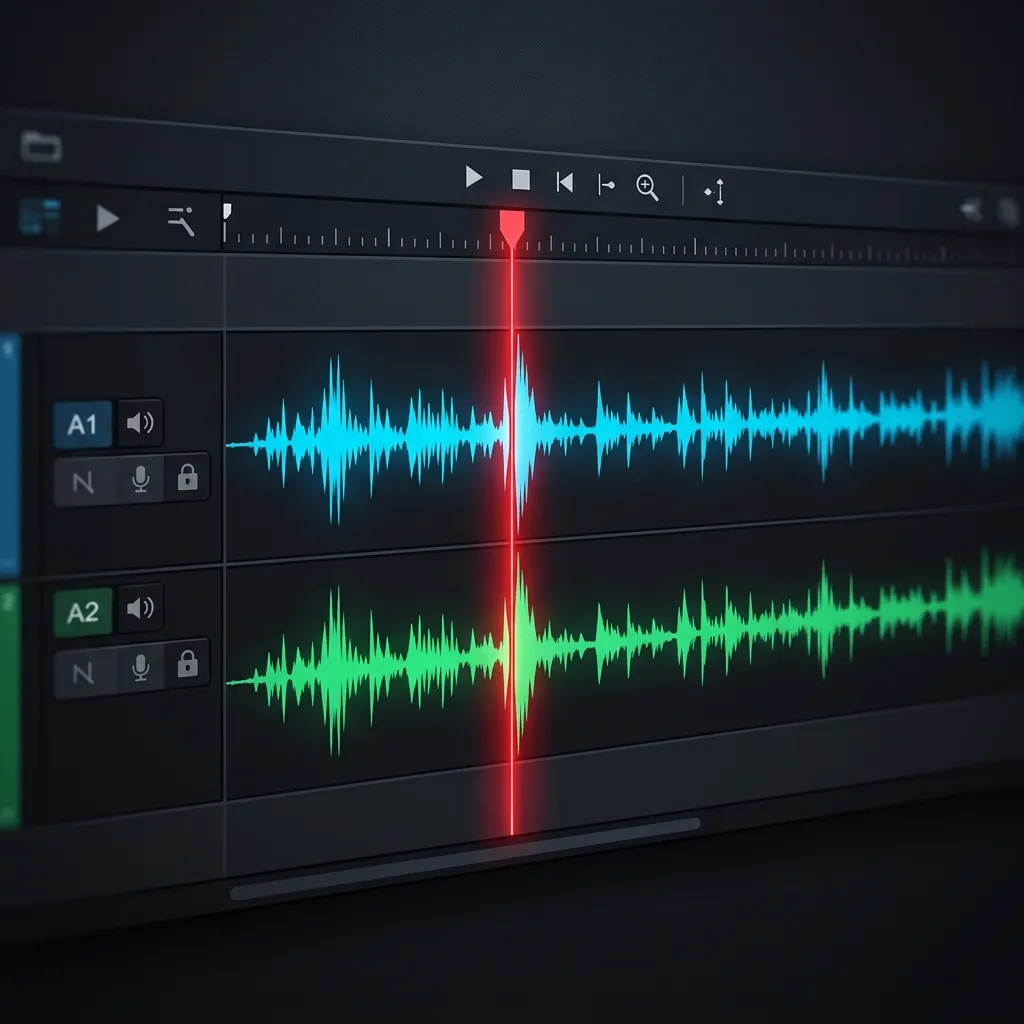
This is a catastrophic error. To sync audio automatically, your editing software needs to compare the audio waveforms of the camera against the audio waveforms of the external field recorder. The software looks for identical spikes, peaks, and valleys in the waveforms. When it finds a matching pattern, it locks the clips together. If your camera video clip has no audio attached to it whatsoever, the software is completely blind. It has absolutely nothing to compare the external audio against, forcing you into a nightmare of manual lip-reading.
"The biggest mistake I see beginners make is completely muting or turning off their camera's internal microphone because it sounds 'bad'. If you don't record a scratch track on your camera, the editing software has absolutely nothing to compare your external audio against. Always leave your camera mic on! I even boost my camera's internal gain slightly higher than normal just to ensure the scratch track waveforms are fat, visible, and easy for the software to read."
On-Set Preparation: Setting Up for Success
Your workflow in Premiere Pro or DaVinci Resolve will only be as smooth as the preparation you do on set. Here are the crucial steps you must take before you hit record:
1. Match Your Sample Rates
Digital audio is recorded using sample rates. Think of sample rate as the "frame rate" of audio. Instead of capturing 24 frames per second, standard digital audio captures 48,000 samples per second (48kHz).
You must dive into the menu systems of both your camera and your external audio recorder and ensure they are set to the exact same sample rate. The video industry standard is 48kHz / 24-bit. If your camera is recording at 48kHz but your external recorder defaults to the music industry standard of 44.1kHz, your audio will slowly drift out of sync over time. We will cover audio drift extensively later in this guide.
2. Clap Your Hands Loudly
Even if you plan to use software auto-syncing, you should always provide a manual sync point. Stand in front of the camera, make sure both the camera and the external recorder are rolling, hold your hands up where the camera can clearly see them, and clap them together once, loudly and sharply.
This single clap creates a massive, instantly recognizable spike in the audio waveforms of both devices, while simultaneously providing a visual frame where your hands connect. This is the exact same principle as a Hollywood clapperboard (or slate), just without the fancy gear.

Software Auto-Syncing: The Modern Magic
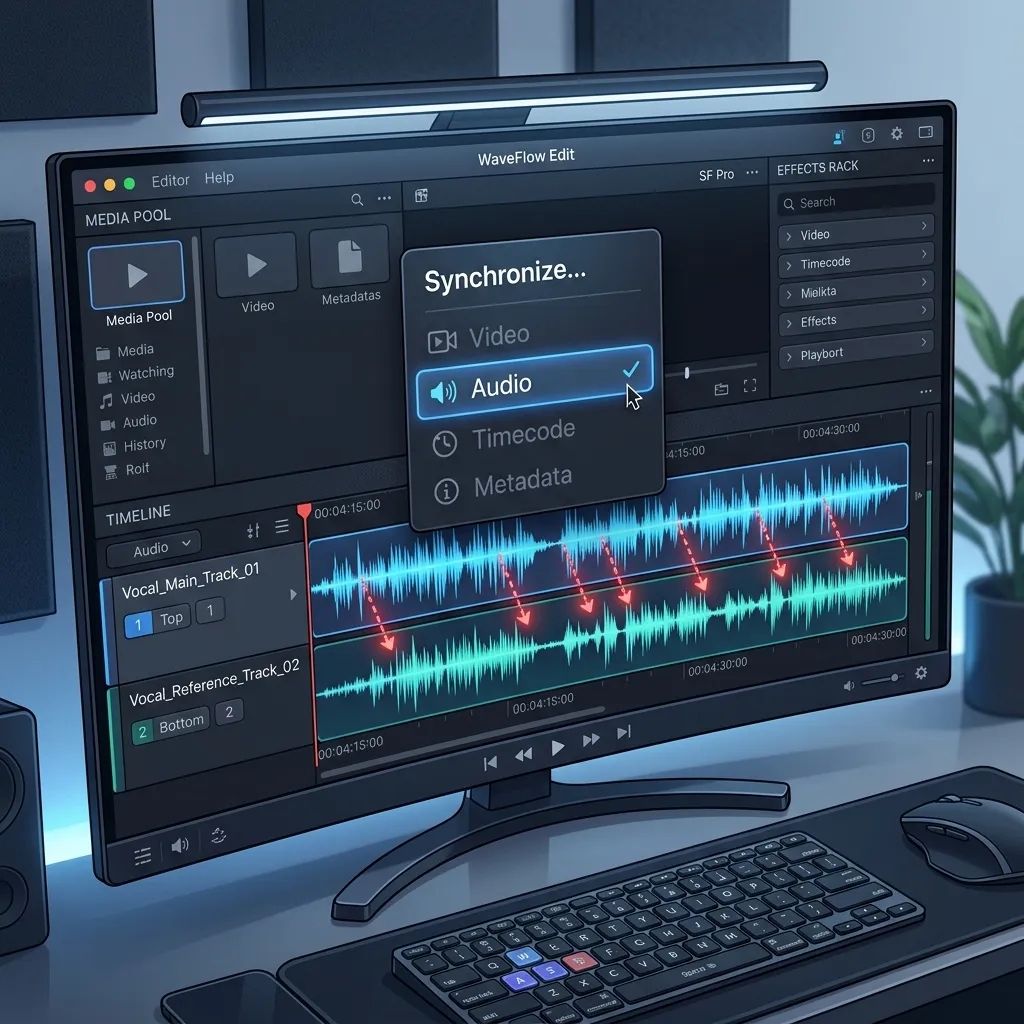
Most modern non-linear editors (NLEs) make this process incredibly easy. In the early 2010s, editors had to purchase a $300 third-party plugin called PluralEyes to automatically sync footage. Today, algorithms built natively into Premiere Pro, Final Cut Pro X, and DaVinci Resolve are so powerful that third-party software is rarely needed.
Premiere Pro Audio Sync
DaVinci Resolve Audio Sync
Final Cut Pro X Synchronization
"I highly recommend doing all your audio syncing in the media bin BEFORE you drag anything to the timeline. When you sync in the bin (like Resolve's Auto Sync feature or Premiere's Merge Clips), your timeline stays incredibly clean, and you don't have to worry about accidentally unlinking them later. If you drop 50 unsynced clips on a timeline and try to sync them there, you will end up with a spaghetti mess of overlapping tracks."
Manual Syncing: The Hollywood Slate Method
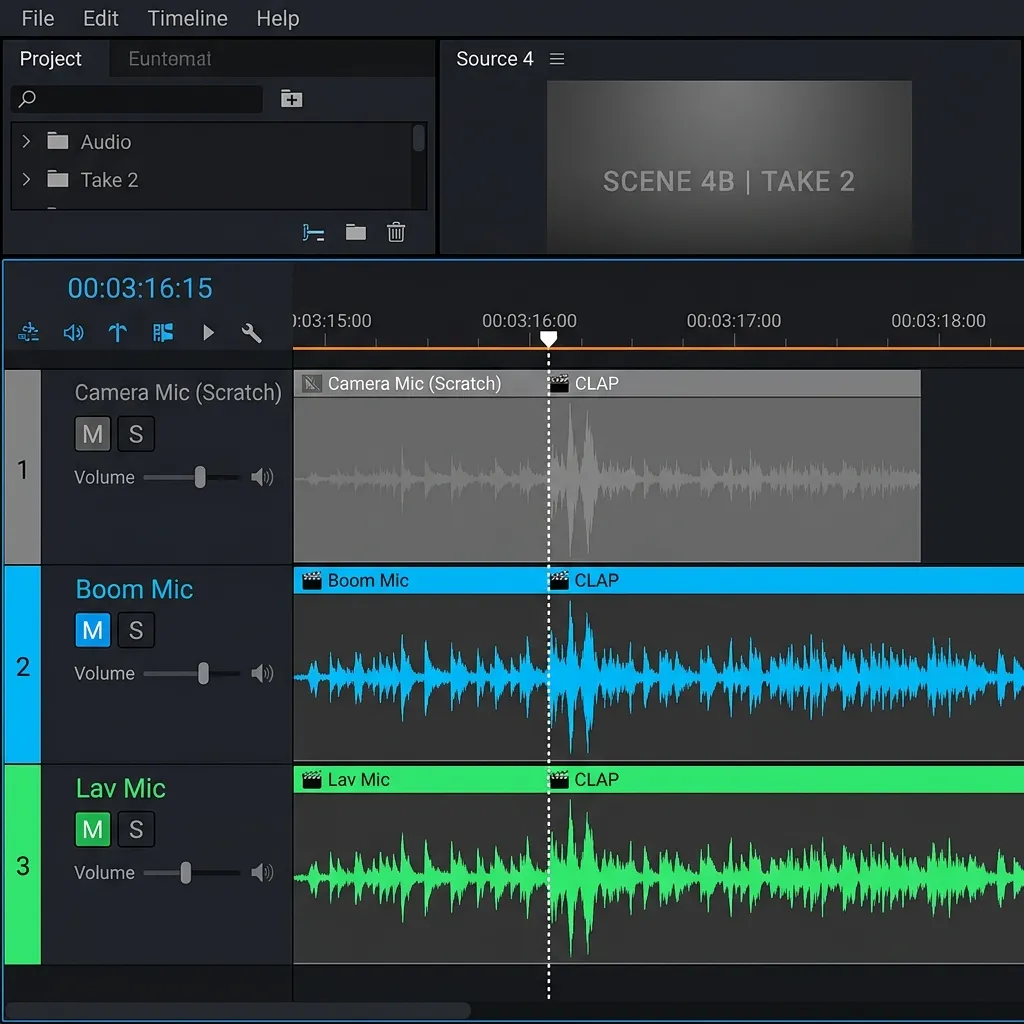
Auto-syncing works 95% of the time. But what about the other 5%? What happens when you are shooting an outdoor interview next to a busy highway, and a passing ambulance completely overwhelms your camera's scratch track, but your lavalier microphone isolates the subject's voice perfectly? The software will fail to find matching waveforms because the scratch track is ruined by background noise.
In these situations, you must know how to sync manually. This is why you clapped your hands on set.
- Drop Clips on Timeline: Place your video clip on Video Track 1 (V1) and Audio Track 1 (A1). Place your high-quality external audio on Audio Track 2 (A2) directly below it.
- Find the Visual Impact: Scrub through the video frame-by-frame using your keyboard arrow keys. Find the exact frame where your hands physically connect during the clap. Drop a marker (press 'M') on the video clip at this exact frame.
- Find the Audio Spike: Look at the green audio waveform for your high-quality track on A2. You will see a massive, sharp vertical spike where the clap occurred. Drop a marker on the audio clip exactly at the peak of that spike.
- Align the Markers: Zoom all the way into your timeline. Click and drag the audio clip left or right until the marker on the audio spike aligns perfectly with the marker on the visual clap.
- Link and Mute: Mute or delete the bad camera audio on A1. Highlight the video clip and the new A2 audio clip, right-click, and choose "Link Clips". They will now move together as one unit.
Next-Level Professional: Timecode Syncing
If you are working on a massive film set or a reality TV show with 4 different cameras and 10 different microphones, clapping your hands in front of every camera for every single take is impossible. This is where Timecode (SMPTE) comes in.
Timecode generators (like the Tentacle Sync E or Deity TC-1) are tiny boxes that you plug into all your cameras and audio recorders. These boxes generate an identical, frame-accurate digital clock (e.g., 14:02:33:12) that is stamped directly into the metadata of the video and audio files.
When you bring these files into Premiere or DaVinci, you don't use waveform syncing. You simply right-click all 500 clips and choose "Sync by Timecode". The software instantly looks at the digital timestamps and snaps every single clip into perfect alignment across multiple tracks in a fraction of a second. While timecode gear is expensive, it is a mandatory investment if you plan to work in professional broadcast or documentary filmmaking.
Dealing with Audio Drift
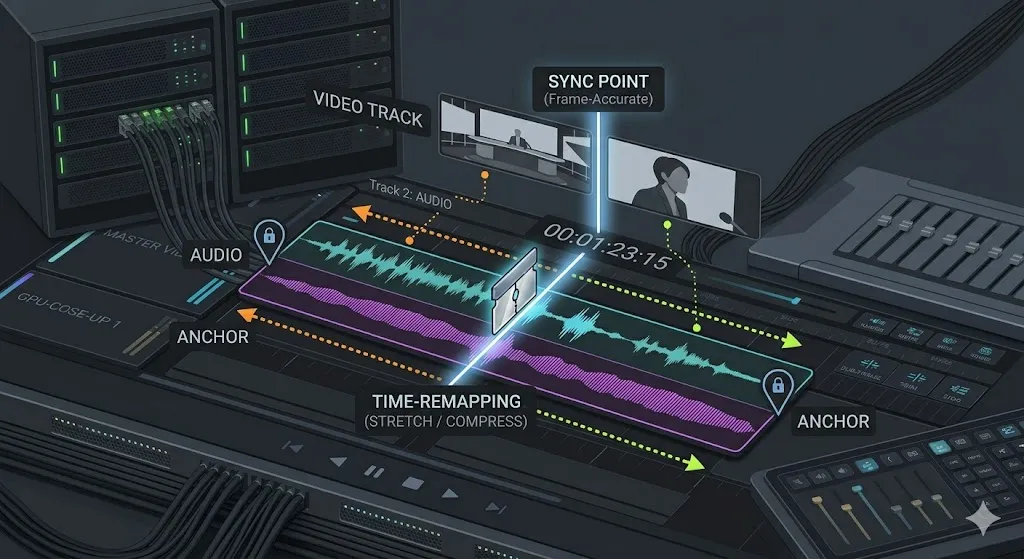
Audio drift is the absolute worst nightmare of any video editor. It happens when you sync your audio perfectly at the beginning of a 40-minute interview, but by the 20-minute mark, the audio is slightly off. By the 40-minute mark, the audio is completely out of sync by a full second, making it look like a badly dubbed martial arts movie.
"Audio drift almost drove me insane during my first documentary project. I was manually cutting and sliding audio every 5 minutes to keep it in sync. The culprit is almost always mismatched sample rates. Check your camera and your recorder—if your camera is set to 48kHz and your audio recorder is set to 44.1kHz, drift is mathematically inevitable because the two devices are essentially experiencing time at different speeds."
How to Fix Audio Drift in Post:
If the footage is already recorded and you are experiencing drift, you cannot fix it with normal syncing. You have to stretch or compress the audio.
- Sync the clap perfectly at the beginning of the timeline.
- Go to the very end of the video clip and find a distinct sound (like a door shutting or a sharp consonant in speech).
- Using the "Rate Stretch" tool in Premiere Pro (or altering clip speed in DaVinci), stretch or compress the external audio track so that the final sound perfectly aligns with the visual.
- You are usually changing the speed of the audio to something microscopic, like 99.9% or 100.1%. This tiny adjustment will stretch the audio back into perfect mathematical alignment with the video frame rate.
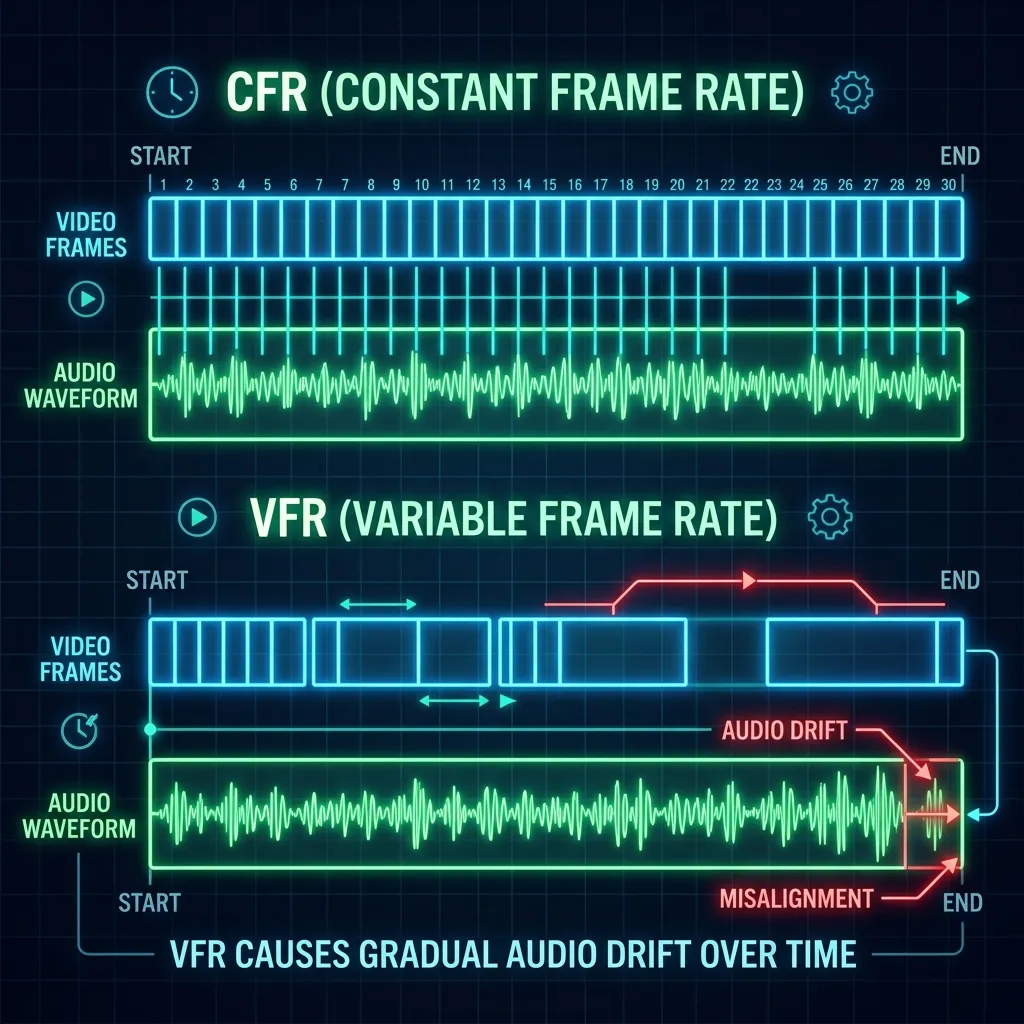
Another, more insidious cause of audio drift is shooting video with Variable Frame Rate (VFR). This is very common when recording video on iPhones, smartphones, or using screen recording software like OBS. VFR means the camera slows down and speeds up its frame capture to save data, but audio always records at a constant rate. To fix VFR drift, you must run the original video file through a free program called Handbrake to transcode it into a Constant Frame Rate (CFR) file before importing it into your editor.

Industry Best Practices Summary
To summarize, if you want to avoid sync headaches, adopt these habits permanently:
- Always record a scratch track on the camera, and boost the gain slightly so the waveform is visible.
- Always clap once loudly on camera before the action begins, even if you plan to auto-sync.
- Standardize Sample Rates: Set every device you own to 48kHz / 24-bit.
- Sync in the Bin: Merge or Auto-Sync your clips in the media pool before ever dragging them to a timeline.
- Label Your Gear: If using multiple lavaliers, clearly announce "This is Mic 1, host speaking" before the clap so you know exactly which audio file belongs to which person.
Frequently Asked Questions (FAQ)
Why is my auto-sync grayed out?
This usually means you only selected one clip. You must select both the video clip and the external audio clip simultaneously (by holding Ctrl or Cmd while clicking) to unlock the synchronize options.
Is PluralEyes still necessary?
PluralEyes used to be the gold standard for syncing massive multi-camera shoots. However, Premiere Pro and DaVinci Resolve's native waveform syncing has gotten so good that Maxon actually discontinued PluralEyes. Third-party plugins are rarely needed today unless you are dealing with dozens of unsynced, unslated clips from a chaotic wedding shoot.
What is the difference between 44.1kHz and 48kHz?
44.1kHz is the legacy sample rate created for CD audio and the music industry. 48kHz was developed specifically for syncing digital audio with digital video. You should always use 48kHz for any video production work to ensure compatibility and prevent drift.
Stop drift before it starts
Most sync problems are a frame-rate mismatch between camera and recorder. The FPS reference card lays out every common rate and where drift comes from.
Browse the cheat sheetsWas this guide helpful?