Why Workflow Is the Real Skill in Video Editing
The result is always the same: hours of wasted effort, a messy timeline that is impossible to navigate, a color grade applied to footage that was later cut entirely, and a final video that somehow feels both rushed and tedious at the same time. They spend 12 hours editing a 10-minute video. Professional editors with a solid workflow can deliver the same quality in 3 to 4 hours.
The difference is not intelligence, talent, or expensive software. The difference is having a structured, repeatable workflow that guides every decision in a logical, sequential order. This guide gives you that workflow — the same 7-step process used by professional editors at production companies, YouTubers with millions of subscribers, and documentary filmmakers at major festivals.
Before You Open the Editor: Pre-Production Mindset
Great editing starts before you ever touch your editing software. It starts in the planning stage of the shoot. The most important question you can ask before a production is: "What is this video trying to accomplish, and who is it trying to reach?"
Without a clear answer to that question, you will have no compass in the edit. Every creative decision — which take to use, how fast to pace the cuts, what music to choose, when to add a graphic — requires knowing the purpose and the audience. Write down a one-sentence "north star" for every project before shooting a single frame.
Also, before production, establish your technical standards: What resolution and frame rate will you shoot in? What color profile will you use (Log, HLG, Rec. 709)? What sample rate will your audio devices use? These decisions, made upfront, prevent hours of technical troubleshooting in the edit.
"I used to think pre-production was for big-budget Hollywood projects with 100 people on set. Then I started treating every 10-minute YouTube video as a mini-film production. I wrote a shot list, I chose my music BEFORE shooting (so I could feel the edit's rhythm on set), and I set up my folder structure before the camera even left the bag. My edit time dropped by 60% overnight. Pre-production is the highest-ROI investment you can make in your video editing career."
Step 1: Organize Your Files (The Foundation)
Do not open your editing software yet. Your first task is to build a proper file system on your computer or external drive. A disorganized file system leads to:
- The dreaded "Media Offline" error when you move files between drives
- Accidentally deleting project assets because they were buried in your Downloads folder
- Spending 20 minutes searching for a specific music file during a tight edit session
- Corrupting your project file by editing across two different drives simultaneously
Create a master project folder on a dedicated, fast external SSD (not an internal drive that shares bandwidth with your operating system). Inside, create the following subfolders:
PROJECT_NAME/
├── 01_Video/
│   ├── Camera_A/
│   └── Camera_B/
├── 02_Audio/
│   ├── Dialogue/
│   └── SFX/
├── 03_Music/
├── 04_Assets/
│   ├── Logos/
│   ├── Fonts/
│   └── Graphics/
├── 05_Exports/
│   ├── Client_Reviews/
│   └── Final_Delivery/
└── PROJECT_NAME.prproj
Copy (not move) all raw files from your SD cards and audio recorders into this structure before doing anything else. Always work from copied files — your SD card is a backup, not a working drive.
Step 2: Import Media and Sync Audio
Now open your editing software. Create a new project (making sure to set the frame rate and resolution to match your footage). Create matching bins (folders) inside the software's project panel that mirror your file system structure. Then import all media.
Critical: Sync your audio before touching the timeline.
If you recorded audio externally (with a field recorder or wireless microphone system), this is the moment to sync it. In DaVinci Resolve, select all your video clips and audio clips in the media pool, right-click, and choose "Auto Sync Audio > Based on Waveform." In Premiere Pro, select both files and use "Merge Clips" with the "Audio" sync option. This permanently attaches the high-quality audio to the video, keeping your timeline clean.
Create Proxies If You Need Them:
If you are editing 4K or 6K footage on a laptop or a less powerful desktop, this is the moment to create proxy files. In Premiere Pro, right-click your media in the Project Bin and choose "Proxy > Create Proxies" with the H.264 1280x720 preset. This generates small, low-resolution copies of your files that the computer can edit smoothly. The software automatically links to the full-quality originals during export.
"I made a video about proxy workflows and the most common comment was 'I had no idea this existed — I've been suffering through stuttering 4K playback for two years.' Please don't be that person. If your timeline playback drops below 24fps, you need proxies. Creating them takes 10 minutes and makes your editing experience 10 times more enjoyable."
Step 3: The Rough Cut — Build the Foundation
The rough cut is the most important and most undervalued phase of the editing process. Your only job is to construct the bare skeleton of your video. Nothing more.
Drag all your A-roll (primary) footage onto the timeline in order. Then, working from the beginning, use the razor tool (or "C" key) to aggressively cut out:
- Bad takes (immediately obvious mistakes)
- Dead air and awkward pauses longer than 0.5 seconds
- Repeated sections
- "Um," "uh," and filler words
- Anything that doesn't serve the video's north star statement
Here is the critical rule of the rough cut phase: Do not add music. Do not add B-roll. Do not add color correction. Do not add sound effects. Do not add titles.
Every time you break this rule and get distracted by a fancy transition or the perfect music track, you lose your momentum and waste time polishing a section that might be completely restructured or deleted five minutes later.
When you reach the end of your rough cut, watch it from start to finish. Your video will look rough and feel imperfect — that is exactly correct. You are judging whether the story flows logically. Does the opening hook the viewer? Does the middle deliver on the promise? Does the ending resolve satisfyingly? If the structure doesn't work yet, restructure sections now, before investing effort in everything else.
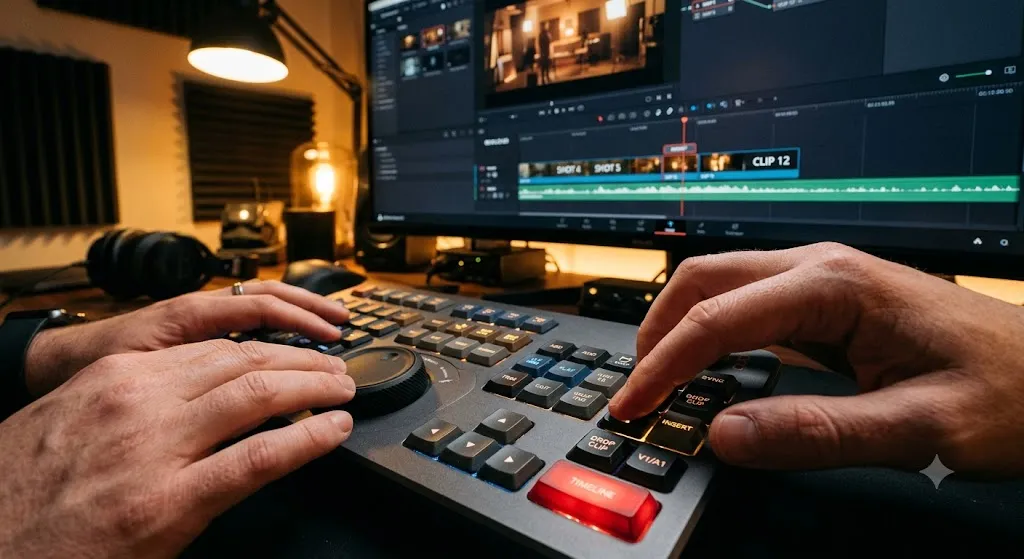
Step 4: The Fine Cut — Polish, B-Roll, and Graphics
Once the rough cut structure feels solid, you move to the fine cut phase. This is where the video begins to look and feel like a real, watchable product.
Tighten Pacing with Ripple Edits
Add B-Roll to V2
Add Lower Thirds and Title Cards
Add Transitions
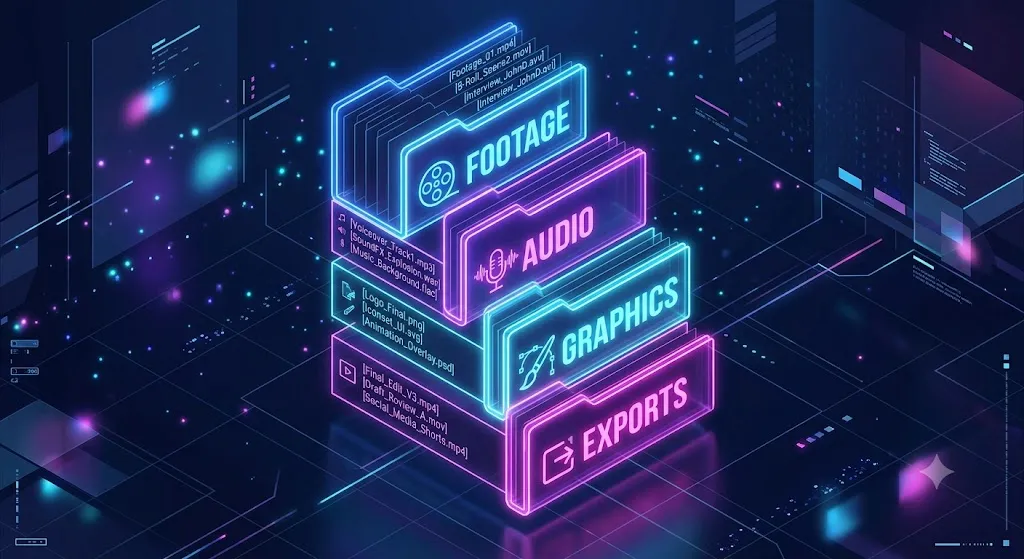

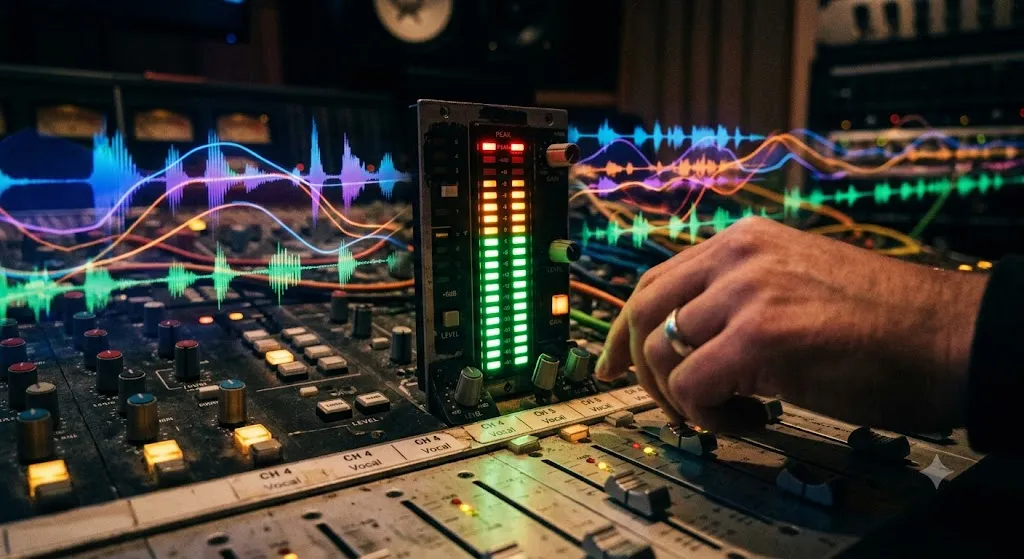
Step 5: Audio Mixing — The Invisible Art
Audiences will forgive imperfect visuals. They will not forgive imperfect audio. Audio mixing is the process of balancing every audio element so the viewer can hear the right things at the right volume, without straining or being overwhelmed.
The industry-standard target loudness levels for online video are:
| Audio Element | Target Peak (dBFS) | LUFS Target |
|---|---|---|
| Primary Dialogue | -6 dB | -14 LUFS |
| Sound Effects | -12 dB | -18 LUFS |
| B-Roll Nat Sound | -18 dB | -22 LUFS |
| Background Music | -20 to -25 dB | -26 LUFS |
Add a short audio fade (0.1 to 0.3 seconds) at every single cut point between dialogue clips. Even an imperceptible micro-fade prevents the clicking or popping that can occur when two audio clips butt up against each other hard. This single habit transforms your mix from amateur to professional.
"The biggest audio mixing mistake beginners make is judging loudness by how loud the audio sounds through their MacBook speakers or cheap earbuds. Studio monitor speakers or quality headphones (like the Sony MDR-7506) are a mandatory investment. I once delivered a video that sounded perfect on my laptop but was ear-shatteringly loud on TV because I had no reference point. You cannot mix in a bad acoustic environment."
Step 6: Color Grading — Paint the Final Canvas
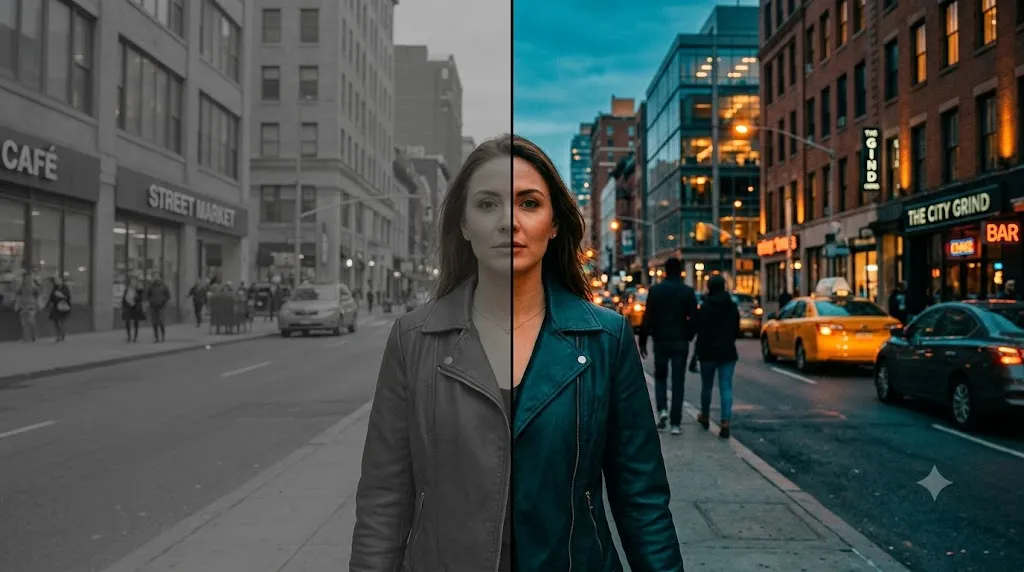
We color grade after cutting the timeline because color correction is computationally expensive. If you color grade at Step 2, your computer will stutter through every playback while you are trying to make quick editing decisions.
Color grading has two distinct phases:
- Color Correction (Technical): Fix the footage to look natural and realistic. Balance white balance, normalize exposure using the Lumetri Scopes (waveform + vectorscope), and ensure skin tones sit on the Skin Tone Indicator line in the vectorscope.
- Color Grading (Creative): Apply your artistic look after the footage is technically balanced. This could be a subtle warm grade for lifestyle content, a cold, desaturated look for documentary topics, or a distinctive teal-and-orange look for high-energy content.
Once you have graded your first clip to look exactly how you want it, copy those color settings and paste them onto every other clip shot in the same lighting conditions. In DaVinci Resolve, apply a group pre-clip grade to affect all clips from the same camera simultaneously.
Step 7: Export and Deliver the Final Video
Before exporting, perform a final quality control (QC) pass. Watch the entire video from beginning to end without touching the keyboard. Resist the urge to pause and fix things. You are looking for:
- Clips that are cut too short or too long
- Jarring audio level differences between clips
- Graphical typos in lower thirds or titles
- Color inconsistencies between B-roll and A-roll
- Any jump cuts that B-roll did not adequately cover
Once approved, use these universal export settings for web delivery:
- 📦 Container: MP4
- 🎬 Video Codec: H.264
- 📐 Resolution: Match Source
- ⚡ Bitrate: VBR 1 Pass — 20 Mbps (1080p) / 55 Mbps (4K)
- 🔊 Audio: AAC, 320 kbps, 48 kHz, Stereo
Essential Keyboard Shortcuts to Learn First
| Action | Premiere Pro | DaVinci Resolve |
|---|---|---|
| Play / Pause | Space | Space |
| Cut at Playhead | Ctrl+K | Ctrl+B |
| Ripple Delete | Alt+Delete | Alt+Delete |
| Undo | Ctrl+Z | Ctrl+Z |
| Zoom In | = | = |
| Zoom Out | - | - |
| Mark In / Out | I / O | I / O |
| Export | Ctrl+M | Ctrl+E |
Frequently Asked Questions
How long does it take to edit a 10-minute video?
For a beginner following this workflow, expect 4-6 hours for a 10-minute YouTube video with B-roll, audio mixing, and basic color grading. As you internalize the workflow and keyboard shortcuts, this naturally drops to 2-3 hours.
Should I color grade before or after cutting?
Always cut first, color grade last. Color grading is computationally intensive and will slow down your playback, making it impossible to judge pacing and timing accurately during the cut.
What external hard drive should I use for editing?
For editing 1080p footage, any USB 3.0 SSD will work. For 4K footage, use a Thunderbolt or USB 3.2 Gen 2 SSD with read speeds above 1,000 MB/s (such as the Samsung T7 Shield or SanDisk Extreme Pro).
Do I need a high-end computer to edit video?
Not necessarily. A laptop with a recent-generation Apple M-series chip, or a desktop with an NVIDIA RTX 3060 or higher GPU, can edit 4K footage smoothly. The key bottleneck is always RAM (aim for 32GB) and storage drive speed, not necessarily the CPU.
Build the habit, not just the edit
A repeatable workflow beats talent on a deadline. Start with the timeline basics card, then add the shortcuts and export sheets as you get faster.
Browse the cheat sheetsWas this guide helpful?