Why Color Is the Most Misunderstood Part of Video Editing
Yet most beginner editors either ignore color entirely (leaving footage with the sickly, green cast of fluorescent office lighting) or overcorrect in the opposite direction (applying a fashionable "cinematic LUT" to ungraded footage, producing a result that looks simultaneously oversaturated and flat).
Professional colorists who command $500 per hour understand that color work is a two-phase process: a precise technical phase (color correction) followed by an intentional artistic phase (color grading). Skipping the technical phase and jumping straight to the creative phase is like trying to paint a masterpiece on a dirty, crumpled canvas.
Color Correction vs. Color Grading: The Critical Distinction
These two terms are used interchangeably by beginners, but they represent fundamentally different workflows:
🔧 Color Correction
The technical phase. Goal: make the footage look exactly as the human eye perceives reality. Corrects white balance errors, exposure problems, and color casts introduced by mixed lighting conditions or incorrect camera settings. This is objective — it either looks natural or it doesn't.
🎨 Color Grading
The creative phase. Goal: apply a distinctive artistic look, mood, or visual identity to the corrected footage. This is where you push colors toward a specific aesthetic — warm and cinematic, cold and corporate, high-contrast and gritty. This is subjective and driven by creative intent.
"You must eat your vegetables before you get dessert. Color correction is the vegetables — boring, technical, and absolutely mandatory. A LUT applied directly to log or flat footage doesn't 'grade' it — it just makes the footage look like it has been run through a filter that was designed for a completely different image. I have fixed dozens of client videos where a previous editor's 'cinematic grade' was actually just a LUT applied to uncorrected S-Log footage. The result was always hideous."

Stop Trusting Your Eyes — Use the Scopes
Here is an uncomfortable truth: your eyes are terrible color judges. Your visual cortex is constantly adapting and compensating for the ambient light in your room, the color temperature of your monitor's backlight, and even the colors of the objects surrounding your screen. What looks "perfect" on your monitor in a brightly lit room will look completely different on a calibrated reference monitor in a dark room.
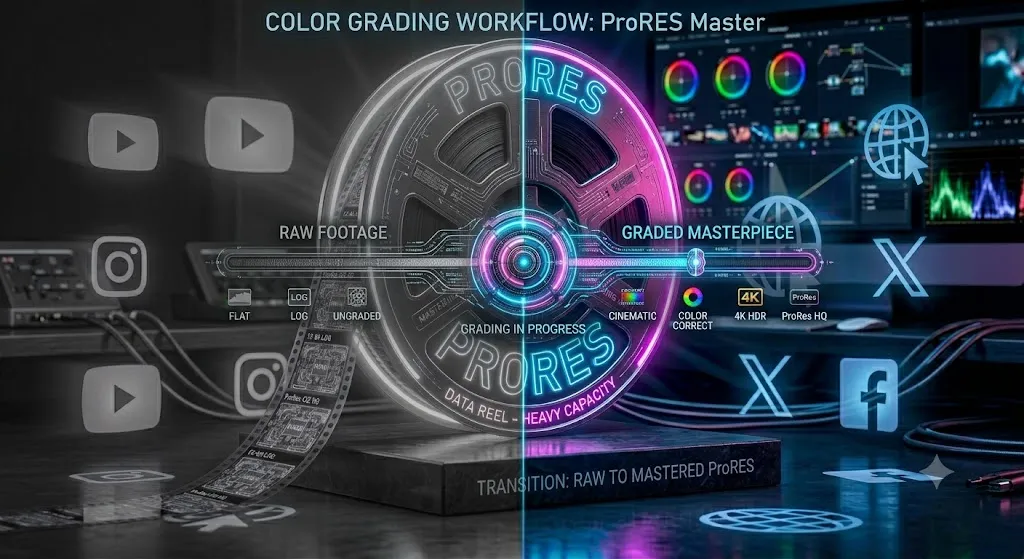
Professional colorists use video scopes — mathematical instruments that analyze the raw data values of every pixel in your video frame and display them as a graph. Scopes never lie, never adapt to ambient light, and never get tired. Learning to read them is the single most important technical skill in the color workflow.

How to Read Video Scopes
The Waveform Monitor (Luminance / Brightness)
The Vectorscope (Color / Hue)
The Parade Scope (R/G/B Channels Separately)
Fixing White Balance
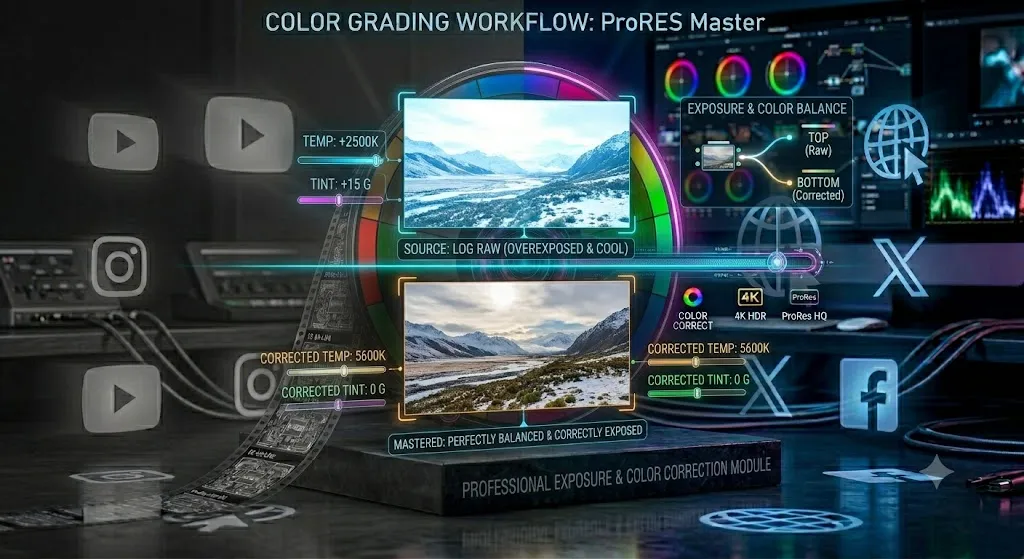
White balance errors are the most common color problem in amateur footage. They occur when the camera was set to the wrong color temperature (measured in Kelvin) for the ambient light source.
- Daylight (5500K–6500K): Natural outdoor sunlight. Footage looks neutral and pleasing when shot in these conditions with daylight WB.
- Tungsten/Incandescent (2800K–3200K): The warm orange glow of traditional light bulbs. Footage shot under tungsten with a daylight WB looks very orange and warm.
- Fluorescent (4000K–4500K): The green-tinted light of office buildings and supermarkets. Footage shot under fluorescent lights has a sickly green cast that is the hardest to fix in post.
- LED (varies widely): Modern LEDs vary dramatically — from very warm (2700K) to very cool (6500K). Always check the CRI (Color Rendering Index) of your LED lights; cheaper LEDs with a CRI below 90 introduce color spikes that cannot be corrected in post.
"The absolute fastest way to fix white balance in Premiere Pro or DaVinci is the White Balance Selector eyedropper. Click it, then click on something in your frame that you know should be perfectly neutral gray or white — a white wall, a gray card, a sheet of paper. The software instantly recalculates the entire image so that element is neutral gray. This single click often fixes 80% of a bad white balance situation."
Normalizing Exposure: The Correct Order of Operations
Always adjust your exposure sliders in this exact order. Doing them in the wrong sequence forces you to redo earlier corrections.
- Contrast: If shooting in Log or S-Log profile, apply a starting contrast value to restore a baseline visual response before touching anything else.
- Blacks (Lift): Pull the blacks slider until the darkest shadows in your waveform just touch the 0 line. Going below 0 crushes the blacks and destroys shadow detail.
- Whites (Gain): Bring up the whites until the brightest highlights sit around 90-95 on the waveform. Keeping them slightly away from 100 preserves highlight detail and avoids clipping.
- Exposure / Gamma (Midtones): With blacks and whites set, adjust the midtone exposure to position the subject's face in the middle range of the waveform.
- Saturation: Gently increase or decrease overall saturation until skin tones look healthy and natural colors are vibrant but not artificially oversaturated.
The Sacred Rule: Protect Skin Tones
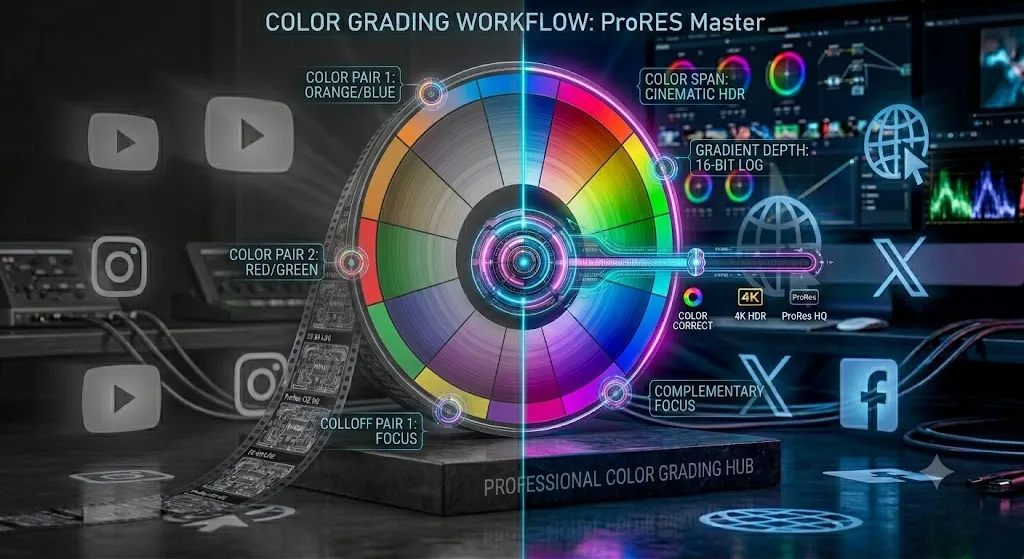
Of all the colors in your frame, human skin tones are the most critical to get right. Audiences are extraordinarily sensitive to unnatural skin tones — we are biologically evolved to detect unhealthy or frightened faces. A green cast on skin reads as sickness. A blue cast reads as cold or corpse-like. Skin that is too orange reads as sunburned or artificial.
The Skin Tone Indicator on the vectorscope is your gold standard. Always ensure that the skin tone trace in your vectorscope falls directly on this line before proceeding to the creative grade. If it drifts into the green or magenta territory, use the Hue vs. Saturation or Hue vs. Hue curves in your color tools to gently push skin tones back onto the indicator line.

Matching Shots from Different Cameras or Lighting
In any multi-camera shoot or documentary scenario, you will inevitably have shots filmed under slightly different lighting conditions. Cutting between an interview shot in warm afternoon light and a close-up shot 20 minutes later in cooler evening light creates jarring visual inconsistencies that the audience subconsciously notices.
The comparison monitor is your most powerful tool for matching shots. In DaVinci Resolve:
- Enable the Comparison View in the Color page.
- Set the Reference frame to the clip you want to match.
- Adjust the current clip's waveform until it mirrors the reference clip's waveform exactly.
In Premiere Pro, use the "Auto Match" feature in the Lumetri Color panel to automatically match one clip's color profile to another. It is not perfect but provides an excellent starting point.

Creative Color Grading: Applying Your Visual Identity
With all shots technically corrected and matched, you can now apply your creative grade. The most powerful tools at this stage are:
- Color Wheels (Lift/Gamma/Gain): Push the Lift wheel slightly toward teal to lift the shadows into a teal hue. Push the Gain wheel toward orange to warm the highlights. This creates the iconic "teal and orange" cinematic look.
- Hue vs. Saturation Curves: Boost the saturation of only specific colors. Crank the saturation of blues and cyans for landscape and travel footage. Reduce the saturation of reds and yellows for a muted, editorial look.
- Vignette: A subtle darkening of the frame edges draws the eye toward the center of the frame. Keep the vignette subtle — if the viewer can clearly see the vignette, it is too strong.
"Restraint is the mark of a great colorist. Every time I watch a beginner's color grade, the most common mistake is pushing every slider to its extreme. The skin looks radioactively orange. The shadows are crushed to absolute black. The saturation is 200%. Cinematic color grades are actually incredibly subtle. Put your grade on a clip, then reduce the overall opacity of all your corrections by 30%. You'll often find that is the correct intensity."


Using LUTs Correctly
A LUT (Look Up Table) is a file that mathematically maps every input color value to a specific output color value. They are essentially color presets in a universal file format (.cube or .3dl). LUTs come in two types:
- Technical LUTs (Camera LUTs): Convert log or flat footage to a standard Rec. 709 or DCI-P3 color space. These are used in the correction phase to normalize the baseline image. Examples: ARRI LogC3 to Rec.709, Sony S-Log3 to Rec.709.
- Creative LUTs: Apply a visual style, color palette, or mood to already-corrected footage. Examples: Warm Cinematic, Faded Film, Moody Blue, Bleach Bypass.

The most common beginner mistake is applying a creative LUT to log footage (without a technical LUT first). Log footage is flat and desaturated by design — applying a creative LUT to it will produce a dull, washed-out result that looks nothing like the LUT's intended preview.

Frequently Asked Questions
What is the difference between color correction and color grading?
Color correction is the technical process of fixing footage so it looks natural and realistic. Color grading is the creative process of applying an artistic look or mood to the already-corrected footage.
Should I color correct before or after cutting?
Always cut your timeline first, then color grade. Color grading uses significant GPU processing power, which slows down your timeline playback and makes it impossible to judge pacing accurately.
What is a LUT and how do I use one?
A LUT (Look Up Table) is a preset file that maps specific input color values to specific output color values. Always apply a LUT only AFTER color correction, never to raw or log footage directly.
Do I need a color-calibrated monitor for color grading?
Ideally yes. At minimum, use a high-quality IPS display and judge by the scopes (Waveform, Vectorscope) rather than your eyes alone. A cheap TN panel monitor is entirely unsuitable for professional color work.
Get the grade right before you reach for a LUT
A LUT applied to uncorrected footage will always look wrong. Balance first — then keep the resolution and file format cards handy so your export doesn’t undo the work.
Browse the cheat sheetsWas this guide helpful?