What Is Chroma Keying (and Why Green)?
Green is the preferred screen color for several precise technical reasons:
- Digital sensor sensitivity: Modern CMOS and CCD sensors capture more luminance information in the green channel than in red or blue. This is because the human eye is most sensitive to green light, and camera manufacturers designed their sensors to match. More green data means a cleaner, more accurate key.
- Human skin tones: Human skin contains significant amounts of red and orange. A green screen has zero overlap with skin tones, which prevents the keying algorithm from accidentally removing the subject's face.
- Clothing considerations: Most everyday clothing avoids vivid, saturated green. Blue screens are still used in specific situations where the subject is wearing green (military uniforms, sports green, etc.).
The fundamental principle: the keying software looks at every pixel in the frame, identifies pixels that match the defined "key color" (vivid green) above a threshold, and makes those pixels transparent. The quality of the final key depends almost entirely on how even and saturated the green screen is — which is entirely determined by the quality of your lighting setup.
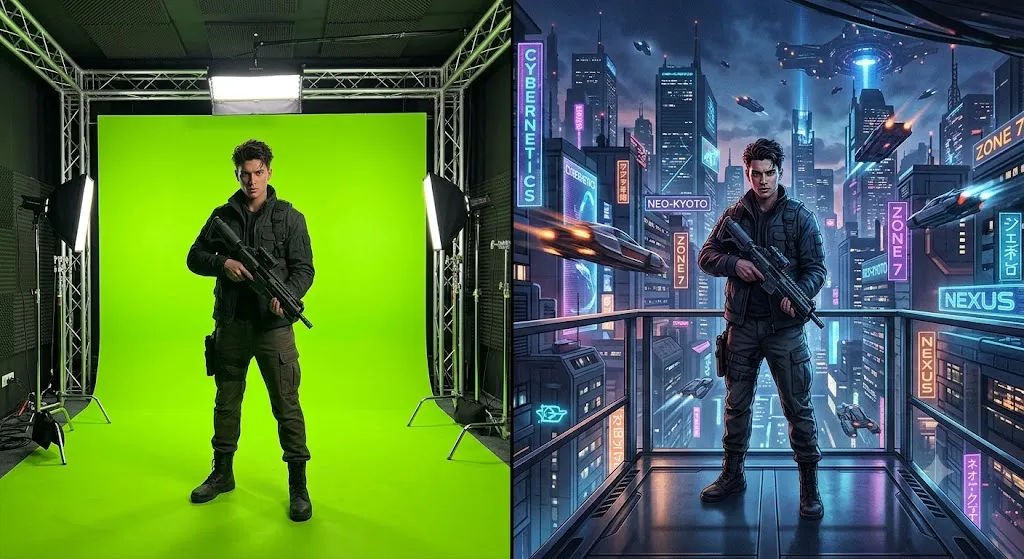
The Most Important Step: Lighting the Green Screen Evenly
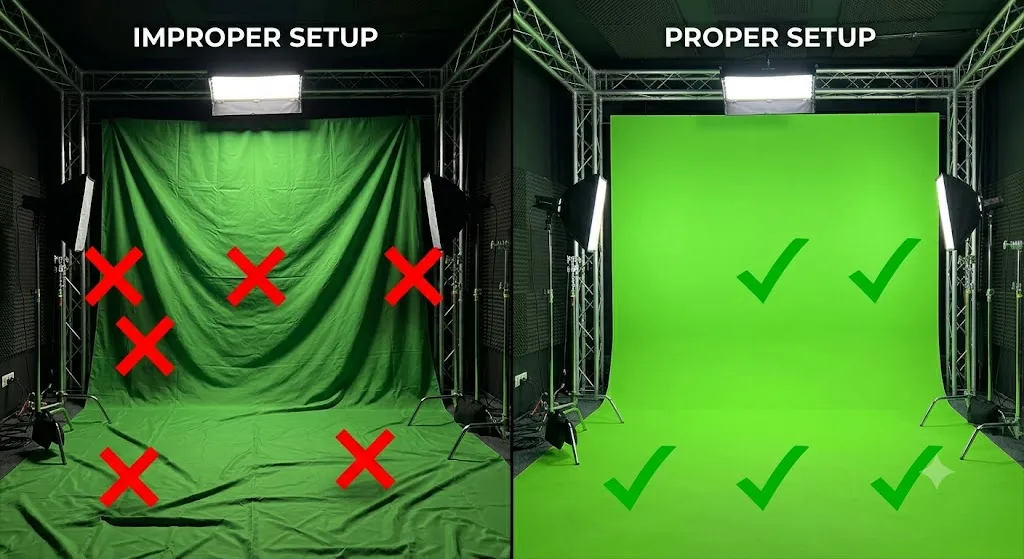
This is where 90% of failed green screens originate. A green screen with uneven lighting — bright spots, dark shadows, wrinkles, or creases — creates variations in the green tone across the surface. The keying software cannot distinguish between "a shadow on the green screen" and "a shadow on the subject's dark clothing." Both look like "not green enough to remove," and you end up with patches of the green screen left behind after keying.
The rules for screen lighting:
- Use two lights symmetrically: Place one light on each side of the green screen at approximately 45-degree angles. Both lights should be at the same power, the same distance from the screen, and the same color temperature.
- Use large, soft sources: Softboxes, LED panels, or fluorescent banks spread light evenly. Bare bulbs or small spotlights create hot spots and falloff. The larger the light source relative to the screen, the more even the illumination.
- Measure with a light meter: For professional work, use a light meter to verify that the exposure across the left side, center, and right side of the screen is within one-third of a stop of each other.
- Keep the subject far from the screen: Position the subject at least 5-6 feet (1.5-2 meters) in front of the green screen. Subjects standing too close cast shadows on the screen, and the green light reflects off the screen onto the subject (green spill).
"I've seen $10,000 professional cameras produce terrible keys because the green screen was lit with a single LED panel on the ceiling, leaving the bottom half of the screen in shadow. And I've seen a $60 portable green screen produce stunning keys because the lighting setup was perfect. The camera is almost irrelevant. The lighting is everything. Spend 80% of your green screen setup budget on lights, and 20% on the screen itself."

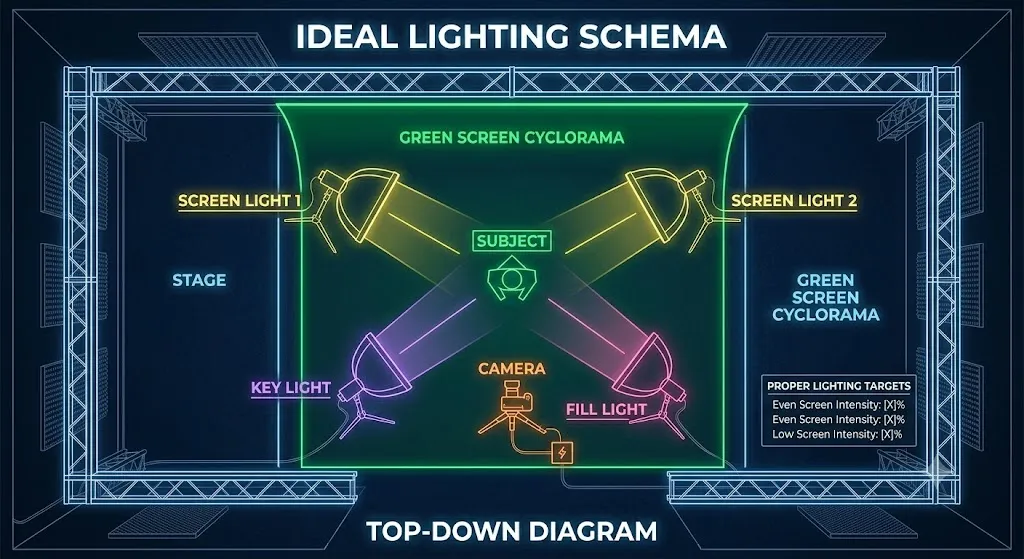
Lighting the Subject: Matching the Background
After lighting the screen, you must light the subject independently — and crucially, you must light them to match the artificial background you intend to place behind them in post-production.
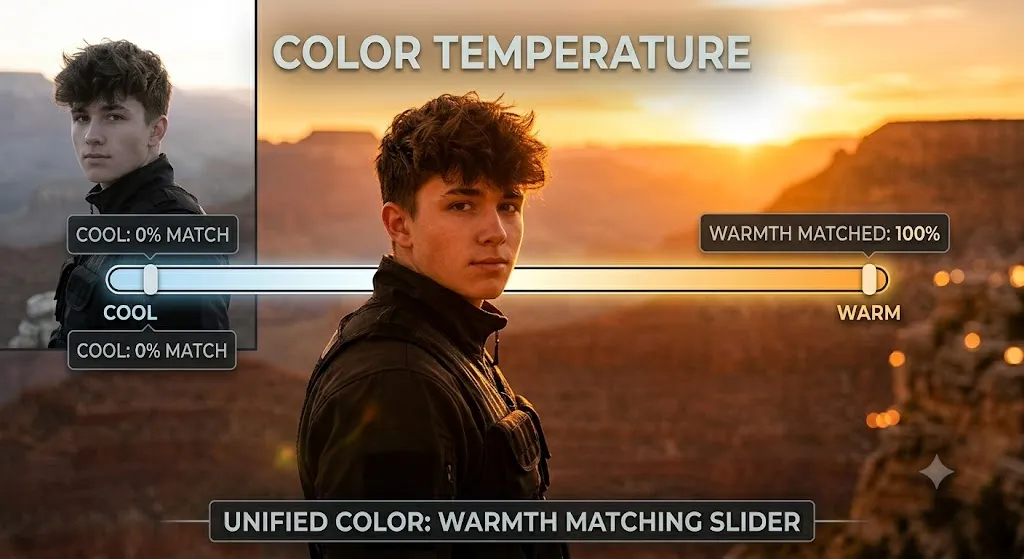
If your background plate shows a scene lit by warm, late-afternoon sunlight coming from camera-left, your subject must also be lit with warm light from camera-left. If the background shows a cold, overcast sky, your subject should be lit with cooler, diffused light. A mismatch between the subject's lighting and the background plate's lighting is the primary reason composites look fake — even with a technically perfect key.
Professional VFX supervisors always plan the background plate first, then design the on-set lighting to match it. As a solo creator working with pre-selected stock footage backgrounds, always check the apparent direction and color temperature of your background's light source before you set up a single light for your subject.
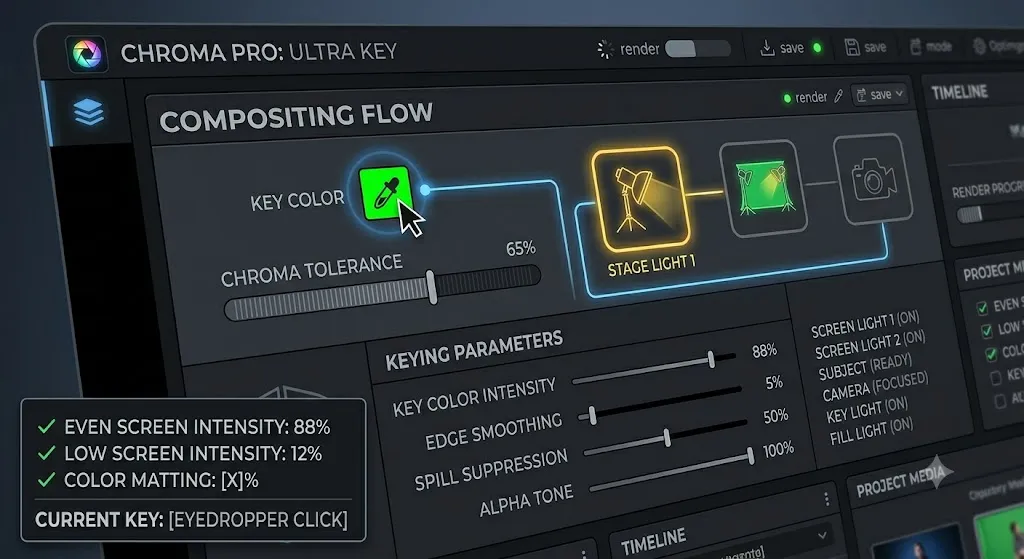
Camera Settings for Green Screen
Use the Highest Bit Rate and Color Depth Available
Avoid Auto ISO and Auto Exposure
Use a Slightly Slower Shutter Speed
Avoid Wrinkled or Reflective Screens
Keying in Adobe Premiere Pro (Ultra Key)
Premiere Pro's chroma keying tool is called the Ultra Key effect, found in the Effects panel under Video Effects > Keying.
- Drag the Ultra Key effect onto your green screen footage on the timeline.
- In the Effect Controls panel, click the eyedropper icon next to "Key Color."
- Click on the brightest, most evenly lit part of the green screen in the Program Monitor — avoid shadows and edges.
- Change the "Output" dropdown from "Composite" to "Alpha Channel" temporarily so you can see the matte. Pure white = opaque (subject), pure black = transparent (key), gray = partial transparency (problem areas).
- Adjust the "Matte Generation" sliders: increase "Tolerance" to remove gray areas. Use "Pedestal" and "Shadow" to clean up the black areas.
- Switch the Output back to "Composite" and place your background plate on Video Track 1 below the green screen footage.
Keying in DaVinci Resolve (Fusion Delta Keyer)
DaVinci Resolve uses the Fusion compositing environment for green screen work, which is significantly more powerful than Premiere's Ultra Key but has a steeper learning curve.
- Place your green screen footage on the timeline. Right-click and select "Open in Fusion Page."
- In the Fusion node graph, add a Delta Keyer node between the MediaIn and MediaOut nodes.
- In the Delta Keyer parameters, use the eyedropper to sample the green from your footage in the viewer.
- Switch the viewer to "Matte" mode to inspect the alpha channel. Use the "Solid" and "Fringe" controls to clean the matte.
- Add a Background node (for your replacement background image or video). Connect it to a Merge node. Connect the Delta Keyer output to the Foreground input of the Merge node.
"DaVinci Resolve's Delta Keyer is genuinely superior to Premiere's Ultra Key for difficult footage — fine hair, semi-transparent fabrics, smoke. The node-based compositing workflow in Fusion feels overwhelming at first, but once you understand that every node is just a specific operation (key here, merge here, blur here), it becomes incredibly logical. I switched all my green screen work from Premiere to Resolve three years ago and I've never looked back."
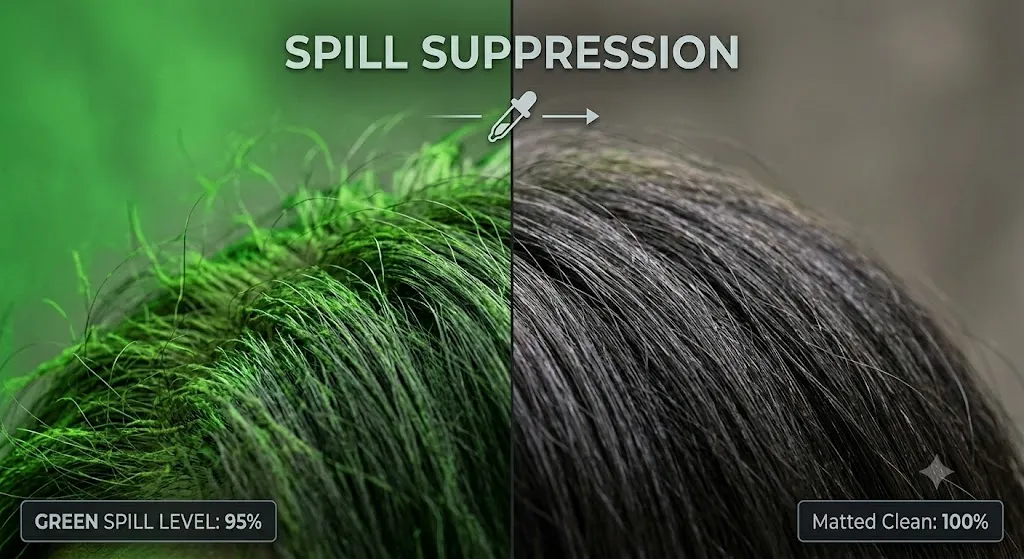
Green Spill: The Invisible Killer of Composites
Green spill is the phenomenon where green light from the illuminated screen reflects back onto the subject, casting a visible green color cast on their hair, shoulders, and the sides of their face. It is the most common problem in green screen composites and the second most common reason amateurs' composites look fake (after bad lighting).
Spill occurs because the green screen is essentially a large, green light source radiating reflected green light in all directions. The solution is threefold:
- Physical distance: The further the subject stands from the screen, the less spill reaches them. Minimum 5-6 feet.
- Spill suppression effects: In Premiere Pro, after applying Ultra Key, add the "Spill Suppressor" effect and set its color to green. This selectively desaturates green tones from the key areas.
- Color correction: In DaVinci Resolve, use a Hue vs. Saturation curve to reduce the saturation of the green hue specifically on the subject after keying.
Edge Refinement: Hair, Flyaways, and Transparency
Human hair is one of the most technically challenging elements to composite cleanly. Individual hair strands are semi-transparent, catching the green light behind them and appearing partially translucent — meaning they cannot be made either fully opaque or fully transparent with basic keying.
Professional solutions include:
- Backlighting the subject: A rim light placed behind and above the subject creates a bright edge around the hair that separates it clearly from the green screen, making it dramatically easier to key.
- Matte Choker: Use the Matte Choker effect in Premiere (or the Erode/Dilate tools in Fusion) to fine-tune the exact edge of the key along hair areas.
- Rotoscoping as a last resort: For truly difficult hair or transparent fabric elements, frame-by-frame rotoscoping using dedicated tools like Silhouette or the Roto Brush in Premiere Pro may be required.
Green Screen Mistakes That Ruin Composites
- Subject wearing green: Any green clothing, jewelry, or accessories will be keyed out along with the screen. Wardrobe check is mandatory before every green screen shoot.
- Uneven screen lighting: As discussed, the most common cause of failed keys. Fix in lighting, not in software.
- Subject too close to screen: Creates shadow and spill. Move them further away.
- Wrong camera movement: If the background plate is a static image but the camera pans or tilts during the take, the mismatched motion will immediately reveal the composite. Either lock your camera or use a moving background plate that matches your camera motion.
"The most underrated green screen tip I can give: shoot a few seconds of the green screen with NO subject in frame, at the start of every single take. This 'clean plate' — a pure, subject-free frame of the lit screen — can be used by advanced keying software to create a perfect reference matte without any assumptions about where the subject ends and the screen begins."
FAQ
Can I use a blue screen instead of green?
Yes. Blue screens are used when the subject is wearing green, and in situations with specific lighting. Blue keying tends to produce more noise in dark areas because the blue channel has the lowest luminance in most digital sensors. Green is preferred for the majority of production work.
What is the minimum green screen size I need?
Your green screen needs to fill the entire camera frame behind the subject, plus a buffer of at least 12-18 inches around all edges to prevent the background from showing when the subject moves.
Do I need a real green screen or can I use a painted wall?
A painted wall works. Use chroma key green paint (available at most hardware stores). The key requirement is uniform matte reflectivity — avoid glossy or semi-gloss paints which create hot spots.
Key it right in camera first
No preset saves a badly lit screen. Once the key is clean, the resolution and file format cards will keep your export from reintroducing edge artefacts.
Browse the cheat sheetsWas this guide helpful?