Why Keyboard Shortcuts Are Non-Negotiable
Every second you reach for the mouse to click a menu item that has a keyboard equivalent is a second your creative momentum slows. At 40 cuts per minute — the pace of a tight, energetic edit — stopping to mouse-click takes 3-4 seconds per cut. That is 2-4 extra minutes of clicking per hour of edit time, purely wasted on navigation.
More importantly, working at keyboard speed means your hands keep pace with your brain. When you know the shortcut, the cut happens as fast as you think it. When you rely on the mouse and menus, there is a 3-second lag between the thought and the execution — long enough for the idea to feel less certain, less confident.

"I once mentored a beginner who was editing a 5-minute YouTube video and spending 6 hours on it. I sat next to them and watched for 20 minutes. The problem was immediately obvious: they were clicking through 4-5 menu levels for every single cut. Every delete was a right-click menu. Every play/pause was a mouse click on the transport bar. I wrote down 10 shortcuts, told them to spend 2 days using only those, and come back. They came back on day 3 and their editing speed had tripled. The content quality was the same. The time was radically different."
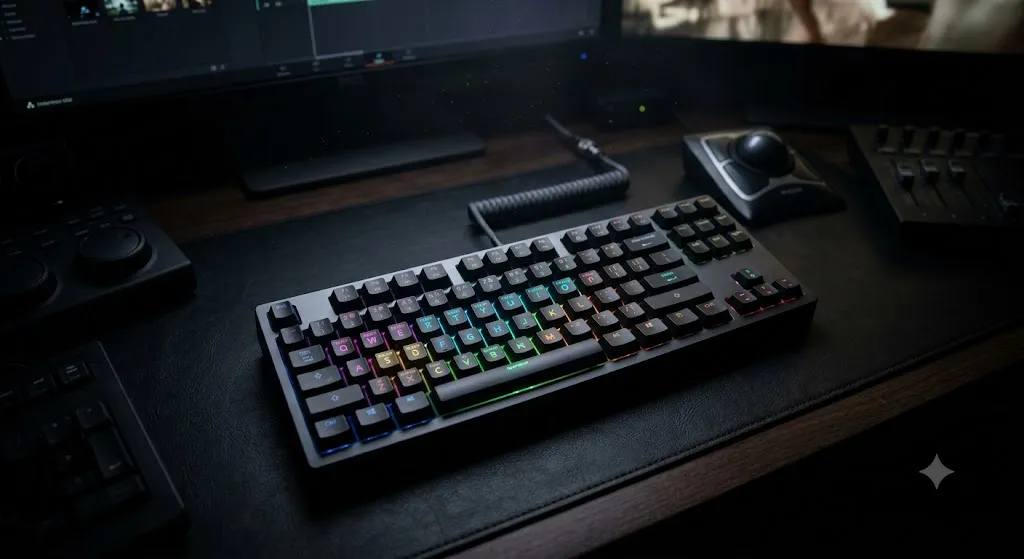
The Most Important Shortcuts: Playback & Navigation
Before anything else, master the JKL shuttle control. This three-key system originated on professional edit bays decades ago and remains the fastest way to navigate footage:
- J: Play backward (press multiple times to increase speed)
- K: Pause / Stop
- L: Play forward (press multiple times to increase speed)
Holding K while pressing J or L scrubs backward or forward one frame at a time. This is faster than using the arrow keys for frame-level navigation, because you don't have to reposition your hand.
Combine JKL with the I and O keys (Mark In and Mark Out). Shuttle to the start of the section you want, press I. Shuttle to the end, press O. You have now defined a selection. Press comma (,) or period (.) to insert or overwrite that selection into the timeline. This four-key sequence performs what used to require 6+ mouse clicks.

Cutting, Trimming, and Deleting
The Razor (C) vs. Trim (T/B)
Ripple Delete (Alt+Delete)
Roll Edit (No Tool Needed in Resolve)
The Full Keyboard Shortcut Reference Table
Use this comprehensive table to find the right shortcut for your software. Bookmark this page or download the cheat sheet at the bottom.
| Action | Premiere Pro | DaVinci Resolve | CapCut |
|---|---|---|---|
| Play / Pause | Space | Space | Space |
| Rewind / FF (JKL) | J / K / L | J / K / L | J / K / L |
| Step One Frame | ← / → | ← / → | ← / → |
| Razor / Blade Cut | C | Ctrl+B | S |
| Selection Tool | V | A | V |
| Ripple Edit Tool | B | T | - |
| Mark In / Mark Out | I / O | I / O | I / O |
| Ripple Delete | Alt+Delete | Alt+Delete | Delete |
| Undo / Redo | Ctrl+Z / Ctrl+Shift+Z | Ctrl+Z / Ctrl+Shift+Z | Ctrl+Z |
| Zoom In / Out | = / - | = / - | Scroll |
| Fit Timeline | \ | Shift+Z | - |
| Match Frame | F | F | - |
| Lift / Extract | ; / ' | Delete / Shift+Delete | - |
| Snap On/Off | S | N | - |
| Render Timeline | Enter | Ctrl+R | - |
| Export | Ctrl+M | Ctrl+E | Ctrl+E |
| Add Marker | M | M | M |
| Full Screen Toggle | ` | P | - |
| Mute Track | Ctrl+Shift+M (toggle) | Shift+M | - |
| Rate Stretch Tool | R | Ctrl+R | - |

"The Match Frame shortcut (F in both Premiere and Resolve) is criminally underused by beginners. You are on the timeline and you want to go back to the original source clip in the project bin to grab additional footage from that same take. Press F and the source monitor instantly jumps to the exact frame of that clip in the bin. No hunting through folders. No scrubbing. One keystroke. I use it dozens of times per edit session."

Audio-Specific Shortcuts
Audio editing has its own set of time-saving shortcuts:
- Ctrl+Shift+K (Premiere): Enables/disables audio track targeting. Use this to control which tracks receive pasted clips.
- G (Premiere) / Ctrl+Alt+L (Resolve): Opens the Gain dialog for the selected audio clip, allowing precise dB adjustments without opening the Audio Track Mixer.
- Shift+5 (Premiere): Opens the Audio Clip Mixer panel — essential for real-time audio level adjustment during playback.
- Alt+Click and drag (Premiere): Changes the volume of an audio clip by dragging the white volume line on the clip itself — faster than opening any panel.

Color and Effects Shortcuts
- Shift+5 (Premiere) / Ctrl+4 (Resolve): Opens the Color workspace. Fastest way to jump into color grading mode.
- Ctrl+Shift+C (Premiere) / Alt+V (Resolve): Copy attributes / Paste Grade. Copies all color adjustments from one clip and pastes them onto a selected clip — essential for matching shots.
- Ctrl+Alt+C (Premiere): Create a new color matte — useful for creating background plates for titles.
- D (DaVinci Resolve): Enables/disables the grade on the current node. Use this to A/B compare your grade against the raw footage.

Customizing Shortcuts for Your Workflow
The default shortcuts are sensible, but they don't account for your specific habits and workflow. Professional editors customize their keyboard to prioritize the actions they perform most frequently.
Premiere Pro: Edit > Keyboard Shortcuts (Ctrl+Alt+K)
DaVinci Resolve: Resolve Menu > Keyboard Customization
"My most productive customization: I remapped 'Ripple Delete' to just the Backspace key (without needing Alt). I perform ripple deletes dozens of times per edit session. Removing the modifier key saves milliseconds per action — which adds up to minutes over a full edit day. Think of your most-repeated actions and make their shortcut the simplest possible key."
Building Genuine Muscle Memory
Knowing a shortcut and having it in muscle memory are completely different things. Muscle memory means the hand moves to the key before the conscious brain has finished forming the thought. Achieving this requires deliberate, uncomfortable practice.
The fastest method for building editing muscle memory:
- The Cold Turkey Method: Tape a piece of paper over your mouse for one full edit session. You will be slow, frustrated, and you will make mistakes. You will also permanently hard-wire 10 shortcuts into your fingers in a single session.
- The Priority Stack: Write down your 5 most-used actions on a sticky note. Those 5 shortcuts only for one week, then add 5 more the next week. Layered learning is significantly more effective than trying to memorize 50 shortcuts at once.
- The Verbal Cue Method: For the first 2 weeks, say the shortcut name out loud as you press it. "J for rewind." "Ripple delete." The verbal component creates a second memory pathway alongside the physical one, accelerating retention.
Never forget a shortcut again
Our printable Keyboard Shortcuts card covers playback, editing, trimming and timeline navigation for Premiere Pro, DaVinci Resolve and Final Cut Pro.
Download the shortcuts cardWas this guide helpful?