Why Multi-Camera Editing Exists
Multi-camera production (multi-cam) is the industry standard for interviews, podcasts, live events, weddings, concerts, corporate conferences, reality TV, and any content where maximum coverage of a live, unrepeatable event is required. The editorial challenge is then to intelligently cut between these multiple angles in a way that feels dynamic and purposeful, rather than random or chaotic.
Modern editing software has made this dramatically easier through dedicated multi-camera workflows. What once required a dedicated hardware switcher and a team of operators can now be accomplished by a single editor working in Premiere Pro or DaVinci Resolve.
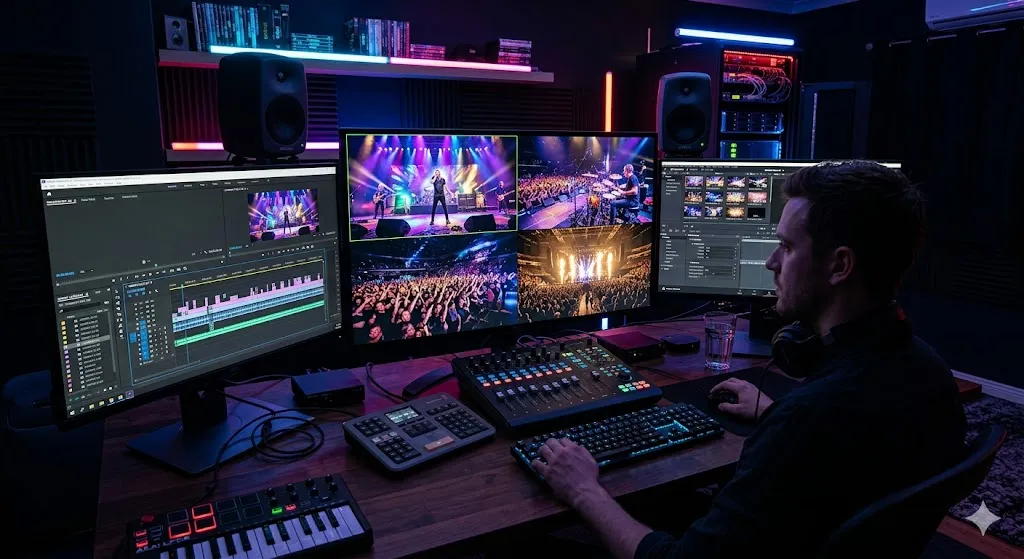
When to Deploy a Multi-Camera Setup
Multi-camera setups are not always the right choice. They require significantly more gear, more preparation, more memory card capacity, more hard drive space, and more editing time for syncing and management. Use multi-cam when:
- The event is live and unrepeatable: Weddings, concerts, live interviews, sports events.
- You need reaction shots simultaneously: Two-person podcasts or interviews where you want to cut between speaker and listener without stopping the conversation.
- Coverage of a wide physical space: A conference panel with 5 speakers, where a single camera cannot capture all speakers at an adequate size simultaneously.
- You want to match a broadcast aesthetic: News programs, talk shows, and game shows use multi-cam to create a sense of visual variety and energy.
"I set up a two-camera system for every interview I shoot now — even solo interviews with a single subject. Camera A is the primary medium shot. Camera B is a tighter close-up from a slightly different angle. I almost never use more than 30 seconds of Camera B per video, but having it available removes the creative pressure of having to cut perfectly. I can use Camera B to bridge any section that felt awkward. Two cameras is the minimum viable configuration for interview editing."
Setting Up for a Multi-Camera Shoot
Successful multi-camera editing begins with disciplined on-set habits. Mistakes made on set during a multi-cam shoot are magnified in the edit.
Standardize All Camera Settings
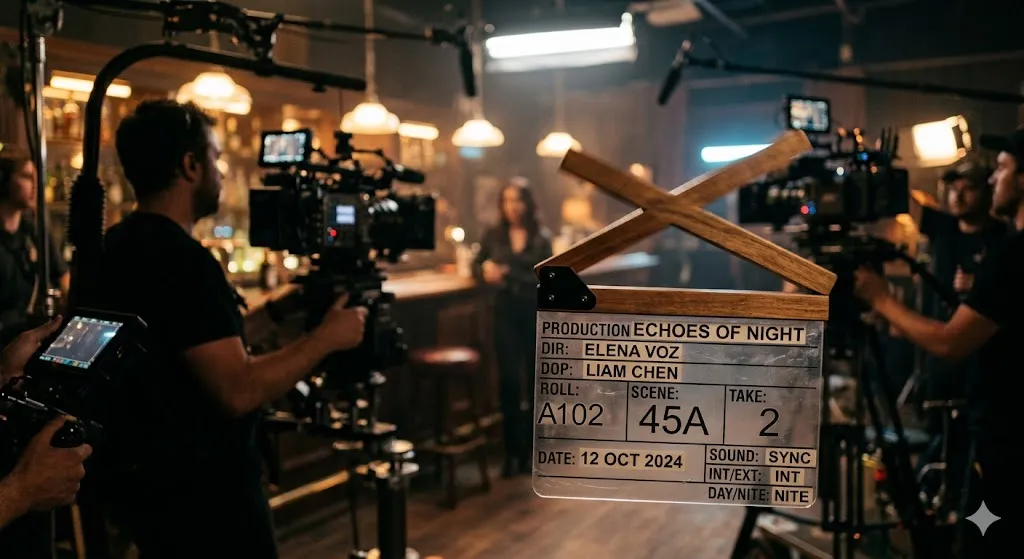
Use a Clap or Timecode Generator for Each Take
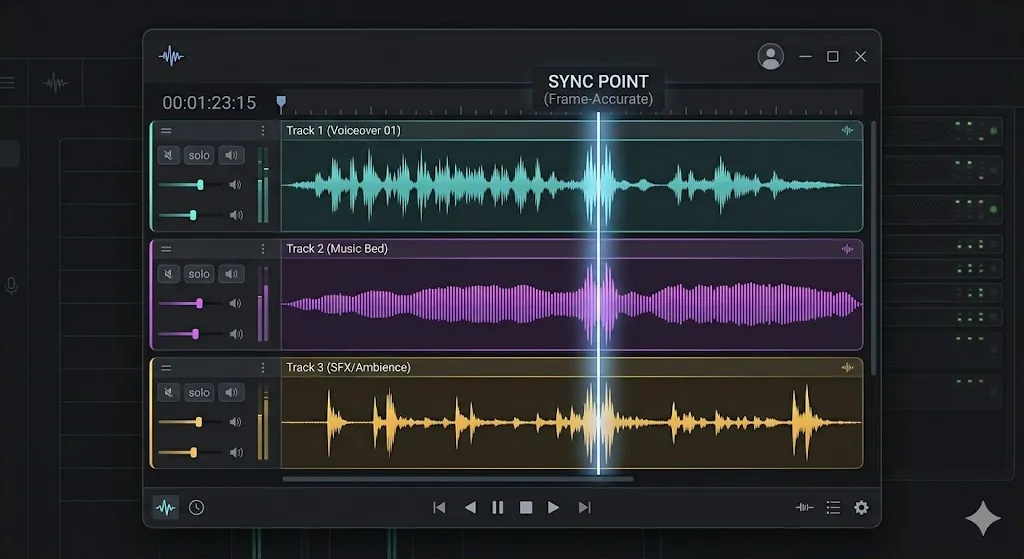
Record a Reference Audio Track on Every Camera
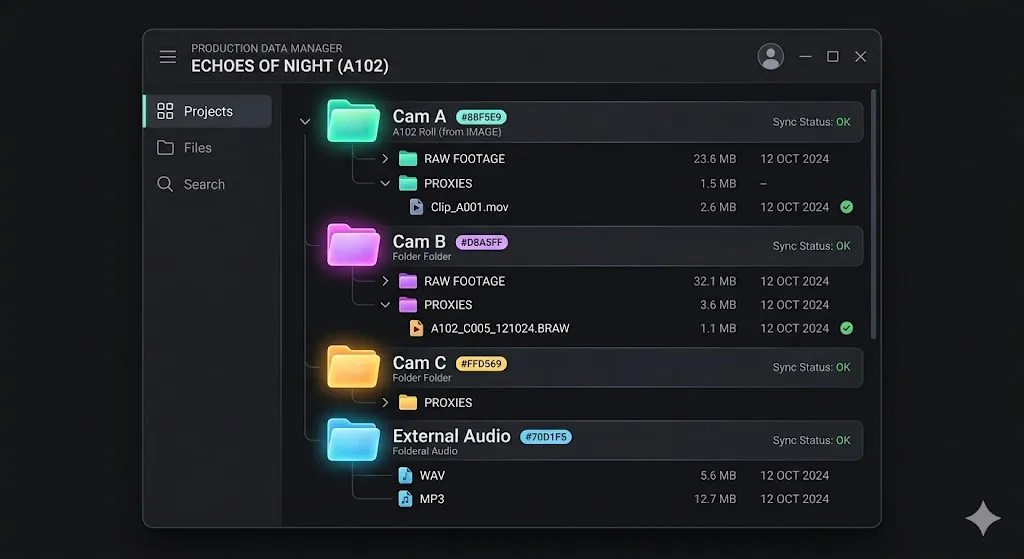
Label Your Memory Cards and Files Immediately
Multi-Camera Editing in Adobe Premiere Pro
Premiere Pro has a dedicated multi-camera workflow built around the Multi-Camera Source Sequence:
- Import all clips from all cameras into your Project bin, organized by camera in separate bins.
- Select all clips from all cameras simultaneously in the Project bin.
- Right-click and choose "Create Multi-Camera Source Sequence."
- In the dialog, choose "Audio" as the synchronize point (this uses waveform matching). Enable "Sequence Preset: Automatic."
- Premiere generates a nested Multi-Camera Source Sequence in your bin. This is a single sequence where all camera angles play back simultaneously.
- Drag this sequence to the timeline. Right-click on it in the timeline and select "Multi-Camera > Enable."
- In the Program Monitor, click the wrench icon and enable "Toggle Multi-Camera View." You will now see all camera angles playing simultaneously in a grid.
"The biggest time-saver in Premiere's multi-cam workflow that nobody talks about: before you do the live cut pass, watch the entire event from start to finish and mark every major 'event' you know you want to cut on with a timeline marker (M key). Then during the live cut pass, you have a visual roadmap. Your cuts will be more intentional and you'll miss fewer critical moments."
Multi-Camera Editing in DaVinci Resolve
DaVinci Resolve approaches multi-cam through its dedicated Cut Page, which was specifically designed for fast, high-volume editing of event footage.
- Import all camera clips into the Media Pool. Select all clips, right-click, and choose "Auto Sync Audio > Based on Waveform."
- Create a new timeline from your primary camera's clip. Go to the Cut Page (second icon in the bottom toolbar).
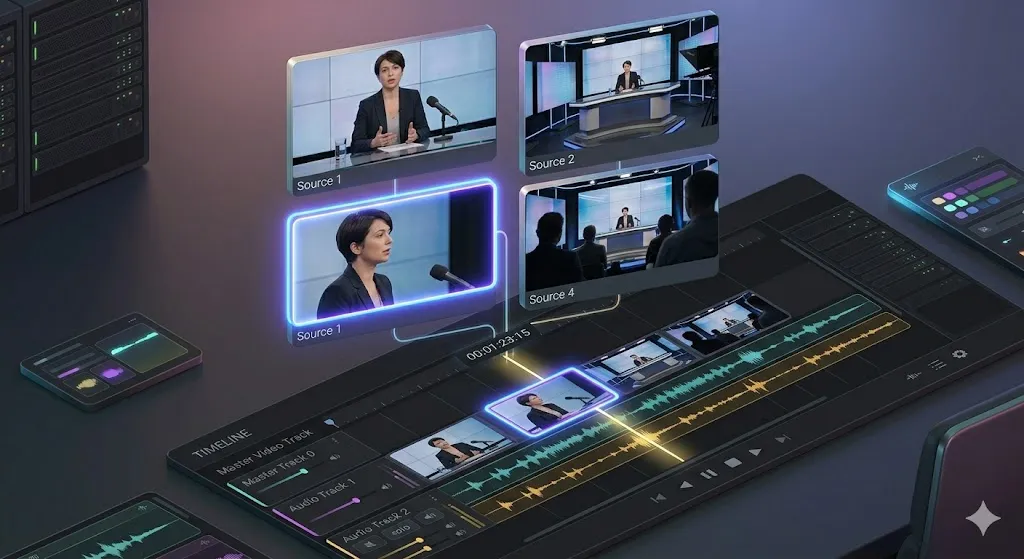
- In the Cut Page's Source Tape view (bottom left panel), you will see all clips organized chronologically. Enable Multi-Camera mode by clicking the multi-camera icon in the viewer toolbar.
- The viewer shows all camera angles simultaneously. Click any angle to switch to it. The switch is recorded as an edit on the timeline in real-time.
- Use the Cut Page's dedicated Smart Indicator to get predictive assistance — Resolve analyzes the incoming footage and suggests optimal cut points based on motion and content changes.
The Live Switching Technique
The live switching pass is where multi-camera editing becomes genuinely thrilling. With all cameras synced and the Multi-Camera monitor active, you press play and use number keys to switch between cameras in real time:
- 1: Switch to Camera 1
- 2: Switch to Camera 2
- 3: Switch to Camera 3
- Space: Pause to review a section
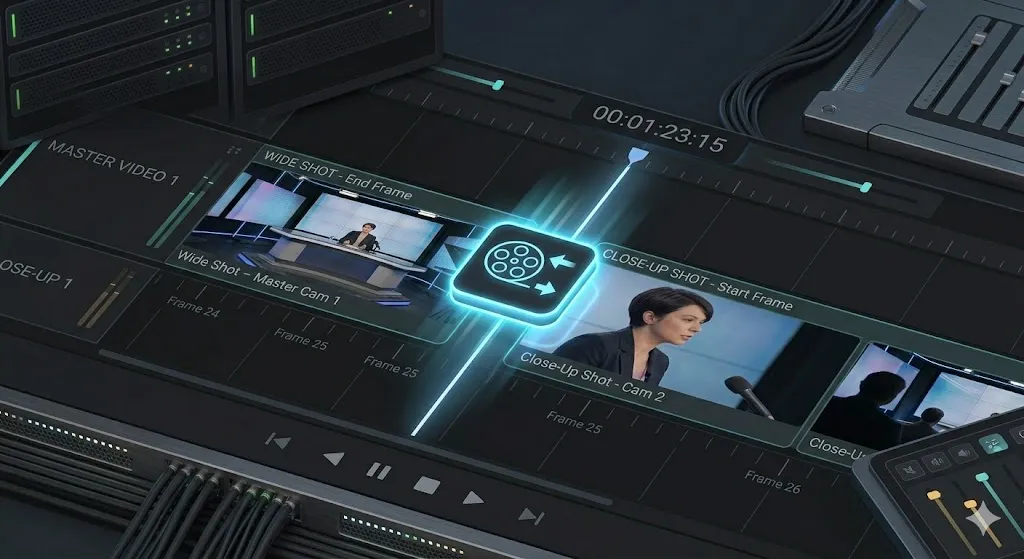
The editing software records every key press as a cut on the timeline. When the playhead reaches the frame where you pressed "2," a cut is made and the footage switches to Camera 2. After the live pass is complete, go through the timeline and refine every cut with the Roll Edit tool.
Color Matching Multiple Cameras
Even cameras of the same model can produce slightly different colors when positioned in different locations under the same light source. Cutting between mismatched cameras produces jarring color jumps that undermine the entire production's credibility.
The systematic approach to color matching:
- Identify your reference camera. Choose the angle with the most neutral, best-exposed shot as your reference. This becomes your "truth" for color.
- Correct the reference camera first. Apply a full color correction (white balance, exposure, skin tones) to the primary camera's footage.
- Use the Comparison Monitor. In DaVinci Resolve, split your viewer to show the reference camera (correctly graded) alongside the second camera. Manually match white balance, exposure, and saturation by eye and by scope.
- In Premiere Pro, use Lumetri Color's "Comparison View" and the "Auto Match" button as a starting point, then manually refine.
Managing Audio from Multiple Sources
Multi-camera shoots often have multiple audio sources: a dedicated lavalier microphone on the subject, a boom microphone handled by a sound operator, and the scratch tracks from each camera. The goal is to use only the highest-quality audio source in the final edit, regardless of which camera angle is visible on screen.
The professional approach: designate one dedicated audio source (e.g., the lavalier microphone's clean WAV files from the field recorder) as the master audio track. This track runs the entire length of the edit, uninterrupted. All camera switches happen on the video tracks only — the master audio never changes. This approach guarantees a consistent, high-quality audio experience regardless of which camera angle is currently visible.
"The worst mistake I see in multi-cam edits: the editor lets the audio 'follow the video' — when they cut to Camera 2, the audio switches to Camera 2's microphone as well. If the microphones are positioned differently, every single cut causes an audible environmental change (the room sounds slightly different from every mic position). Always designate a single master audio source and never break it with your video cuts."
Common Multi-Camera Editing Mistakes
- Jump-cutting between similar angles: Cutting between two cameras of the same focal length at nearly identical angles looks like a bad jump cut, not a camera switch. Ensure your B camera has a clearly different framing (significantly tighter or wider) than your A camera.
- Cutting on motion without purpose: Switching cameras while the subject is mid-gesture creates disorienting visual jumps. Cut on natural rest points — the end of a sentence, a pause, a completed movement.
- Ignoring eyeline continuity: If your subject is looking slightly left at Camera A, they should be looking slightly right at Camera B (on the other side of their eyeline). Breaking the 180-degree rule in multi-cam makes the spatial geography of the scene incoherent.
FAQ
How many cameras do I need for multi-cam editing?
Technically, two cameras is the minimum for multi-cam. For interviews, 2 cameras (wide and tight) is standard. For concerts and events, 3-5 cameras provides comprehensive coverage without excessive redundancy.
What if my cameras have different frame rates?
You must convert all footage to the same frame rate before creating a multi-camera sequence. Use DaVinci Resolve's Speed Change (clip attributes) or Premiere's Interpret Footage function to retime the mismatched clips. This will cause some motion quality degradation on the retimed clips.
Does multi-camera editing slow down my computer significantly?
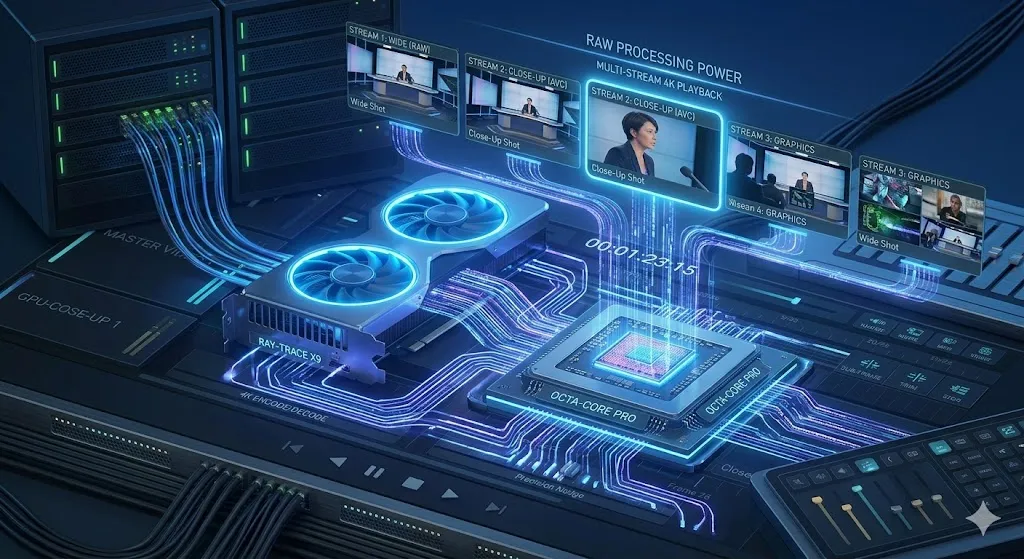
Yes. Playing back 3-4 full-resolution 4K streams simultaneously requires significant GPU and CPU power. Create proxy files (H.264 at 1/4 resolution) for all camera angles before building the multi-camera sequence to ensure smooth playback during editing.
Keep the sync reference close
Multi-cam work lives and dies on frame rates matching across every camera. The FPS reference card and timeline basics sheet cover exactly that.
Browse the cheat sheetsWas this guide helpful?