The video editing timeline is where raw footage transforms into a story. Every cut you make, every clip you trim, every piece of audio you slide into place — it all happens here. Yet most tutorials skim the surface and leave you confused the moment something goes wrong. This guide doesn't do that.
Whether you're editing your first YouTube video in CapCut or learning DaVinci Resolve for a short film, these fundamentals are the same. Master them and you'll edit faster, cleaner, and with complete confidence.
What Is a Video Editing Timeline?
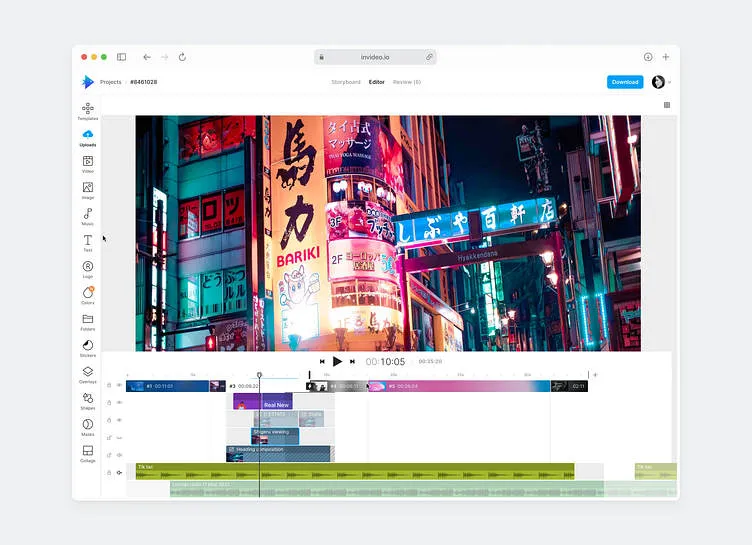
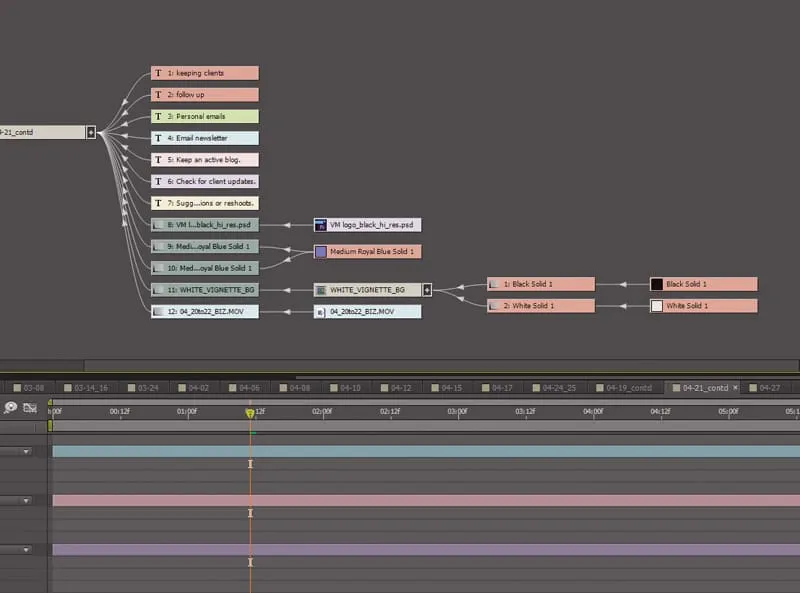
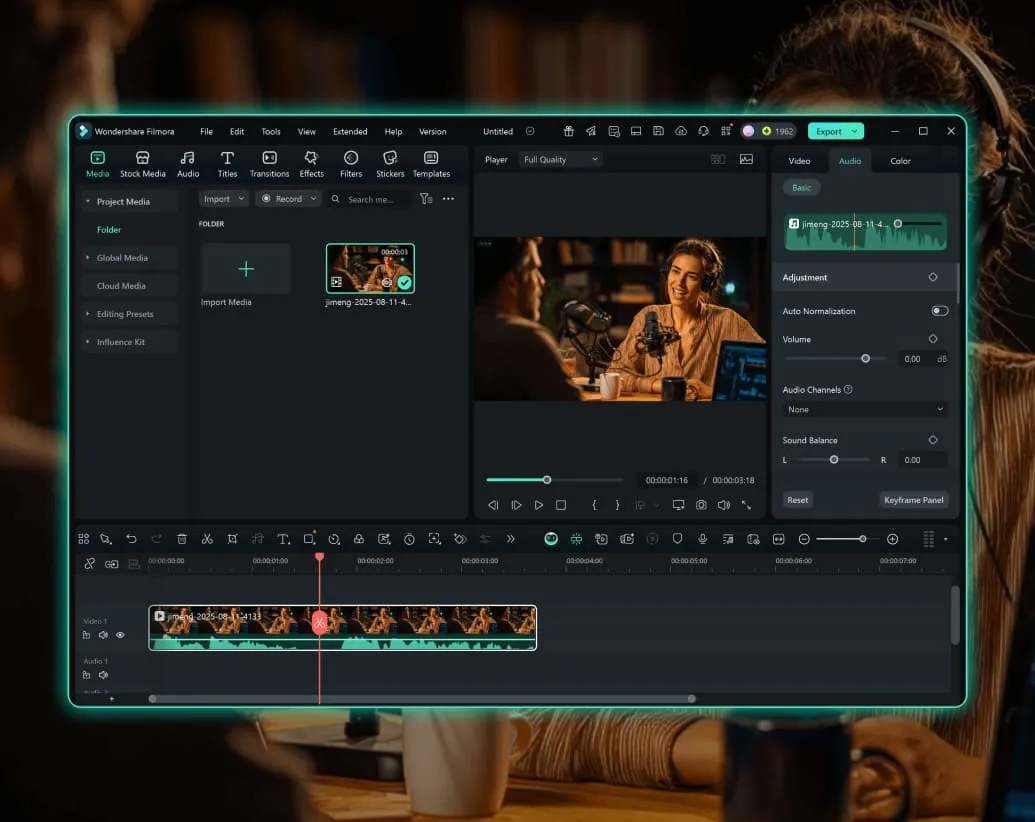
The timeline is the central workspace in any video editor. It's a visual representation of your project laid out horizontally across time. Clips sit on horizontal strips called tracks, and time moves from left to right. The further right a clip sits, the later it plays.
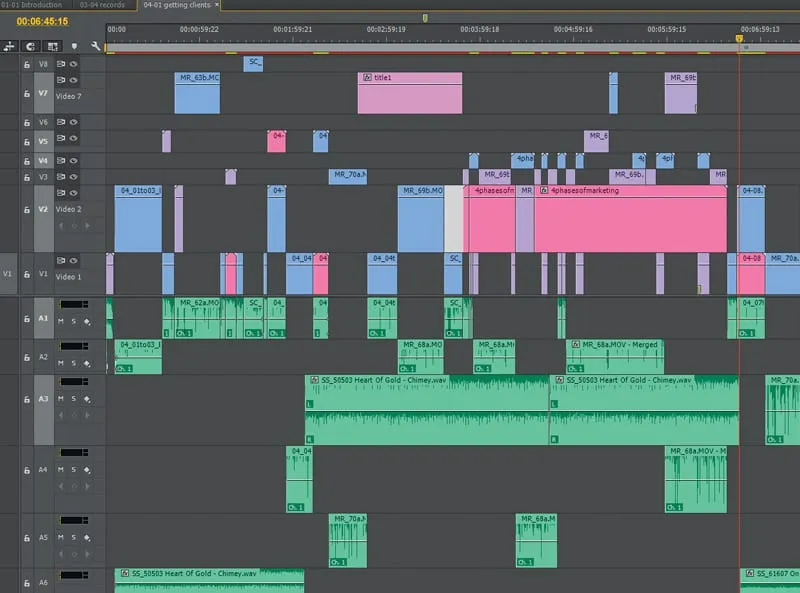
Above the center line you have video tracks (labeled V1, V2, V3 in most editors). Below the center line are audio tracks (A1, A2, A3). The playhead — that vertical line that scrubs through your footage — shows exactly which frame is currently being previewed.
Understanding this structure isn't optional. It's the foundation everything else is built on.
Most beginners treat the timeline like a parking lot — they just dump clips in and start cutting. That's backwards. Before I touch a single clip, I spend five minutes organizing my tracks and labeling everything. It sounds slow, but it saves hours. A messy timeline is a slow timeline, and a slow timeline kills creativity.
Understanding Tracks — Video, Audio & More
Think of tracks like layers in Photoshop. Higher video tracks appear on top of lower ones. So if you put a text overlay on V3, it sits on top of your B-roll on V2, which sits on top of your main footage on V1.
This isn't a strict rule — it's a convention. But sticking to it makes collaboration easier and keeps your head clear when the project grows to 200 clips.
The 5 Core Timeline Operations Every Editor Must Know
These five operations cover 95% of everything you'll ever do on a timeline. Learn these and you're no longer a beginner.
Trimming — Cutting to the Right Frame
Trimming removes unwanted frames from the beginning (In point) or end (Out point) of a clip without deleting it — it just hides those frames. Drag the edge of a clip inward to trim it.
Premiere Pro: Select the Trim tool with T, then drag clip edges.
DaVinci Resolve: Press T for Trim Edit Mode, drag edges.
CapCut: Select a clip and drag the yellow handles on either end.
Splitting Clips
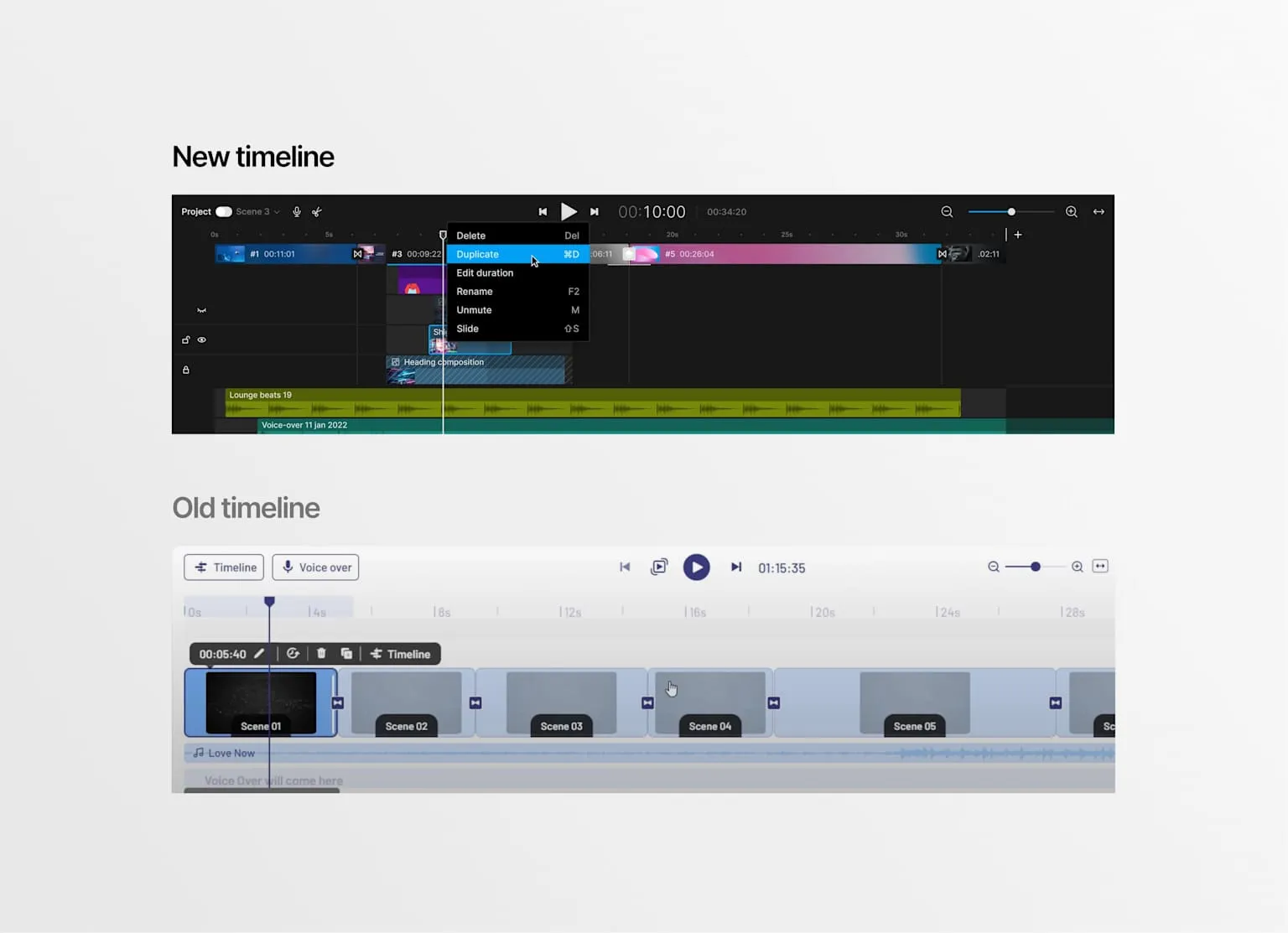
Splitting cuts a clip at the playhead position, creating two separate clips. Use this to remove a section from the middle of a clip, or to separate parts you want to treat differently.
Premiere Pro: Ctrl+K (Windows) / Cmd+K (Mac)
DaVinci Resolve: Ctrl+\
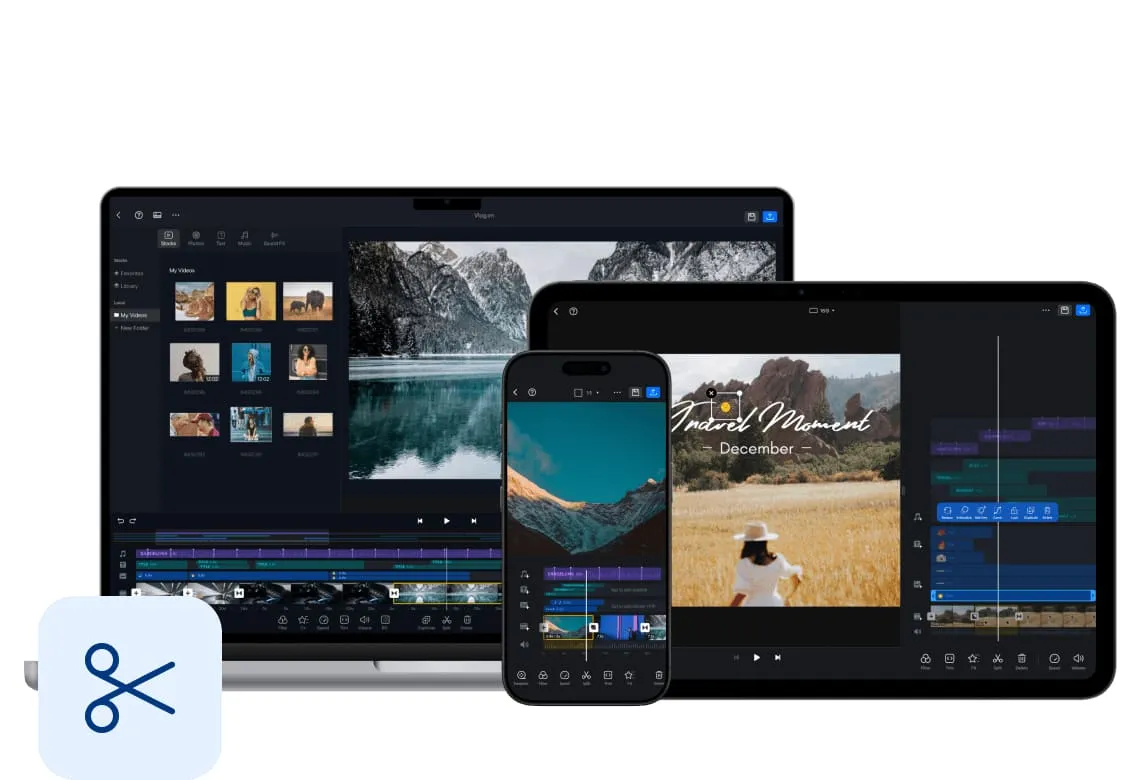
CapCut: Tap the clip to select it, then tap the scissors ✂ icon in the toolbar.
Ripple Edit — Move Everything After It
A ripple edit trims a clip's edge and automatically closes any gap by shifting every clip downstream toward the beginning. Your total project duration changes, but nothing goes out of sync.
This is the edit you'll use the most. If you're removing dead air at the end of a sentence, use a ripple delete. If you're tightening the pacing across an interview — ripple trim every cut.
Premiere Pro: Ripple Edit Tool — B
DaVinci Resolve: Switch to Ripple mode in the toolbar (icon looks like a wave)
CapCut: Long-press a gap between clips → "Remove Gap"
Roll Edit — Adjust Without Moving Other Clips
A roll edit moves the cut point between two adjacent clips simultaneously — the Out point of the first clip and the In point of the second. The total duration of your project stays identical.
Use this when you've already placed your clips perfectly and just want to finesse where exactly the cut happens between two shots.
Premiere Pro: Rolling Edit Tool — N
DaVinci Resolve: Hold Alt and drag the edit point between two clips
CapCut: Not available directly — use two separate trims instead
Slip & Slide Edits — The Pro Moves
Slip edit: Changes which part of a clip's source footage plays, without moving the clip on the timeline. The clip's position and duration stay the same — you're just choosing different frames from within the original footage.
Slide edit: Moves a clip left or right on the timeline while automatically adjusting the neighbouring clips to fill the space. Your total duration stays constant.
Premiere Pro Slip: Y · Slide: U
DaVinci Resolve: Hold Ctrl+Alt and drag (slip) or Shift+Ctrl and drag (slide)
CapCut: Not available — use trim + split approach
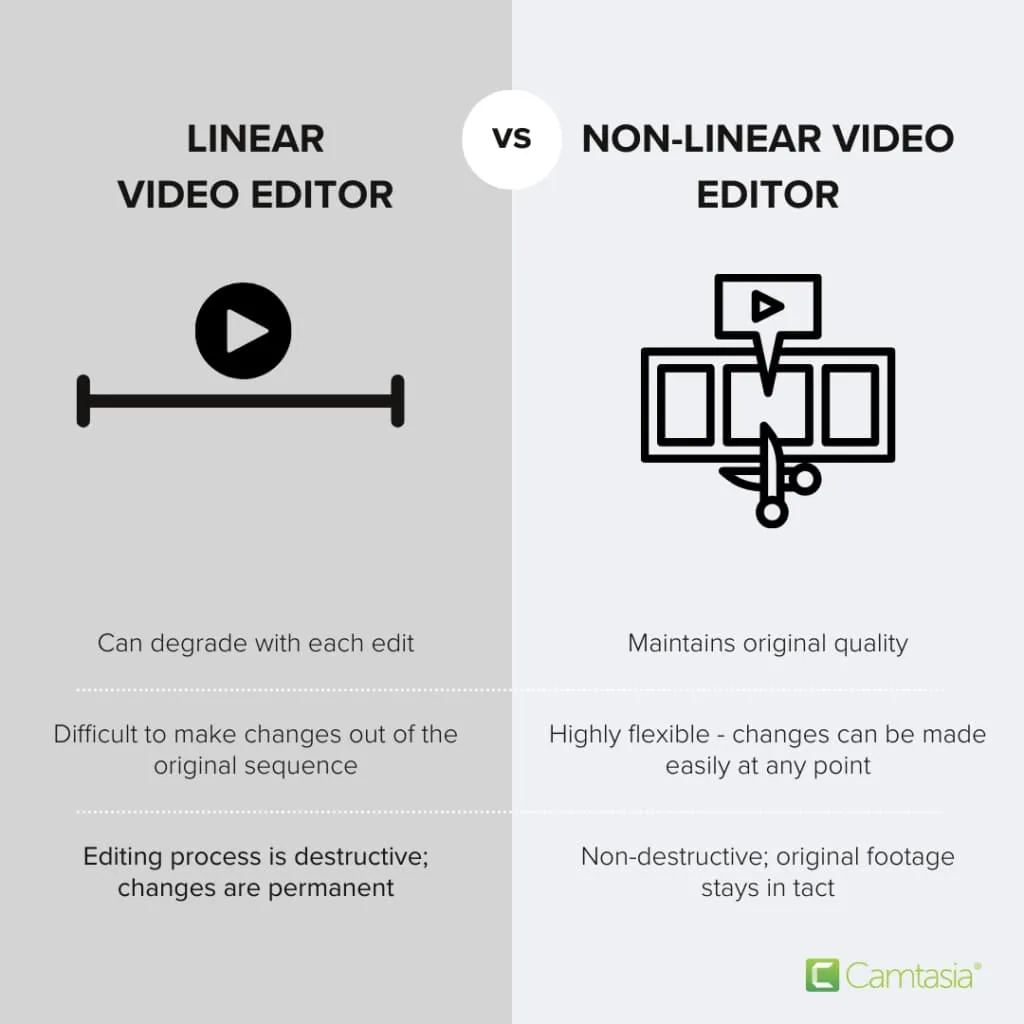
Slip and slide edits are where most editors plateau. They spend months using only trim and split, and then the moment they try slip, they realise they've been wasting thirty minutes per project repositioning clips manually. Learn these two tools. Seriously — your future self will thank you.
Timeline Organization — How to Not Lose Your Mind
A clean timeline isn't just aesthetically pleasing — it's functionally critical. When your project grows to 150+ clips and your client asks you to change something from scene 3, a disorganized timeline becomes a nightmare.
Use Color Labels
Assign colors by clip type. Blue for dialogue, green for B-roll, red for SFX, yellow for music. One glance at the timeline tells you everything.
Name Your Tracks
Double-click a track header and rename it. "Main Camera", "B-Roll", "VO (Voiceover)", "Music", "SFX". Stop guessing what's on which track.
Nest Related Clips
Group a sequence of clips into a single nested sequence. This keeps your main timeline clean and lets you collapse complex sections.
Delete Unused Clips Regularly
Clips you rejected mid-edit clutter the timeline and slow you down. Clear them out every 20–30 minutes.
Use Markers
Drop markers (M key in most editors) at important moments — "Client feedback here", "Fix audio here", "Check colour here". They're free notes inside your timeline.
Common Timeline Mistakes Beginners Make (and How to Fix Them)
These mistakes are so common they're practically a rite of passage. The difference is knowing what they are before they eat your project.
⚠️ Editing on the wrong track
Fix: Always check which track is selected (highlighted) before making an edit. In Premiere, the source patch (S1, S2) determines where clips land. Mispatched tracks silently ruin your edit.
🕳️ Leaving gaps between clips
Fix: Gaps create black frames — video editors' worst enemy. Use Ctrl+Shift+D (Premiere) to select and delete all gaps, or ripple delete every cut.
🎵 Not monitoring audio sync
Fix: When you ripple-edit video tracks only, audio drifts out of sync. Always link your A/V clips and edit them together, or check sync points (clap or waveform) regularly.
🔍 Zooming out too far
Fix: Editing at a zoom level where clips are 5 pixels wide leads to imprecise cuts. Zoom in enough to see individual frames when you're doing precision trimming. Use \ (backslash) to fit the timeline in Premiere.
⌨️ Never using keyboard shortcuts
Fix: Mouse-only editing is 3x slower. The J/K/L keys for playback, spacebar to pause, and Ctrl+K to split are the absolute minimum. See the shortcut table below.
The "leaving gaps" mistake used to ruin my early client edits. I'd export, send the file, and two hours later get a message: "There's a black frame at 2:37." Now I run a final gap scan before every export — it takes ten seconds and saves the embarrassment. Build that habit early.
Timeline Shortcuts That Will 10× Your Speed
Editors who use shortcuts edit measurably faster. Here are the essential ones across the three most popular editors:
| Action | Premiere Pro | DaVinci Resolve | CapCut |
|---|---|---|---|
| Play / Pause | Space | Space | Space |
| Rewind / Fast Forward | J / L | J / L | ◀ / ▶ buttons |
| Split clip at playhead | Ctrl+K | Ctrl+\ | ✂ button |
| Ripple Delete selection | Shift+Del | Shift+Backspace | Delete clip, close gap |
| Trim tool | T | T | Drag handles |
| Ripple Edit tool | B | Ripple mode icon | — |
| Roll Edit tool | N | Alt+Drag edit point | — |
| Slip clip | Y | Ctrl+Alt+Drag | — |
| Add marker | M | M | Text icon |
| Zoom in / out | + / - | Ctrl+= / Ctrl+- | Pinch gesture |
| Fit timeline to window | \ | Shift+Z | Pinch out |
| Undo | Ctrl+Z | Ctrl+Z | Ctrl+Z |
Frequently Asked Questions
What is the difference between a ripple edit and a roll edit?
How do I organize my video editing timeline?
What is the best timeline editing software for beginners?
How many video tracks do I need on my timeline?
How do I speed up my timeline editing workflow?
Free Timeline Editing Cheat Sheet
All 5 core edit operations, every keyboard shortcut, and the most common mistakes — condensed into one printable cheat sheet. Download it and keep it next to your keyboard.