You've spent 20 hours perfecting your edit. The color grade is cinematic, the audio mix is flawless, the pacing is tight. Then you hit export, and somehow the video comes out blurry, oversaturated, or three times larger than it should be. Or worse — you get a codec error.
This guide eliminates every common export mistake and gives you the exact settings for every platform and use case.
Rendering vs. Exporting: What's the Difference?
Rendering is the process of your computer calculating every frame of your timeline — applying all effects, color grades, transitions, and compositions — and generating a playable preview.
Exporting is the process of creating the final deliverable file. It combines the rendered output with your chosen codec and container settings to produce the file you share.
In most modern workflows, these happen simultaneously when you click "Export." But pre-rendering your timeline before exporting can dramatically reduce export time on effects-heavy projects.

The Most Important Export Settings
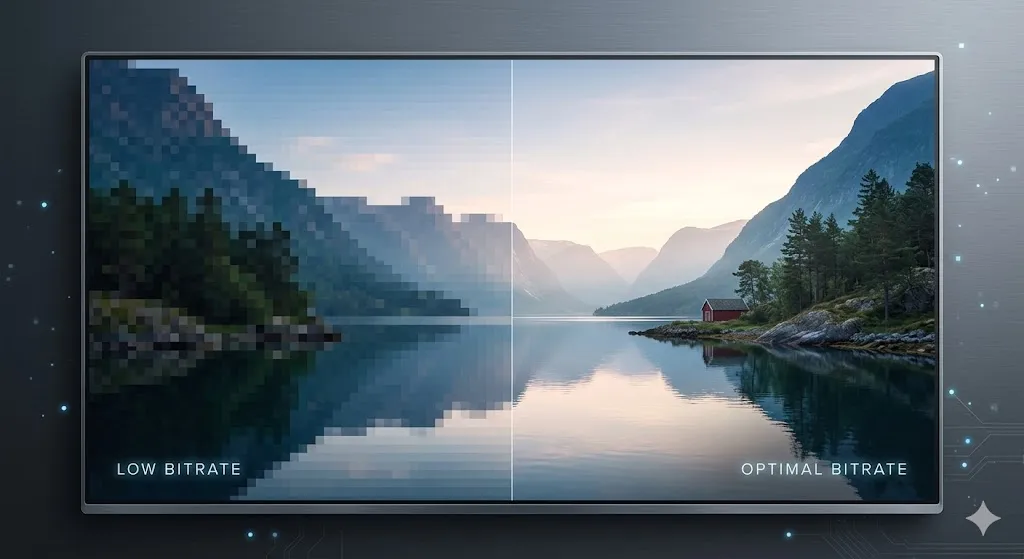
Resolution: Must match your sequence settings. Never export at a lower resolution without a specific reason.
Frame Rate: Always match your sequence frame rate. Mismatched frame rates cause stuttering and duplicated frames.
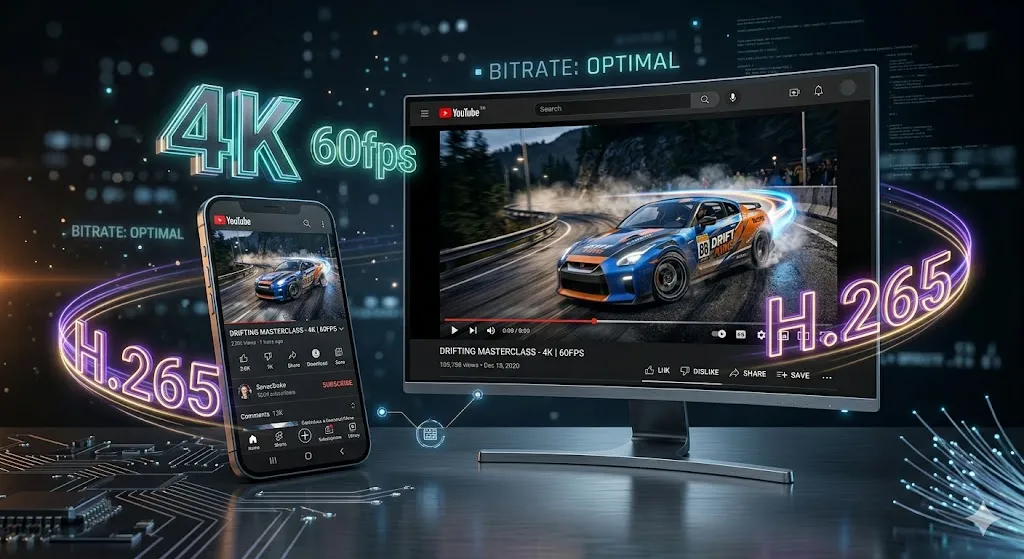
Codec: H.264 for web delivery. H.265 for 4K. ProRes/DNxHD for archiving.
| Platform | Resolution | Recommended Bitrate |
|---|---|---|
| YouTube | 1080p | 8-12 Mbps (VBR, 2-pass) |
| YouTube | 4K | 35-45 Mbps (VBR, 2-pass) |
| 1080p | 3.5-5 Mbps | |
| TikTok | 1080p | 5-8 Mbps |
| Broadcast TV | 1080p | 50-100 Mbps |
| Archive Master | 4K | ProRes 4444 (~500 Mbps) |

Exporting from Premiere Pro: Step-by-Step
Step 1: Set In (I) and Out (O) points or let the entire sequence export.
Step 2: File > Export > Media (Ctrl+M).
Step 3: Format: H.264. Preset: "Match Source - High Bitrate" is a safe default.
Step 4: Bitrate Encoding: VBR, 2 Pass. Target 8 Mbps / Max 12 Mbps for 1080p.
Step 5: Audio: AAC, 48,000 Hz, Stereo, 320 kbps.
Step 6: Set output name and location. Click Export (or Queue for Media Encoder).
Exporting from DaVinci Resolve: Step-by-Step
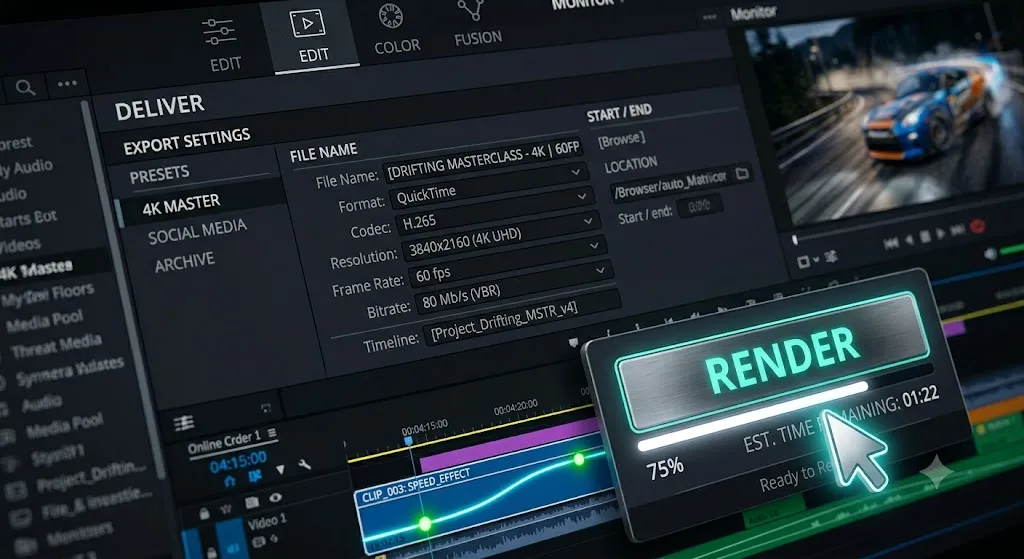
Step 1: Go to the Deliver page (rocket ship icon).
Step 2: Choose a Render Preset (YouTube, H.264 Master, etc.).
Step 3: Format: MP4. Codec: H.264. Resolution: Auto. Quality: Set target bitrate.
Step 4: Click Browse to set export location.
Step 5: Add to Render Queue. You can queue multiple deliverables.
Step 6: Click Start Render.
Platform-Specific Export Settings
YouTube
YouTube re-encodes every uploaded video. Export at the highest quality H.264 you can — higher bitrate than you think you need. Container: MP4, Codec: H.264, Bitrate: 8-12 Mbps for 1080p, 35-45 Mbps for 4K.
Instagram Reels & TikTok
Both platforms aggressively compress video. Export at 1080x1920 (vertical), H.264, 5-8 Mbps. The trick is to start from a higher-quality file so that even after their compression, there's enough quality left.
Hardware Acceleration: Faster Exports
Both Premiere Pro and DaVinci Resolve can use your GPU to accelerate encoding, making exports 3-10x faster than CPU-only encoding.
Premiere Pro: File > Project Settings > General > Renderer: Mercury Playback Engine GPU Accelerated. In Export Settings, enable Hardware Encoding.
DaVinci Resolve: Preferences > Memory and GPU > Enable GPU Processing Mode.
Final Review Checklist
Troubleshooting Common Errors
- "Codec not found": Update graphics drivers. Try switching to software encoding.
- Export is blurry: Check proxy playback is disabled. Verify bitrate is high enough.
- File size is huge: You may have exported in ProRes instead of H.264.
- Export is darker than timeline: Color space mismatch. Set export to Rec.709.

Understanding Codecs: A Deep Dive
A codec (coder-decoder) is the algorithm used to compress and decompress your video. Choosing the right codec is one of the most impactful decisions in your export workflow — it determines file size, quality, compatibility, and even playback performance.
H.264 (AVC)
The workhorse of video delivery. H.264 is supported by virtually every device, browser, and platform made in the last 15 years. It offers decent quality at reasonable file sizes, making it the default choice for web delivery, social media, and client previews. The trade-off? Larger files than newer codecs at equivalent quality.
H.265 (HEVC)
H.265 delivers approximately 50% smaller files than H.264 at the same visual quality. The catch: encoding is significantly slower, and not all devices or browsers support it natively. It's ideal for 4K delivery where file size matters, but for 1080p web content, the savings rarely justify the compatibility risk.
ProRes (Apple)
The industry standard for professional delivery between editors. ProRes codecs are visually lossless, meaning you can't distinguish the output from the original. The files are large (ProRes 422 HQ at ~220 Mbps for 1080p), but they preserve every detail. Use ProRes when delivering to other editors, colorists, or for archival purposes — never for web delivery.
DNxHR (Avid/Blackmagic)
DNxHR is the Windows and DaVinci Resolve equivalent of ProRes. It offers similar quality tiers (DNxHR HQ, HQX, SQ) and is the preferred delivery codec in Avid Media Composer workflows. If you're on Windows and need an intermediate codec for handoffs, DNxHR is your best option.
AV1
AV1 is the next-generation open-source codec developed by the Alliance for Open Media (backed by Google, Mozilla, and others). It offers the best compression efficiency of any codec — up to 30% better than H.265. However, hardware encoding support is still limited, encoding speeds are slow, and not all playback devices support it yet. YouTube already accepts AV1 uploads, but it's not yet the safe default for most workflows.
| Codec | Quality | File Size | Encoding Speed | Compatibility | Best For |
|---|---|---|---|---|---|
| H.264 (AVC) | Good | Large | Fast | Universal | Web, social media, client delivery |
| H.265 (HEVC) | Very Good | Medium | Slow | Most modern devices | 4K delivery, file size concerns |
| ProRes 422 | Excellent | Very Large | Fast | Apple ecosystem | Inter-editor handoffs, color grading |
| ProRes 4444 | Lossless | Huge | Fast | Apple ecosystem | VFX, alpha channels, archival |
| DNxHR | Excellent | Very Large | Fast | Windows/Resolve/Avid | Inter-editor handoffs on Windows |
| AV1 | Best | Smallest | Very Slow | Limited | Future-proof web delivery |
Color Space and HDR Export
Color space defines the range of colors your video can display. Getting this wrong during export is one of the most common causes of videos that look "off" — washed out, oversaturated, or too dark compared to your timeline.
Rec. 709 (SDR)
Rec. 709 is the standard color space for SDR (Standard Dynamic Range) content. It's the color space used by HD television, YouTube, Vimeo, Instagram, TikTok, and virtually every web platform. If you're delivering for web or social media, you should be working in and exporting in Rec. 709. This is the safe, universal default.
Rec. 2020 (HDR)
Rec. 2020 is the wider color gamut used for HDR (High Dynamic Range) content. It supports significantly more colors and brighter highlights than Rec. 709. HDR delivery is growing — YouTube and Netflix both support HDR — but it requires an HDR-capable display to look correct. Export in HDR for a non-HDR display will result in washed-out, desaturated colors.
When to Deliver HDR vs. SDR
Choose HDR when:
- The client or platform explicitly requests it (e.g., Netflix, Apple TV+)
- Your content benefits from wide color gamut (nature documentaries, cinematic footage)
- You shot in Log/RAW and have a proper HDR monitoring pipeline
Choose SDR (Rec. 709) when:
- Delivering to YouTube, Instagram, TikTok, or any social platform
- You don't have an HDR-capable monitoring setup
- Maximum compatibility is the priority
Checking Your Export Color Space
Premiere Pro: In Export Settings, check under the "Video" tab. The Color Space option should be set to "Rec. 709" for web delivery. You can also verify your sequence settings under Sequence > Sequence Settings.
DaVinci Resolve: Go to Project Settings > Color Management. The Timeline Color Space should be "Rec.709 Gamma 2.4" for SDR delivery. For HDR, use "Rec.2020 ST2084" (PQ) or "Rec.2020 HLG."
Audio Export Settings
Audio is half the viewing experience, yet it's the most neglected part of the export process. Bad audio will make even the most visually stunning video unwatchable. Here's how to get it right.
AAC vs. PCM vs. MP3
AAC (Advanced Audio Coding): The standard for web delivery. Excellent quality at small file sizes. Supported by YouTube, Instagram, TikTok, and every modern device. Use this for almost all web exports.
PCM (Pulse Code Modulation): Uncompressed audio. Maximum quality, but large file sizes. Use this for archival, broadcast delivery, or when pairing with ProRes/DNxHR for professional handoffs.
MP3: Legacy format. Significantly lower quality than AAC at the same bitrate. There's almost never a reason to export as MP3 in 2026. Avoid it.
Recommended Audio Settings by Platform
| Platform | Format | Sample Rate | Bitrate | Loudness Target |
|---|---|---|---|---|
| YouTube | AAC | 48 kHz | 256–320 kbps | -14 LUFS |
| Instagram / TikTok | AAC | 48 kHz | 128–256 kbps | -14 LUFS |
| Podcasts | AAC / MP3 | 44.1 kHz | 128–192 kbps | -16 LUFS |
| Music (Streaming) | AAC | 48 kHz | 256–320 kbps | -14 LUFS |
| Broadcast TV | PCM | 48 kHz | Uncompressed (1536 kbps) | -24 LUFS |
| Archival | PCM | 48 kHz | Uncompressed | -24 LUFS |
Loudness Standards (LUFS)
LUFS (Loudness Units Full Scale) measures the perceived loudness of your audio. Platforms have specific loudness targets, and hitting them ensures your audio sounds consistent with other content.
- -14 LUFS: YouTube, Spotify, Instagram, TikTok — the standard for most web content
- -16 LUFS: Podcasts (Apple Podcasts, Spotify Podcasts) — slightly quieter for spoken word
- -24 LUFS: Broadcast television — much quieter to allow for dynamic range
In Premiere Pro, use the Essential Sound panel or the Loudness Radar meter (Window > Audio Clip Mixer > settings gear > Show Loudness Radar) to monitor your loudness levels. In DaVinci Resolve, use the Fairlight page's built-in loudness meter.
Audio Bitrate Recommendations
Higher bitrate means more audio data and better quality. For most video work:
- 256 kbps AAC: Perfect for YouTube and social media. This is the sweet spot for quality vs. file size.
- 320 kbps AAC: Use for music-heavy content or when audio quality is critical.
- 128 kbps AAC: Acceptable for podcast-style content with primarily spoken word.