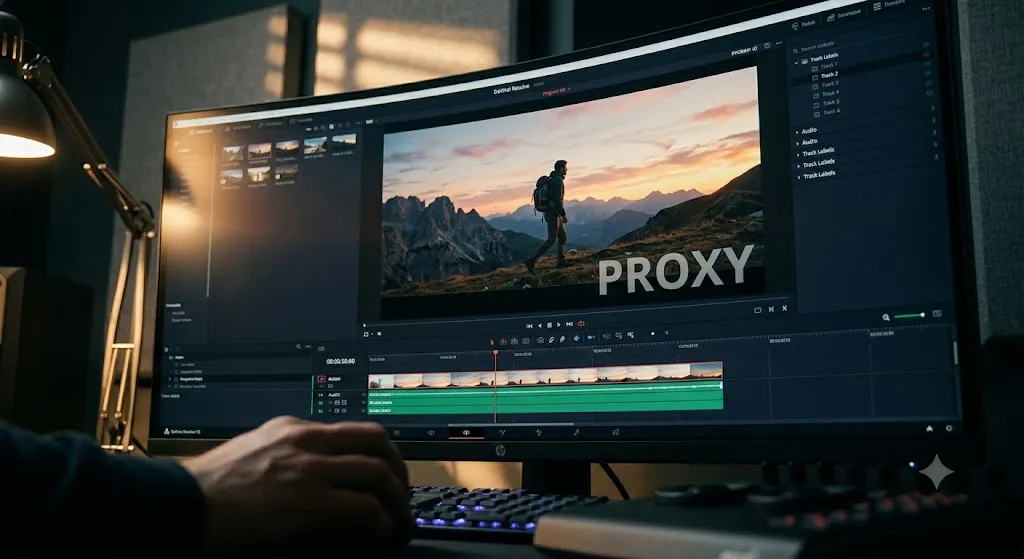
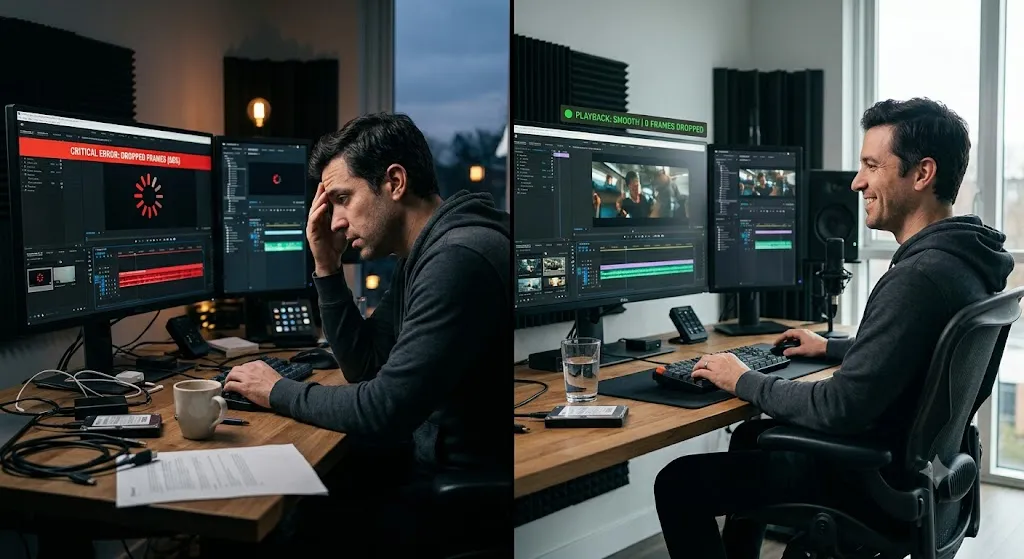
Your timeline is stuttering. Every time you play back, it drops frames, freezes, and crawls. You check your computer specs and realize: your laptop simply cannot handle 4K footage in real-time. This is one of the most frustrating experiences in editing — but there is a professional solution that even Hollywood productions use: the proxy workflow.
This guide explains the proxy workflow from the ground up, so you can edit any footage — 4K, 6K, RAW — smoothly on virtually any computer.
What is a Proxy? The Core Concept
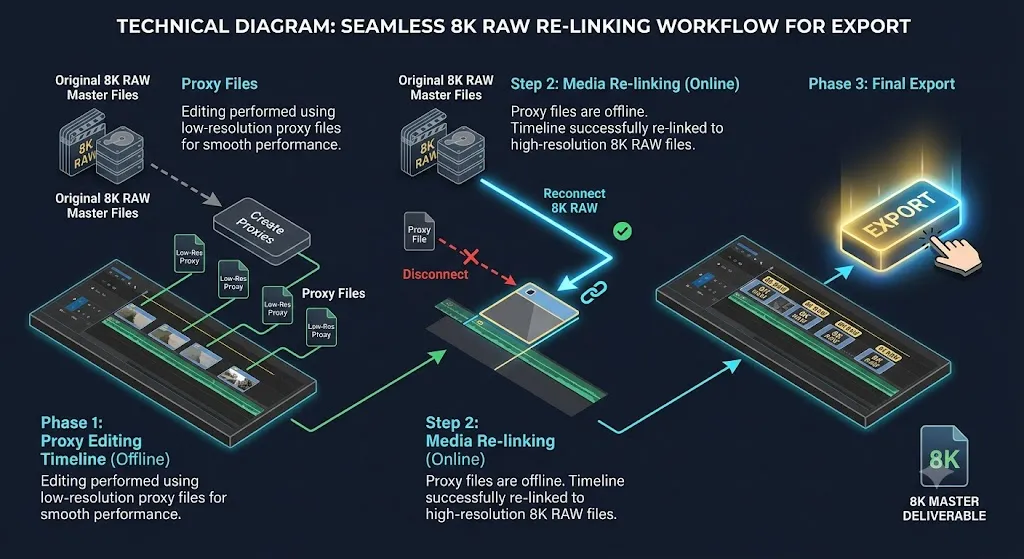
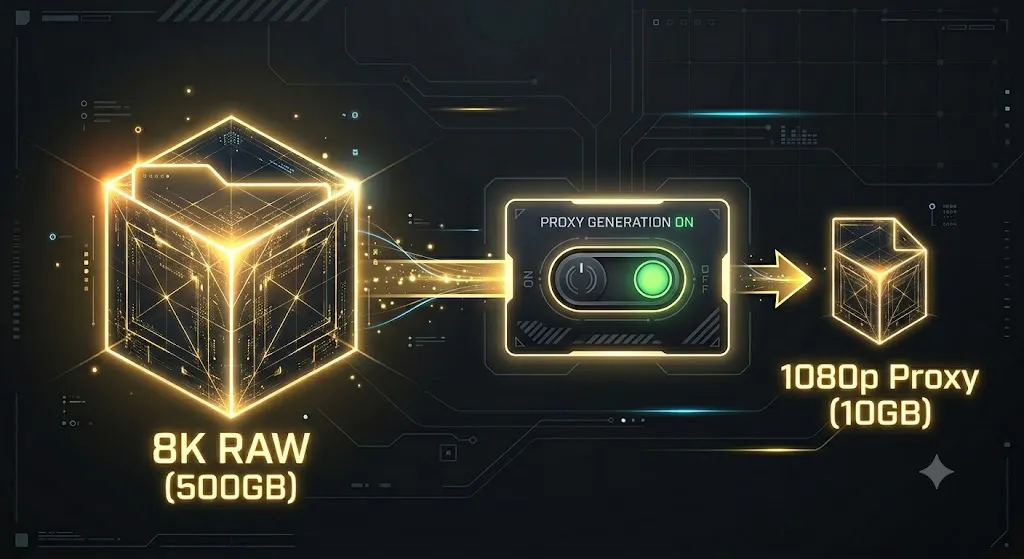
A proxy is a low-resolution, highly compressed copy of your original high-quality footage. Your editing software swaps out the heavy originals with these lightweight copies during the editing process. When you export, the software automatically substitutes the proxies back with the original full-resolution files.
The result: You get smooth, real-time playback during editing without sacrificing a single pixel of quality in the final export.
Think of it like editing a blueprint on a photocopy instead of the fragile original. You make all your marks, decisions, and cuts on the copy. When you're ready to print, you use the original.
When Do You Need Proxies?
You need a proxy workflow if any of the following are true:
- Your timeline playback drops below real-time (frame drops, stuttering)
- Your footage is 4K, 6K, 8K, or RAW
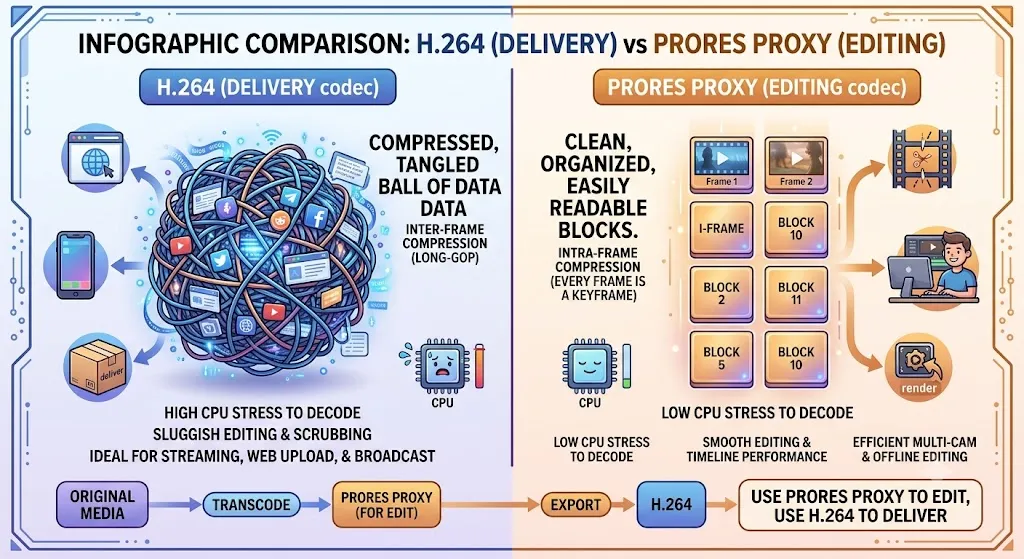
- You are editing footage recorded in highly compressed formats that stress your CPU (like H.265/HEVC from newer cameras)
- You have multiple video tracks playing simultaneously
- You are applying multiple effects or color grades in real-time
You probably don't need proxies if:
- You edit 1080p H.264 footage on a modern desktop computer
- Your timeline plays smoothly at full quality already
Setting Up Proxies in Premiere Pro
Premiere Pro has a built-in proxy creation tool that handles the entire process automatically. There are two methods: automatic ingest and manual creation.
Method 1: Ingest Proxies (Automatic on Import)
- Go to File > New > Ingest Settings
- Enable "Create Proxies"
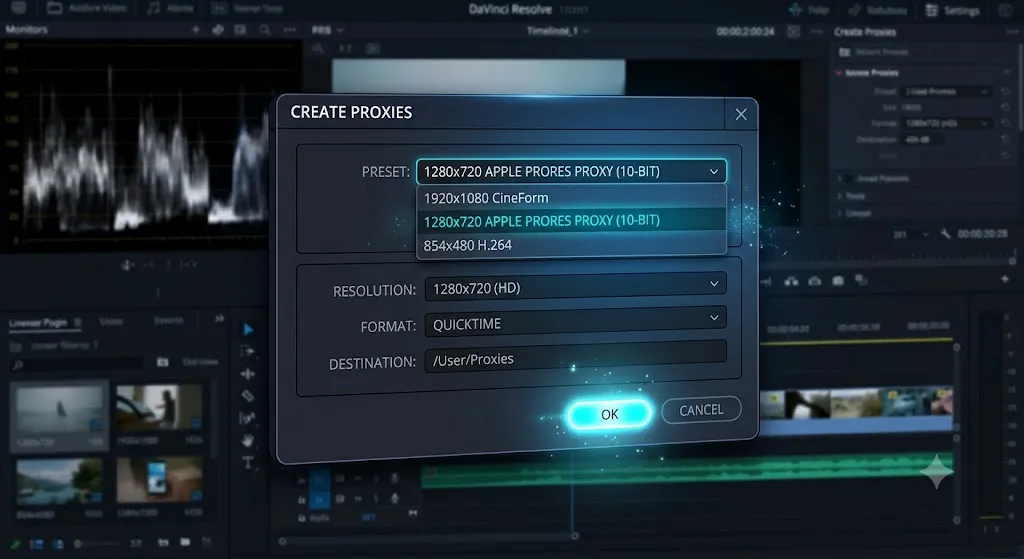
- Choose a proxy preset: ProRes Proxy (Mac) or GoPro CineForm (Windows) for highest quality, or H.264 Low Resolution for smallest file size
- Choose a destination folder for the proxy files
- Now every time you import footage, Premiere automatically creates proxies in the background using Adobe Media Encoder
Method 2: Manual Proxy Creation
- Select your clips in the Project Panel
- Right-click and choose "Proxy > Create Proxies"
- Choose your preset and destination
- Media Encoder opens and begins creating proxies in the background
Setting Up Proxies in DaVinci Resolve
DaVinci Resolve offers three different approaches to handle heavy footage, each suited to different workflows.
Option 1: Proxy Mode (Playback Only)
- Go to Playback > Proxy Mode
- Select Half Resolution or Quarter Resolution
- Resolve dynamically reduces playback resolution without creating any new files. This is the simplest option but does not create standalone proxy files.
Option 2: Generate Optimized Media
- Go to Playback > Generate Optimized Media
- Customize settings under Project Settings > Master Settings > Optimized Media and Render Cache
- Resolve transcodes clips into a codec that your system decodes more efficiently. Optimized media is full-resolution but uses a faster codec.
Option 3: Generate Proxy (Low-Res Copies)
- Right-click selected clips in the Media Pool
- Choose "Generate Proxy Media"
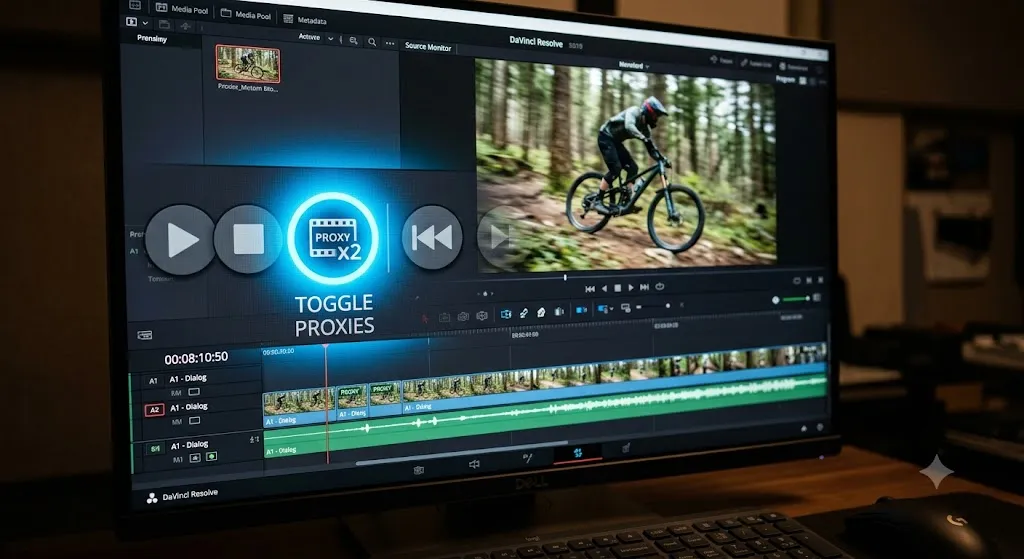
- Resolve creates low-resolution proxy files and automatically links them to your clips. You can switch between proxy and original in the viewer.
Choosing the Right Proxy Format
Not all proxy codecs are created equal. Your choice depends on your operating system, editing software, and storage constraints.
The Offline/Online Workflow (Advanced)
In professional post-production, the proxy workflow follows a formal two-phase process called offline/online editing.
Offline editing is the creative phase. You work with proxy or low-resolution media, making all your editorial decisions — cuts, transitions, pacing, music placement. This is where the creative work happens.
Online editing (or the "conform") is the finishing phase. Once the edit is locked, you reconnect to the original full-resolution media. This is where color grading, VFX, and final quality control happen before export.
The key to a successful offline/online workflow is maintaining consistent timecode and file naming. As long as your proxies and originals share the same timecode and clip names, the relinking process is automatic.
Common Proxy Workflow Mistakes
Avoid these pitfalls that trip up even experienced editors:
- Forgetting to toggle off proxies before export. Always double-check that proxy mode is disabled before your final export. While most software auto-substitutes originals, rendering with proxies still active can cause quality loss in some NLEs.
- Moving or deleting proxy files after creation. If you move your original media, make sure the linked proxy files move too, or keep them in the same relative directory structure.
- Using proxies that are too low resolution. At 1/8 resolution, it's nearly impossible to judge focus, check for unwanted objects, or make precise cuts. Stick with 1/4 resolution.
- Creating proxies after editing has started. It's far more efficient to set up your proxy workflow before importing footage, not after you're mid-project.
- Ignoring proxy status during color grading. Always switch back to full-resolution originals before color grading. Grading proxy footage will look completely different on the full-resolution export.
External Proxy Transcoding with HandBrake / Shutter Encoder
If your editing software doesn't have a built-in proxy tool, or you want more control over the proxy encoding process, you can use free external tools to create proxies before importing into your NLE.
Using Shutter Encoder (Recommended)
- Download Shutter Encoder (free, cross-platform)
- Drag your footage files into the queue
- Choose a function: ProRes > ProRes Proxy (Mac) or DNxHR > DNxHR LB (Windows)
- Set scale to 25% or manually enter the target resolution (e.g., 960x540 for 4K)
- Choose an output folder that mirrors your project structure, then start the batch. Manually relink the proxies in your NLE after import.
Using HandBrake (Alternative)
- Download HandBrake (free, cross-platform)
- Open your video file or folder
- Select the Fast 1080p30 preset as a starting point
- Under Dimensions, set the resolution to 1/4 of your source (e.g., 960x540 for 4K)
- Set the encoder to H.264 with a bitrate of 8–12 Mbps
- Set the output to a folder that mirrors your original structure, then batch-encode and relink in your NLE.