Writes and maintains the editing guides and cheat sheets on EditorVault.About the site →
Table of Contents
Last year, a client sent me a Reel that had been exported in 16:9. The entire video was letterboxed with massive black bars on both sides. The text was cut off. The subject was barely visible. It had taken the editor six hours to produce. It took me ten seconds to know it was going straight to the trash.
Aspect ratio mistakes are the silent killers of otherwise great content. You can have the best footage, the tightest edit, and the most compelling story — but if the ratio is wrong, the platform will either crush it with black bars or crop your subject right out of the frame. This guide fixes that, permanently.
Whether you are editing your first TikTok in CapCut or managing a multi-platform content strategy in Premiere Pro, the principles here are the same. Learn them once and you will never guess at an export setting again.
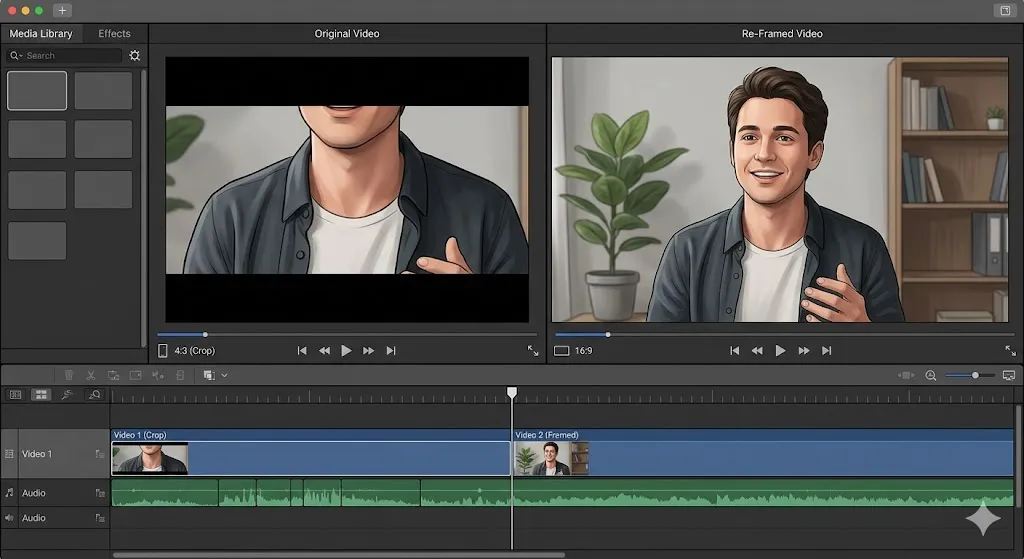
I have been cutting video for over a decade and I still see experienced editors make aspect ratio mistakes on almost every project. The problem is not ignorance — it is workflow. Most people edit in one ratio and hope for the best when they export. That is backwards. Build your workflow around the ratio from the very first frame.
What Is Aspect Ratio?
Aspect ratio is the proportional relationship between the width and height of your video frame. It is expressed as two numbers separated by a colon — the first number is width, the second is height. A 16:9 frame is 16 units wide for every 9 units tall.
The math is simple. If your video is 1920 pixels wide and 1080 pixels tall, divide both by the greatest common divisor (120) and you get 16:9. The ratio tells you nothing about resolution — only about shape. A 1920x1080 video and a 3840x2160 video are both 16:9.
1920 x 1080
YouTube, TV, Twitter/X
1080 x 1920
TikTok, Reels, Shorts
1080 x 1080
Instagram Feed, Facebook, LinkedIn
1080 x 1350
Instagram Feed (max vertical)
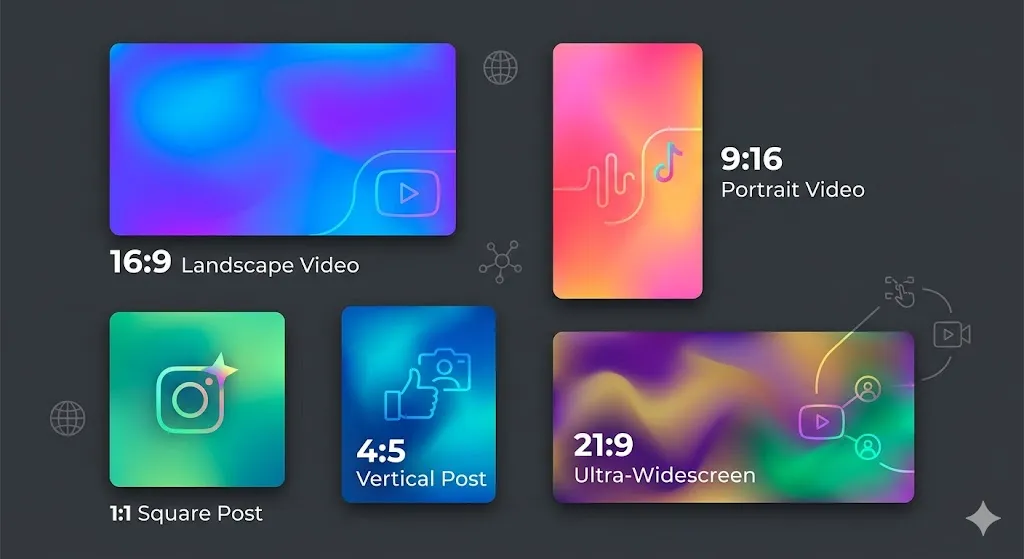
Platform Cheat Sheet — Every Ratio You Need
Each platform has its own preferred dimensions. Here is the complete breakdown — bookmark this section and come back to it every time you export.
YouTube Long-form
3840 x 2160
Best for: Tutorials, vlogs, documentaries
Always export at 4K even if uploaded at 1080p — YouTube gives higher bitrate to 4K uploads.
YouTube Shorts
1080 x 1920
Best for: Quick tips, shorts, teasers
Keep text inside the center 80% of the frame. YouTube overlays the title, description, and buttons on the right side.
TikTok
1080 x 1920
Best for: Entertainment, trends, education
Leave 150px at the bottom for the caption and 130px at the right for interaction buttons.
Instagram Reels
1080 x 1920
Best for: Lifestyle, fashion, tutorials
The feed preview crops to 4:5. Place your hook in the center so it is visible in the grid.
Instagram Feed
1080 x 1350
Best for: Carousels, single-image posts
The 4:5 ratio takes up maximum screen real estate in the feed. Use it for educational carousels.
Instagram Stories
1080 x 1920
Best for: Behind-the-scenes, polls, Q&A
Leave 250px at the top for the story bar and 330px at the bottom for the reply box.
Facebook Feed
1080 x 1080
Best for: Ads, community posts, shares
Square videos autoplay in the feed and get 30% more views than landscape on mobile.
Facebook Stories
1080 x 1920
Best for: Ads, quick updates
Leave 20% margin at top and bottom for Facebook UI elements and swipe prompts.
1080 x 1080
Best for: Professional content, thought leadership
Square or 4:5 gets the most engagement. Always add captions — 80% of LinkedIn video is watched on mute.
Twitter/X
1920 x 1080
Best for: News clips, commentary, threads
Keep videos under 2 minutes 20 seconds. Twitter compresses aggressively — export at higher bitrate than usual.
Vertical-First vs Horizontal-First Strategy
The biggest strategic decision you will make is whether to shoot and edit in vertical or horizontal format first. Your answer depends on where most of your audience watches.
Vertical-First
- Best for TikTok, Reels, Shorts, Stories
- 70%+ of social media is consumed on mobile
- Maximum screen real estate on phones
- Easier to repurpose to horizontal (add background)
Choose this if: Your primary platforms are mobile-first social apps.
Horizontal-First
- Best for YouTube, Twitter/X, LinkedIn
- More room for text overlays and screen recordings
- Natural framing for interviews and tutorials
- Easier to crop to vertical (center-crop works)
Choose this if: YouTube is your primary platform or you film talking-head content.
Safe Zones — Where Your Content Actually Shows
Every platform overlays UI elements on top of your video — captions, usernames, action buttons, titles. These elements cover specific portions of your frame. The area where your content is guaranteed to be visible is the safe zone. Ignore it and your text disappears behind a like button.
TikTok
Instagram Reels
YouTube Shorts
Instagram Stories

Composition by Ratio — Framing for Every Format
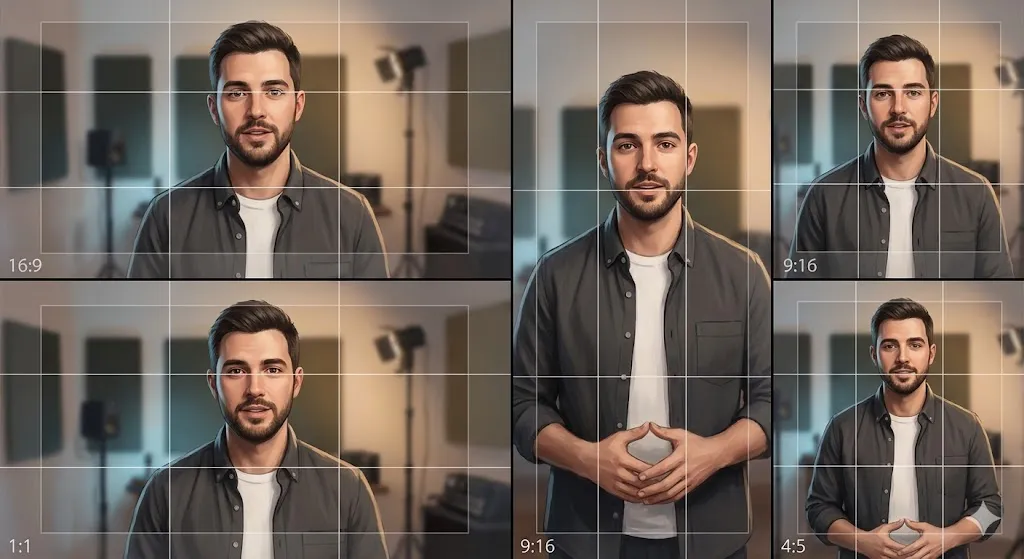
Composition rules change with the ratio. A shot that looks cinematic in 16:9 might feel empty and awkward in 9:16. Here is how to frame your subject for each major ratio.
Landscape / Widescreen
The standard for YouTube, TV, and cinema. Best for tutorials, vlogs, and any content where you need room for text overlays, B-roll, and screen recordings.
Placement
Place the subject at the left or right third. Leave the opposite third open for text, graphics, or B-roll inserts.
Rule of Thirds
Use the rule of thirds grid. Place eyes on the upper third line. Keep the subject slightly off-center for a cinematic feel.
Portrait / Vertical
The dominant format for mobile-first platforms: TikTok, Reels, Shorts, Stories. Best for talking-head content, quick tips, and behind-the-scenes.
Placement
Keep the subject dead center or slightly above center. Leave 25-30% of the bottom open for captions and UI.
Rule of Thirds
Center the subject vertically. Eyes on the upper third line. Fill the vertical space — avoid small subjects floating in a tall frame.
Square
The original social media format. Still dominant for Instagram feed posts and Facebook. Great for quotes, single-image content, and carousel covers.
Placement
Center the subject. Works well with symmetrical compositions. Leave margins for text overlays.
Rule of Thirds
Use center composition for talking heads. Use the grid intersections for product shots and flat lays.
Tall Portrait
Instagram's maximum vertical ratio for feed posts. Takes up the most screen real estate in the feed without being a Reel.
Placement
Subject in the upper two-thirds. Leave the bottom third for captions or branding.
Rule of Thirds
Eyes on the upper third line. Use the vertical space to show full-body shots or tall products.
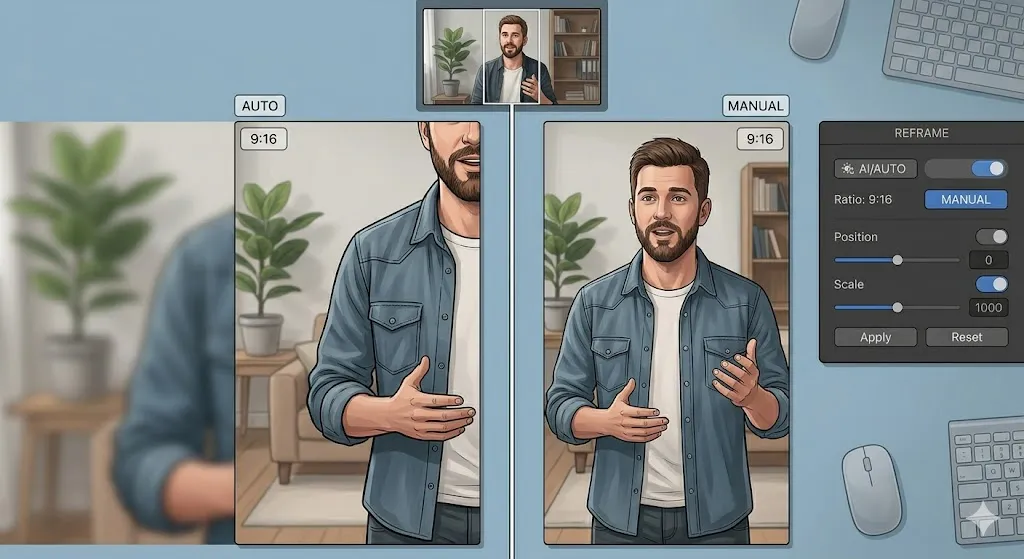
Composition is not optional — it is the difference between a video that looks professional and one that looks like a phone snapshot. I see editors spend hours on color grading and then compose their shot like an afterthought. The ratio defines your canvas. Learn to paint within it before you worry about the paint.
The Master Sequence System — Edit Once, Export Everywhere
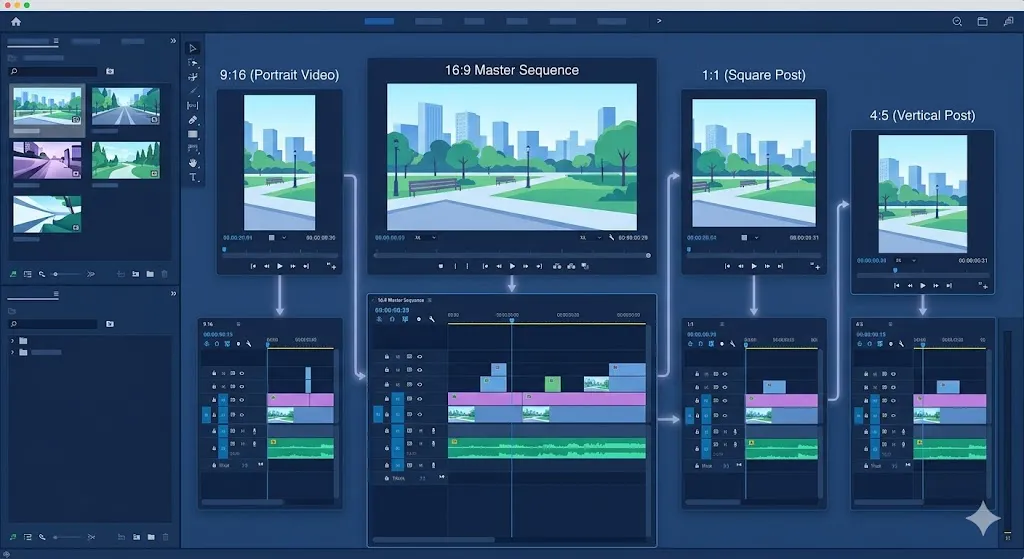
The master sequence workflow is the single most important process for multi-platform content. Instead of editing the same video five times for five platforms, you edit once and derive every format from a single master. Here is the step-by-step system.
Choose Your Master Sequence
Start by creating a single master sequence in your highest quality format — typically 4K (3840 x 2160) at 16:9. All your editing happens here first.
Software Instructions:
Premiere Pro: File > New > Sequence > Custom 3840x2160 • DaVinci Resolve: File > New Timeline > Custom 3840x2160
Edit in the Master
Complete your entire edit in the master sequence. Apply all color grading, effects, audio mixing, and timing adjustments. This is your "source of truth."
Software Instructions:
Work only in the master sequence until the edit is 100% locked. Do not create derivative sequences yet.
Create Derived Sequences
Duplicate the master sequence for each target format. Right-click the master sequence and select "Duplicate." Rename each copy for its target platform.
Software Instructions:
Premiere Pro: Right-click sequence > Duplicate • DaVinci Resolve: Right-click timeline > Duplicate Timeline
Reframe Each Derivative
Open each derived sequence and reframe for the target ratio. Move the subject, adjust text placement, and set keyframes for any motion tracking.
Software Instructions:
Premiere Pro: Use Auto Reframe (Sequence > Auto Reframe Sequence) or manual Position keyframes • DaVinci Resolve: Use Smart Reframe in the Cut page
Export and QA
Export each derived sequence with platform-appropriate settings. Watch every export on a phone to verify framing, safe zones, and text readability.
Software Instructions:
Premiere Pro: Export each sequence individually with Match Source settings • DaVinci Resolve: Use Deliver page with individual render jobs per timeline
The master sequence workflow is the single biggest time-saver in my professional workflow. Before I learned this, I was editing the same project three or four times — once for each platform. Now I edit once at the highest quality and create derived sequences for every format. It saves me at least two hours per project, and the quality is consistently better because I am not re-editing from scratch each time.
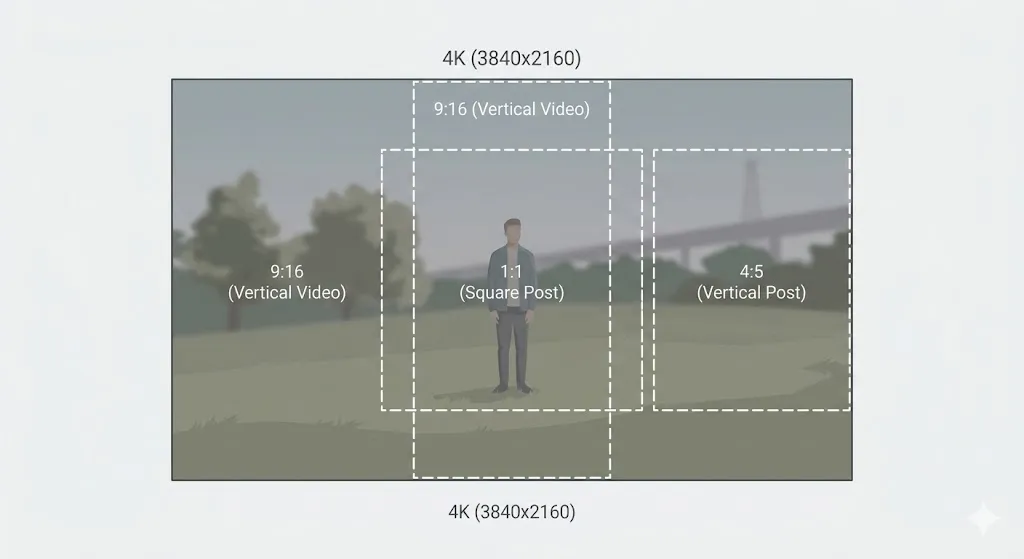
Resolution and Crop Math — The Numbers Behind the Frame
Understanding what happens to your pixels when you change aspect ratio is critical. Here is the math that explains why 4K footage gives you the most flexibility when cropping to vertical formats.
4K Landscape (3840 x 2160) ? 9:16 Vertical
Center-crop to 1216 x 2160. You lose 68% of the frame width but retain full vertical resolution. The result is sharper than natively shot 1080p vertical.
Best quality — always shoot 4K if you plan to crop
1080p Landscape (1920 x 1080) ? 9:16 Vertical
Center-crop to 608 x 1080. You lose 68% of the frame and the result is only 608 pixels wide — noticeably soft on modern phones.
Acceptable — but quality degrades significantly
4K Landscape (3840 x 2160) ? 1:1 Square
Center-crop to 2160 x 2160. You lose 44% of the frame width but retain a massive 2160p square — excellent for Instagram feed.
Excellent — more resolution than Instagram can display
1080p Landscape (1920 x 1080) ? 4:5 Tall
Center-crop to 810 x 1080. You lose 58% of width. The result is 810 pixels wide — adequate for mobile but looks soft on larger screens.
Workable — but close to the quality floor
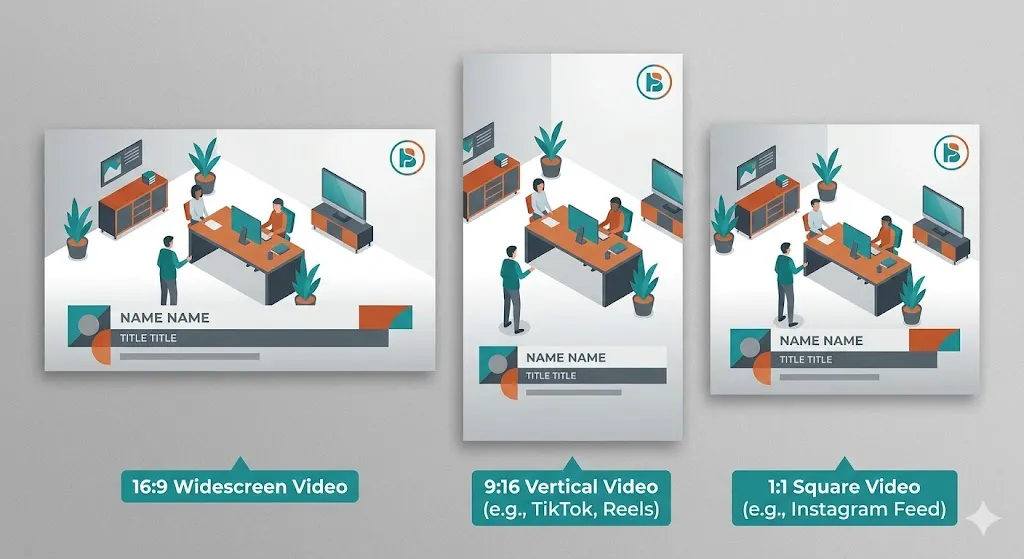
AI Reframe — When to Use It and When to Skip
AI reframe tools promise to automatically convert your horizontal video to vertical by tracking the subject and repositioning the frame. In practice, they work brilliantly for some footage and fail spectacularly for others. Here is how to know which situation you are in.
Use AI Reframe When
- Single subject in the frame (one person talking)
- Subject moves slowly and predictably
- You need to process many clips quickly
- Talking-head footage with consistent framing
Skip AI Reframe When
- ? Multiple subjects in the frame (interviews, panels)
- ? Fast, erratic movement (sports, action)
- ? You need precise creative control over composition
- ? Text or graphics need to be repositioned manually
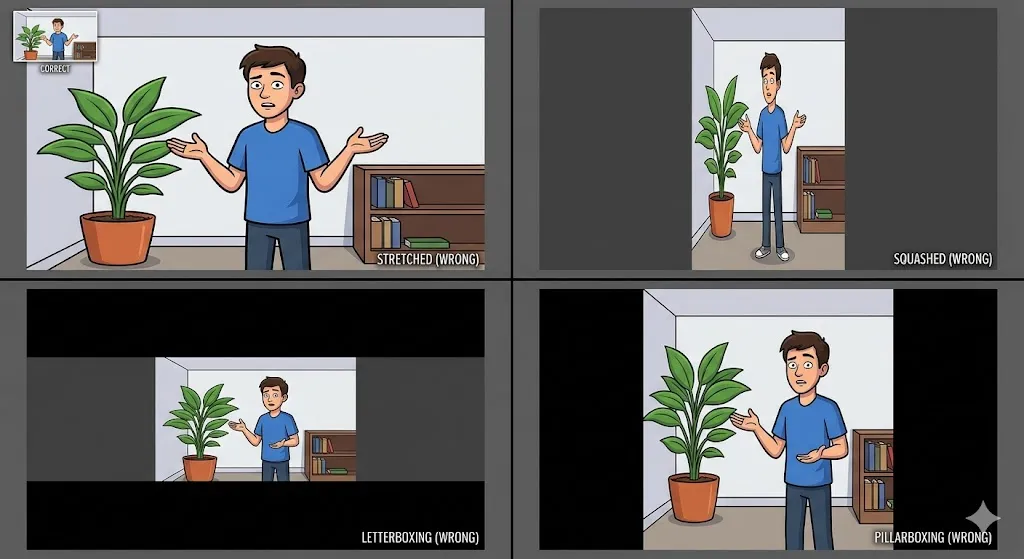
5 Common Aspect Ratio Mistakes (and How to Fix Each One)
These are the mistakes I see on every project — from beginners to seasoned professionals. Knowing them is the first step to never making them again.
Stretched Video
Forcing 16:9 footage into a 9:16 frame without cropping, resulting in a distorted, squeezed look.
Cause: Exporting a horizontal video directly to a vertical format without adjusting the composition.
Fix: Crop to 9:16 and reframe the subject, or use pillarboxing with a styled background. Never stretch.
Black Bars Everywhere
Letterboxing vertical video inside a 16:9 player, wasting screen real estate with unused black space.
Cause: Mixing up delivery format with source format. The editor outputs 16:9 but the footage was 9:16.
Fix: Match your sequence settings to your target platform. Create separate sequences for each ratio.
Cropped Heads
The subject's head is cut off by safe zone overlays or platform UI elements like captions and buttons.
Cause: Not accounting for platform-specific safe zones when framing your shots.
Fix: Keep the subject in the center 70% of the frame. Use guides or overlays in your editor to visualize safe areas.
Text Cut Off
Titles, lower thirds, or captions are hidden behind platform UI elements on mobile.
Cause: Designing text placement for desktop viewing and not testing on mobile.
Fix: Use a text-safe template for each platform. Keep all text inside the inner 60% of the frame.
AI Reframe Fails
AI auto-reframe misses the subject, drifts off-center, or creates awkward jump cuts.
Cause: Using AI reframe on footage with multiple subjects or fast, unpredictable movement.
Fix: Set manual keyframes to guide the AI. Review every 5 seconds. For complex shots, reframe manually.
Brand Kit Placement Rules Per Ratio
If you are creating branded content, every element — logo, lower-third, title card, captions — needs specific placement for each ratio. Here are the rules that keep your brand visible without getting clipped by platform UI.
| Element | 16:9 Horizontal | 9:16 Vertical |
|---|---|---|
| ???Lower-Third | Bottom-left, 80px from edge, 600px wide | Bottom center, 200px from bottom, 400px wide |
| ??Logo | Bottom-right corner, 40px margin, 120px wide | Top-right corner, 180px from top, 100px wide (below safe zone) |
| ??Title Card | Center of frame, upper third zone, full width available | Center of frame, upper 40% only, max 80% width |
| ??Captions | Bottom center, 60px from edge, max 80% width | Bottom center, above platform caption area, max 70% width |
How Aspect Ratio Affects Your Metrics
The right ratio does not just look better — it directly impacts your performance numbers. Here are three data points that show the difference.
+30%
More views on square vs landscape in Facebook feed
Square videos autoplay and take up more screen real estate in the mobile feed, leading to higher view rates.
+45%
Higher completion rate for native-ratio content
Videos that match the platform aspect ratio get watched longer because viewers do not have to tilt their phone or deal with black bars.
2x
More engagement when text is inside safe zones
When captions, CTAs, and key text sit above platform UI overlays, viewers actually read them instead of scrolling past.
Pre-Publish Checklist — Export With Confidence
Before you hit export, run through this checklist. Every item has been the source of at least one catastrophic client revision in my career. Save yourself the pain.
Pre-Publish Checklist
Frequently Asked Questions
Was this guide helpful?
Level Up Your Multi-Platform Game
Every ratio, safe zone and export preset on this page, condensed into printable cheat sheets for Premiere Pro, DaVinci Resolve and CapCut.
Download Cheat Sheets & PDFsKeep Learning
Related Resources