
You've shot beautiful footage. Your audio is crisp. You drop it all into your timeline... and it feels blocky. The flow is dead. Your viewers are clicking off within 10 seconds.
Beat sync preview
Cuts snap when the playhead hits a marker.
The difference between a video that looks like a high school project and a video that holds millions of views comes down to one thing: how you get from shot A to shot B. It's not about flashy effects. It's not about downloading a pack of 500 glitch transitions. It's about understanding the psychology behind every single edit point on your timeline.
Most editing guides online will list a bunch of transition types, show you where to click in Premiere Pro, and call it a day. That's not what this guide is. We're going to give you a decision framework so you never have to guess whether to use a cut or a transition. We're going to break down platform-specific recipes for YouTube, Reels, and TikTok. We're going to cover beat-sync editing with both manual and AI tools, give you a B-roll playbook, keyboard shortcuts for every major editor, and end with 5 practice drills that will genuinely make you a better editor.
1When to Cut vs Use a Transition — The Decision Framework
Forget memorizing a list of transitions. Here's the framework that separates professionals from beginners. Every time you need to move from one shot to another, run through this decision tree:
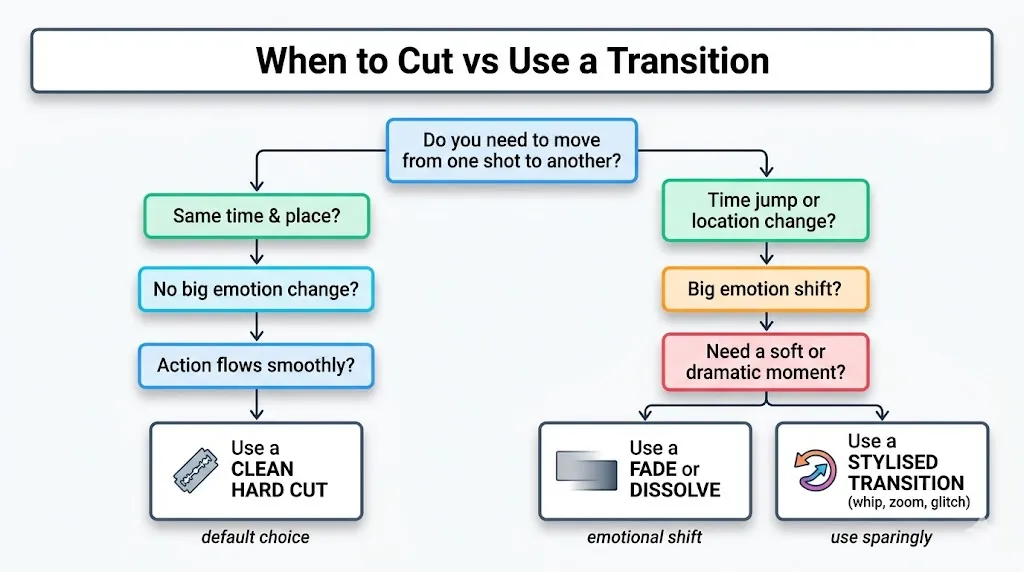
Same time & place?
Use a CLEAN HARD CUT
Time or location change?
Use a FADE or DISSOLVE
High energy moment?
Use a STYLISED TRANSITION
Pro Framework Tip
When in doubt, hard cut. A hard cut is almost never wrong. If a cut feels jarring, it usually means the timing is off, not that you need a transition. Adjust where the cut happens — cut 2-3 frames earlier or later — before reaching for a dissolve. If it still feels wrong after adjusting timing, then consider a transition.
2The 7 Essential Types of Video Cuts
Forget the fancy effects for a second. If you don't master these 7 cuts, your videos will never feel professional. Every single film, YouTube video, and Netflix episode is built on these foundations.
The Straight Cut (Hard Cut)
The most fundamental edit in filmmaking. Frame 10 is Clip A, Frame 11 is Clip B — no blending, no effects, no math. This is the bread and butter of editing. Used for normal dialogue, action sequences, and anywhere pacing matters more than polish.
90% of your timeline should be straight cuts. If every clip has a transition, something is wrong.
The Jump Cut
A cut within the same shot that moves time forward abruptly. Once considered a cardinal sin in Hollywood, jump cuts are now the backbone of YouTube vlogs, TikToks, and any content where you need to compress time while keeping energy high.
To hide jump cuts: punch in by 15%, add B-roll, or use a Morph Cut effect.
The J-Cut (Audio Leads Video)
You hear the audio of the next clip before you see the video. This creates a psychological bridge that makes the viewer anticipate the next shot. It is the secret weapon for seamless narrative flow in tutorials, interviews, and documentaries.
In talking-head tutorials, let the next explanation start as audio-only over B-roll before cutting back to camera.
The L-Cut (Video Leads Audio)
You cut to the next video clip, but the audio from the previous clip keeps playing. Essential for showing reaction shots in interviews and tutorials. Combined with the J-Cut, these two are the most powerful tools for invisible editing.
The A-roll → J-cut into B-roll → L-cut back to A-roll pattern is your go-to for tutorial videos.
Cut on Action
Cutting right in the middle of a motion — a punch, opening a door, turning a head, picking up a pen. The viewer's brain is so focused on the movement that the edit becomes literally invisible. This is how Hollywood hides the fact that they switched cameras mid-scene.
Always cut 2-3 frames INTO the action, not at the exact start. The slight overlap tricks the brain.
The Match Cut
Matching the composition or movement of one shot to a completely different shot. Think of the bone turning into a spaceship in 2001: A Space Odyssey, or a spinning ball cut to a spinning globe. It creates a visual connection between two unrelated shots.
Match the shape, color, or direction of movement between the two clips for the strongest effect.
The Smash Cut
An abrupt, highly contrasting cut. From a loud, chaotic party instantly to a dead silent bedroom. It jars the viewer on purpose for comedic or dramatic effect. Used masterfully by directors like Christopher Nolan and David Fincher.
Use sparingly — one or two smash cuts per video is enough. Overusing them kills the impact.
3Classic & Modern Video Transition Effects
When a hard cut won't work — when you need to signal a passage of time, a shift in mood, or a burst of energy — you reach for an actual transition effect. Let's break them down from classic cinema to modern YouTube styles.
Classic Video Transitions
Cross Dissolve / Crossfade
Clip A fades into Clip B. The universal sign for "time has passed." Works in every context from documentaries to music videos.
Fade to Black / Fade In
The ultimate period at the end of a sentence. It signifies finality, the end of an act, or a major chapter break.
The Wipe Transition
One clip pushes the other off screen. Very Star Wars, but easily looks amateur if misused. Reserve for stylistic or retro projects.
Modern & Digital Transitions
Zoom Transition (Punch In/Out)
The camera aggressively zooms into Clip A, blurring as it goes, and pulls out of Clip B. Massive on YouTube gaming and vlogs. Use max 2-3 times per video.
Whip Pan / Swish Pan
The camera violently pans left or right, creating heavy motion blur, bridging into the next clip panning in the same direction. Great for energy.
Glitch Transition
Digital distortion, chromatic aberration, and static. Perfect for tech videos, gaming edits, and hype reels. Overuse and you look like a 2020 CapCut template.
Morph Cut
AI-powered seamless blend between two similar shots. Great for fixing jump cuts in talking-head videos. Premiere Pro and DaVinci Resolve both have this.
Light Flash / Lens Flare
The screen blows out to pure white for 2-3 frames. Excellent for music videos, upbeat montages, and scene transitions that need energy.
Hard Cut
Best default
Dissolve
Time shift
Whip Pan
Motion match
Glitch
Use sparingly
4Platform-Specific Cuts & Transition Recipes
Different platforms demand different editing styles. What works on a cinematic YouTube vlog will kill your Reels. What works on Reels will look amateur on a documentary. Here's the recipe for each format.
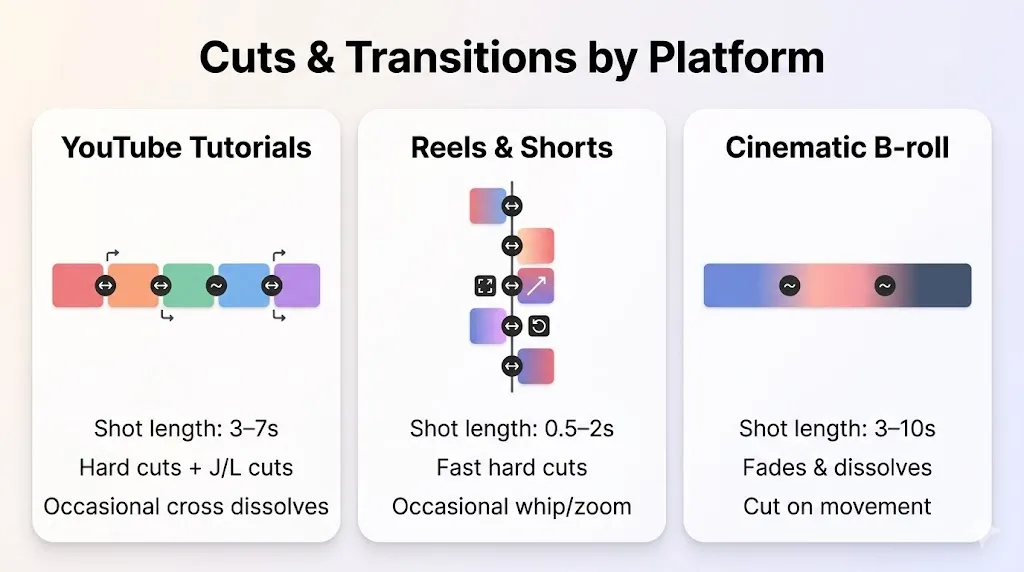
YouTube Tutorials
- Hard cuts + J/L cuts
- Occasional cross dissolves
Focus on clarity. Use J/L cuts to bridge between explanation and B-roll. Keep the viewer engaged, not overwhelmed.
Reels & Shorts
- Fast hard cuts
- Occasional whip/zoom
High energy, zero patience. Edit to the beat. Change angles constantly. Every frame must earn its place.
Cinematic B-roll
- Cut on movement
- Fades & dissolves
Let the movement play out. Use dissolves to emphasize mood. Less is more — let the footage breathe.
5Beat-Sync & Rhythm Editing — The Secret Weapon
A visual transition without audio is like a firework with no sound — it feels broken. Beat-synced editing is what separates amateur montages from professional ones. Your cuts don't just need to look right — they need to feel right. And feeling comes from rhythm.
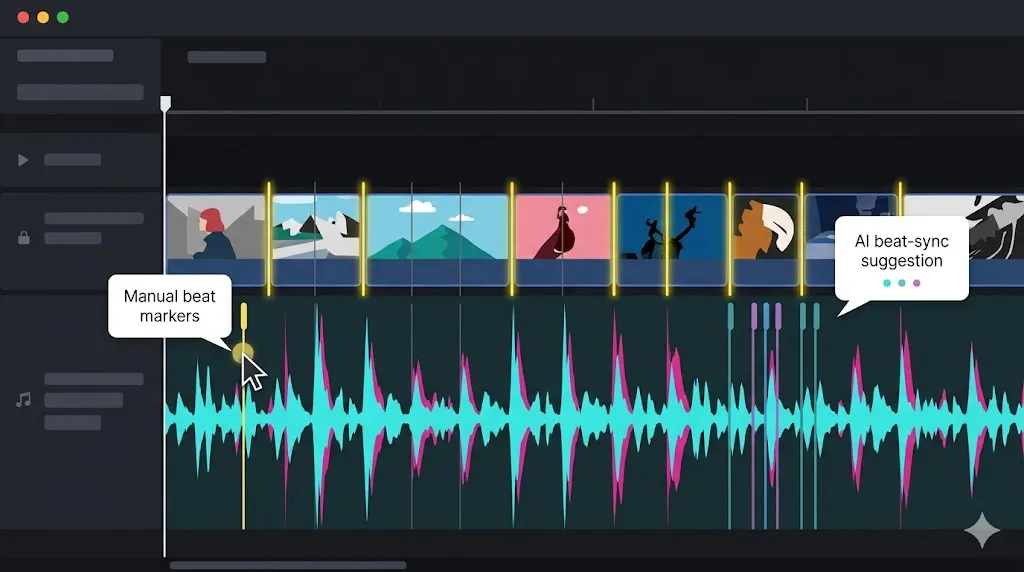
Manual Beat-Matching (The Reliable Way)
- Import your music track and drag it to the audio timeline.
- Play the track and tap M on every beat (drum hit, clap, bass drop). This drops markers on your timeline.
- Now place your cut points on or near these markers.
- Fine-tune by dragging cuts 1-2 frames before or after the marker for the tightest sync.
AI Beat-Sync Tools (The Fast Way)
Modern editors are adding AI-powered beat detection. Here's how the major tools compare:
Premiere Pro
Auto-beat markers via "Beat Edit" panel or third-party extensions like BeatEdit by Mamoworld
DaVinci Resolve
Use the "Detect Audio Beats" feature in the Cut page to auto-generate markers on transients
CapCut
Auto-beat detection built into the music panel — tap "Beats" and it auto-generates markers you can snap cuts to
Final Cut Pro
Lane-based audio with automatic beat detection and rhythm markers in the latest versions
The Sound Design Rule
If the camera moves fast, it must make a sound. Whip pan? Add a whoosh. Zoom transition? Add a riser or impact. Spin? Add a swoosh. The moment your visual energy doesn't match your audio energy, the edit feels broken — even if the viewer can't explain why. Pair every fast visual with a corresponding sound effect.
6Bad vs Good Transitions — Before & After Breakdown
Most guides warn you not to overuse flashy transitions — but they do it in text only. Here's a visual breakdown of what's actually going wrong and how to fix it.
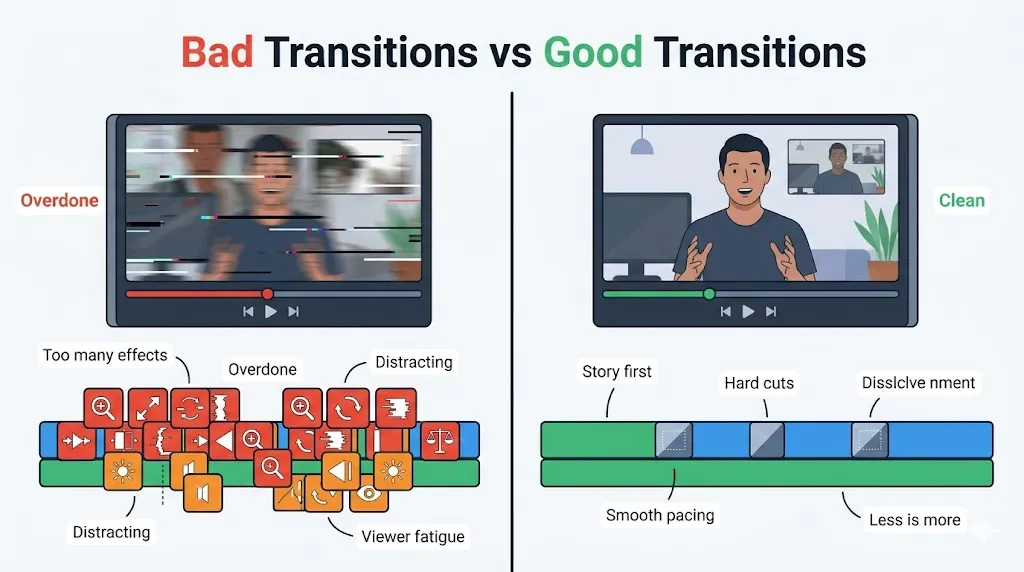
The Amateur Approach
- ✕ Transition on every single cut
- ✕ Random zoom spins and glitches
- ✕ 2-second cross-dissolves in a vlog
- ✕ Star wipes and shape transitions
- ✕ Effects that fight the footage for attention
The Professional Approach
- ✓ 90% hard cuts, transitions earn their place
- ✓ Subtle dissolves only for time/emotion shifts
- ✓ Transitions under 15 frames (half a second)
- ✓ Story stays invisible — viewer never notices the edit
- ✓ Smooth pacing that respects viewer attention
5 Scenarios to Fix Right Now
- Zoom spin on every cut: Replace with hard cuts. Keep 1 zoom max per minute.
- 2-second dissolve in a vlog: Cut it to 0.5s or switch to a hard cut entirely.
- Glitch in a talking-head: Remove it. Use a J-cut or B-roll instead.
- Star wipe anywhere: Delete immediately. No exceptions.
- Transition on dialogue cuts: Replace with straight cuts. Dialogue should feel invisible.
7Cross-Software Shortcut Cheatsheet
Stop clicking through menus. Here are the essential keyboard shortcuts for cuts and transitions across every major editor. Bookmark this table — you'll come back to it constantly.
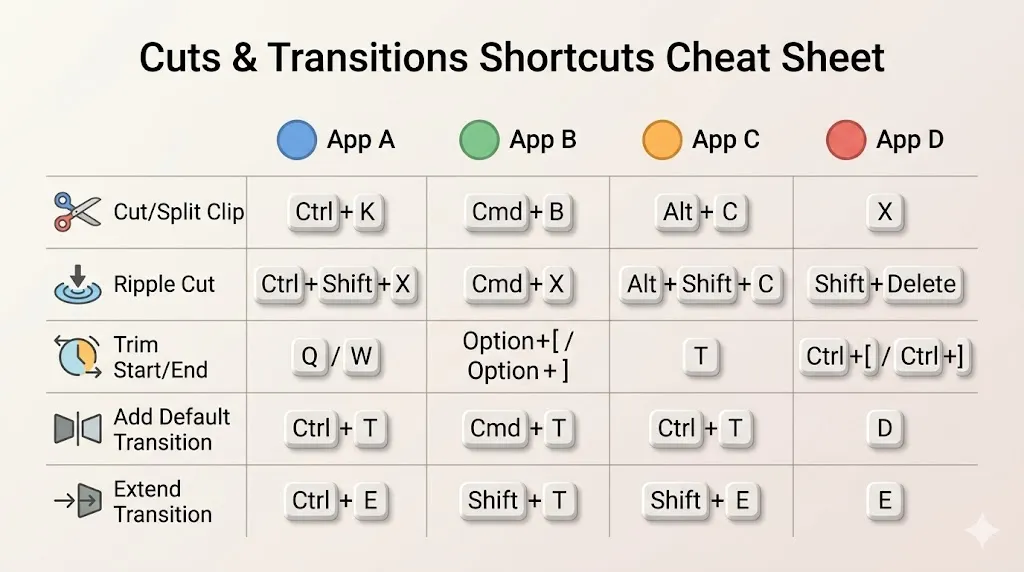
| Action | Premiere Pro | DaVinci Resolve | Final Cut Pro | CapCut |
|---|---|---|---|---|
| Cut / Split Clip | Ctrl + K | Ctrl + \ | Cmd + B | Cmd + B / Tap scissors |
| Ripple Cut | Ctrl + Shift + X | Ctrl + X | Delete | Delete |
| Trim Start / End | Q / W | Ctrl + [ / ] | Option + [ / ] | Drag edge |
| Add Default Transition | Ctrl + T | Alt + T | Cmd + T | Tap transition icon |
| Extend to Playhead | Shift + E | Shift + E | Shift + X | Drag edge |
| Playback Forward | J | J | J | Space |
| Playback Reverse | L | L | L | N/A |
| Pause | K | K | K | Space |
| Drop Marker | M | M | M | Tap flag icon |
| Nest / Compound | Right-click > Nest | Right-click > Nest | Alt + G | Create Compound |
8Micro-Pacing Formulas & Timing Guidelines
Pacing isn't magic — it's math. Here are the shot-length ranges and timing rules that work across different formats. Think of these as starting points, not rigid rules.
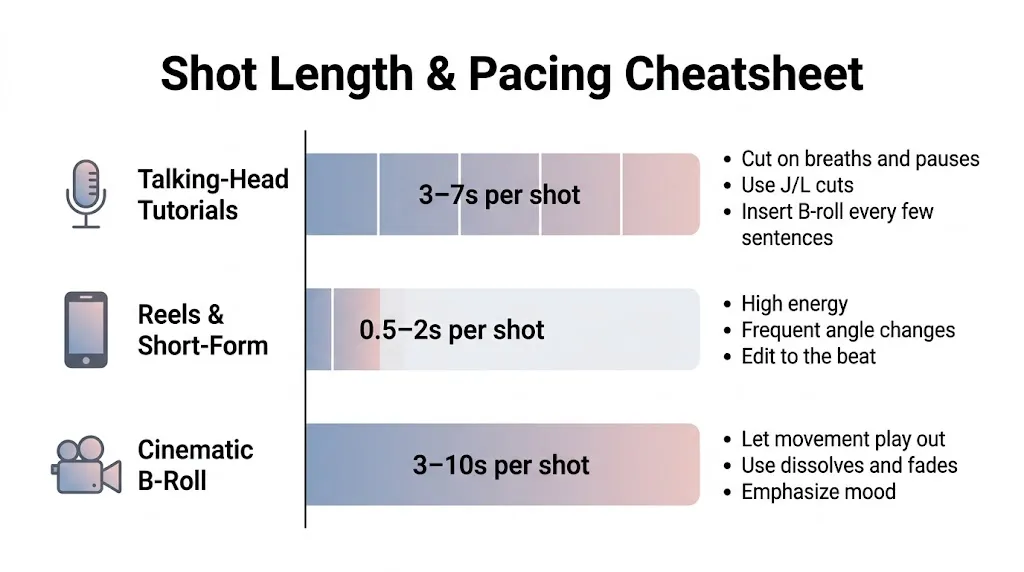
Talking-Head Tutorials
3–7s per shot- Cut on breaths and pauses — never mid-sentence
- Use J/L cuts to bridge between explanation and B-roll
- Insert B-roll every 3-5 sentences to reset viewer attention
- Change shot size (wide → tight) at least once per minute
Reels & Short-Form
0.5–2s per shot- High energy, zero wasted frames
- Frequent angle changes to maintain attention
- Edit to the beat — every drum hit is a cut point
- Hook in the first 0.5 seconds or you lose them
Cinematic B-Roll
3–10s per shot- Let movement play out — don't rush the shot
- Use dissolves and fades to emphasize mood
- Emphasize mood over information
- Match cut rhythm to the emotional arc of the music
The 3 Universal Pacing Rules
- Cut on action: Always cut 2-3 frames into a motion, never at the start.
- Change shot size every 10-15 seconds: Wide → medium → tight → wide. This resets viewer attention.
- Reset viewer attention every 30-45 seconds: Change location, introduce B-roll, or shift music energy.
9The B-Roll Playbook — Repeatable Cutaway Strategy
B-roll is the secret weapon for hiding jump cuts, maintaining energy, and keeping viewers watching. Most creators know they should use B-roll, but they don't have a plan. Here's your repeatable playbook.
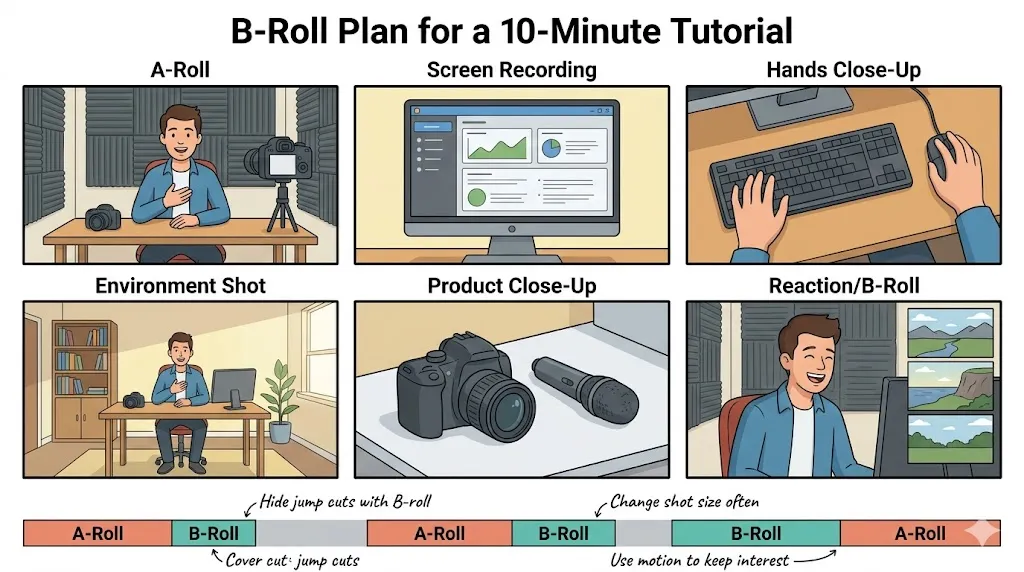
Shot List: 6 B-Roll Types Every Creator Needs
Screen Recording
Show what you're explaining — software, websites, data
When: During any "how-to" step
Hands Close-Up
Physical products, gestures, keyboard/mouse shots
When: When referencing tools or physical objects
Environment Shot
Establish context — your desk, studio, workspace
When: At the start of a new section or topic
Product Close-Up
Detail shots of the product, tool, or gear being discussed
When: When introducing or reviewing something
Reaction / Expression
Your face reacting, nodding, or making a point
When: During key moments or emotional beats
Abstract / Mood
Nature, lights, motion — sets the emotional tone
When: During transitions or music-driven segments
The B-Roll Rhythm Formula
For a 10-minute tutorial: plan 12-16 B-roll shots (about 1-2 per minute). Alternate between A-roll (you talking) and B-roll every 3-5 sentences. Use J-cuts to let your explanation start over B-roll before cutting back to camera. This creates a rhythm that feels natural and keeps the viewer engaged without even realizing why.
10J-Cuts & L-Cuts for Talking-Heads & Tutorials
J-cuts and L-cuts are usually taught with dialogue scenes from movies. But their most powerful application is actually in talking-head tutorials and social content — where they create invisible, seamless flow.
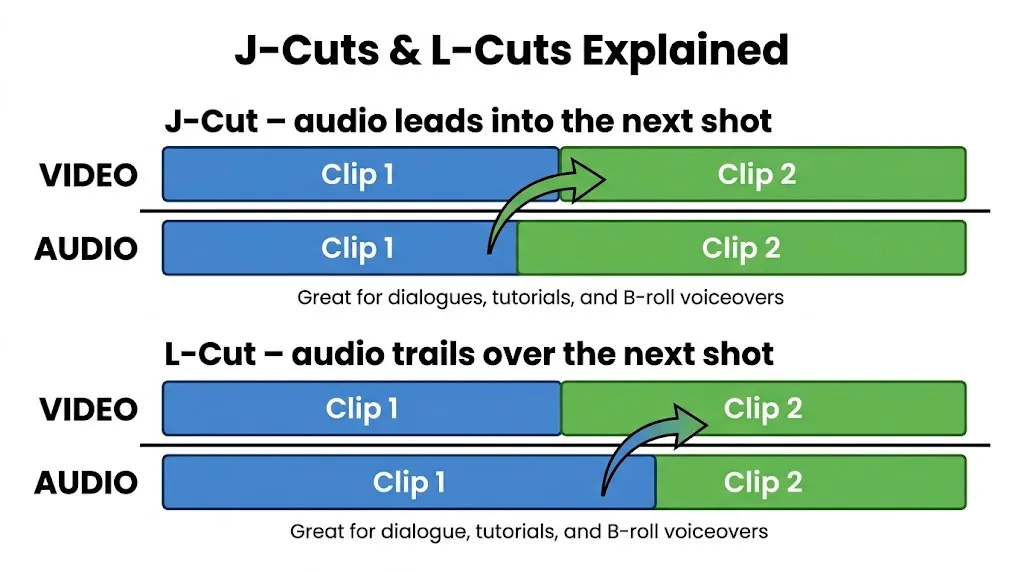
The Repeatable Pattern
Here's the exact pattern to use in every talking-head video:
This A-roll → J-cut into B-roll → L-cut back to A-roll cycle is the backbone of every professional YouTube tutorial. It hides jump cuts, keeps energy up, and makes your editing feel invisible.
11Viewer Comfort & Accessibility — Edit Without Hurting People
Most editing guides celebrate flashy transitions without ever mentioning that strobe-like cuts and aggressive motion can cause discomfort, headaches, or even seizures in sensitive viewers. Good editing is considerate editing.
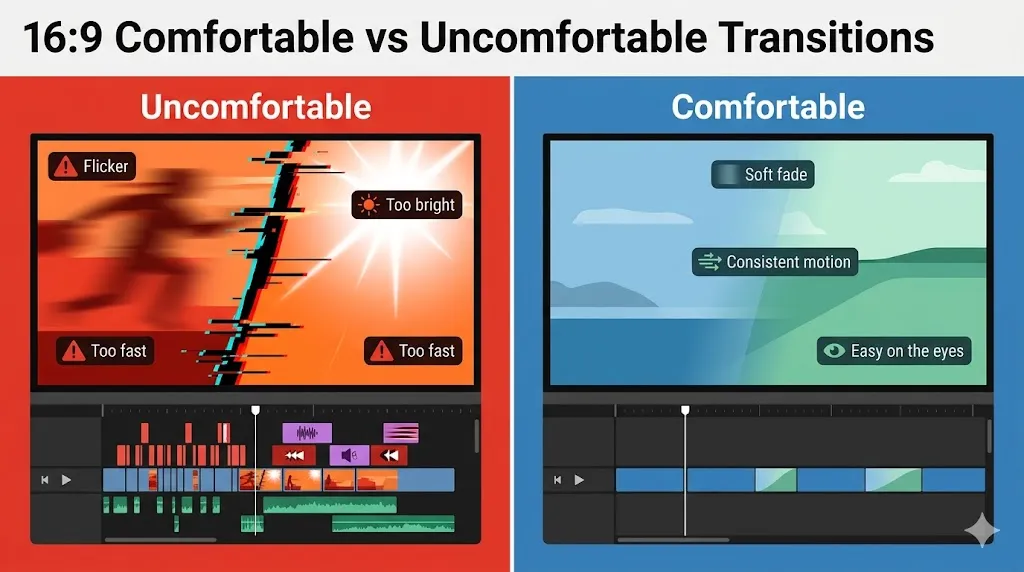
Avoid These
- Flicker effects (rapid on/off flashing)
- Strobe-like rapid cuts (under 3 frames each)
- Pure white flashes lasting more than 3 frames
- Aggressive screen shakes on every beat
- High-contrast glitches on dark backgrounds
Do These Instead
- Soft fades with consistent motion speed
- Cuts that hold for at least 8-10 frames
- Warm-toned light flashes capped at 2 frames
- Subtle parallax or scale shifts for energy
- Audio risers to build tension instead of visual chaos
The Comfort Rule
Every transition should serve the viewer, not impress them. If a viewer has to blink, look away, or feels disoriented — you've failed as an editor. The best editing is invisible. The viewer should feel the story, not the effects. When in doubt, less is always more.
125 Practice Drills & Printable Checklist
Reading about cuts and transitions is useless without practice. Here are 5 structured drills that will genuinely sharpen your editing instincts. Grab any 30-second clip and run through them.
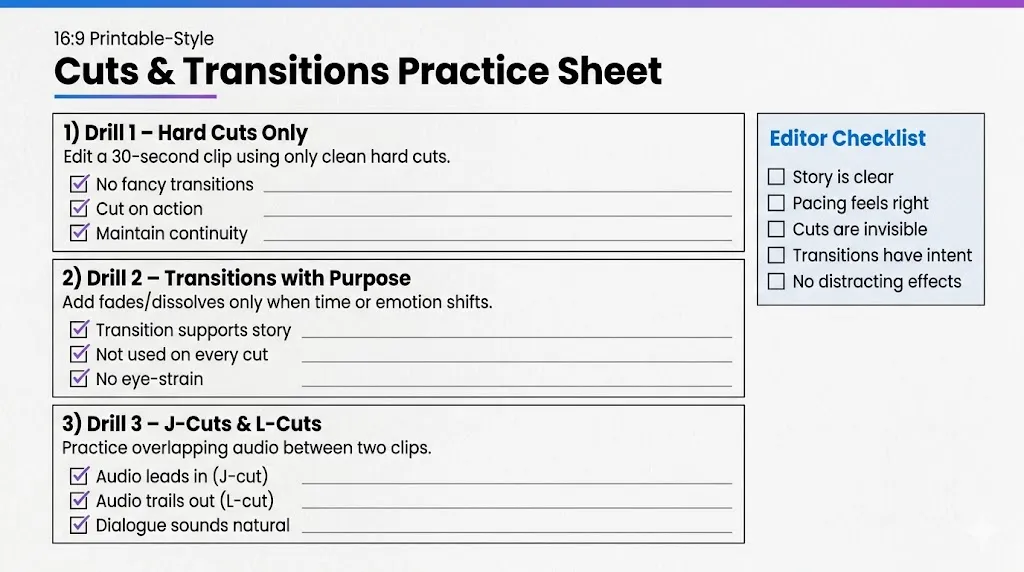
Hard Cuts Only
Take a 30-second clip and edit it using ONLY clean hard cuts. No fades, no dissolves, no effects. This forces you to master timing and story flow.
Transitions with Purpose
Take the same clip and add fades/dissolves ONLY when time or emotion shifts. Every transition must have a reason.
J-Cuts & L-Cuts
Practice overlapping audio between two clips. Let audio lead in (J-cut) and trail out (L-cut). This is the mark of a professional editor.
Beat-Matched Montage
Edit a 15-second montage where every cut lands exactly on a beat. Mark the beats first, then cut to each one. Compare before and after beat-matching.
Platform-Specific Edit
Take the same footage and edit it three ways: a YouTube tutorial (3-7s shots), a Reel (0.5-2s shots), and a cinematic piece (3-10s shots with fades).
Final Editor Checklist — Before You Export
13Frequently Asked Questions
What is the difference between a video cut and a transition?
A cut is an instantaneous switch from one clip to another with no blending — Frame 10 is Clip A, Frame 11 is Clip B. A transition is a visual effect (like a fade, wipe, or dissolve) that blends two clips together over a set duration. Cuts are your default. Transitions are special occasions.
How do I make smooth transitions in videos?
To make smooth transitions: match the motion of the subject in both clips, maintain consistent eye lines, use audio swells (like risers) to bridge the gap, and keep transitions under 15 frames for digital content. Start with the decision framework — hard cut is always the default choice.
How long should a video transition be?
Most transitions should be between 10 to 30 frames (about 0.3 to 1 second at 30fps). Fast action sequences need shorter transitions (under 15 frames). Emotional or time-passing moments can use longer dissolves (30+ frames). For Reels and TikTok, keep them under 10 frames.
What is a J-Cut and when should I use it?
A J-Cut is when the audio from the next clip starts playing before the video switches. Use it in tutorials to let the next explanation begin over B-roll, in interviews to bridge between speakers, and anytime you want seamless narrative flow without a visual transition effect.
How do I edit transitions for YouTube vs TikTok?
YouTube tutorials work best with 3-7 second shots, J/L cuts, and occasional cross dissolves. TikTok and Reels need 0.5-2 second shots, fast hard cuts, and aggressive transitions like whip pans and glitch effects. Cinematic content uses 3-10 second shots with fades and dissolves to emphasize mood.
Ready to Upgrade Your Transitions?
Browse our collection of professional transition tutorials, cutting techniques, and editing workflows for Premiere Pro, DaVinci Resolve, and CapCut.
Browse Guides