Frame Rate, Explained: 24fps vs 30fps vs 60fps
The difference between amateur and professional video is rarely about equipment. More often, it's about understanding frame rate — what it is, why 24fps looks "cinematic," and when you absolutely need 60fps or higher.
What Is Frame Rate?
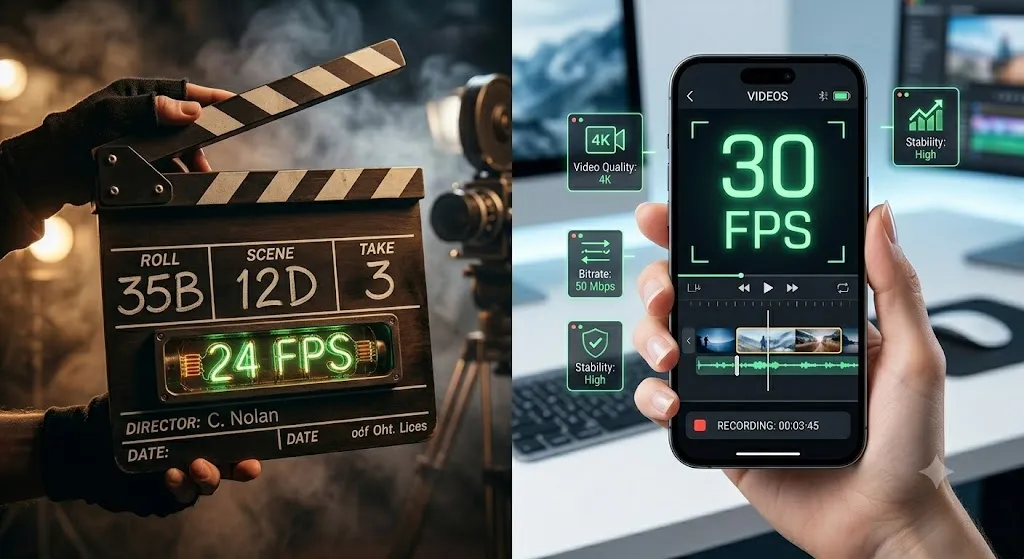
Frame rate is the number of individual still images (frames) your camera captures per second. It is measured in fps (frames per second). The higher the frame rate, the more information your camera captures, and the smoother the motion appears.
Historically, frame rates were constrained by mechanical film projectors. Today, they are an artistic choice — each frame rate communicates a different feel, from the dreamy blur of 24fps cinema to the hyper-realistic clarity of 60fps sports broadcasts.
24fps: The Cinema Standard
24 frames per second has been the international standard for cinematic film since the 1920s. It was chosen as the minimum frame rate needed to produce convincing motion with optical soundtracks on film reels.
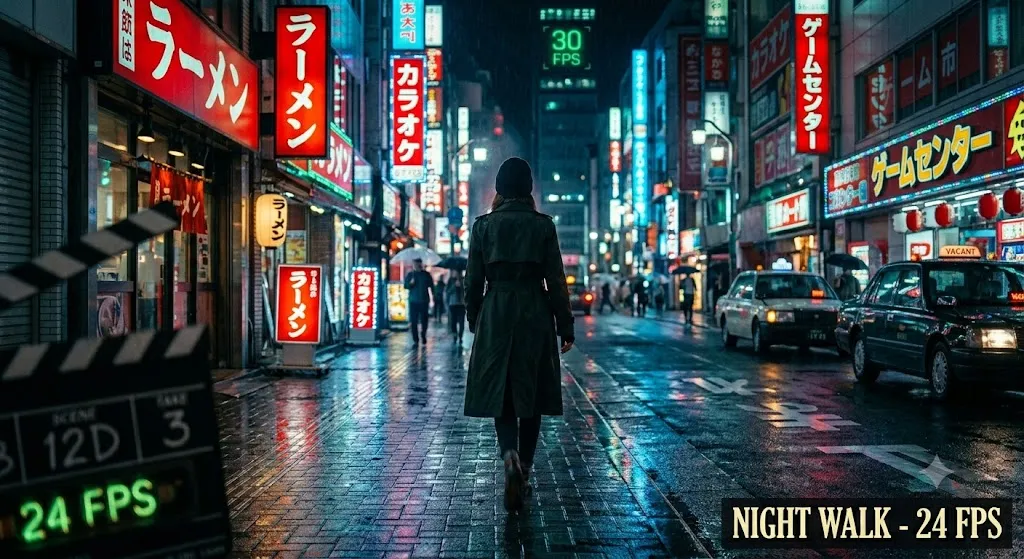
24fps produces a specific look: more motion blur per frame, a slight rhythmic strobe in fast motion, and a dreamlike quality that audiences associate with "the cinema experience." This is not a technical flaw — it is an aesthetic hallmark.

30fps: The Broadcast Standard
30fps emerged from the NTSC television standard in North America and Japan. It was chosen to match the 60 Hz electrical grid frequency, which eliminated visible flicker in CRT televisions.
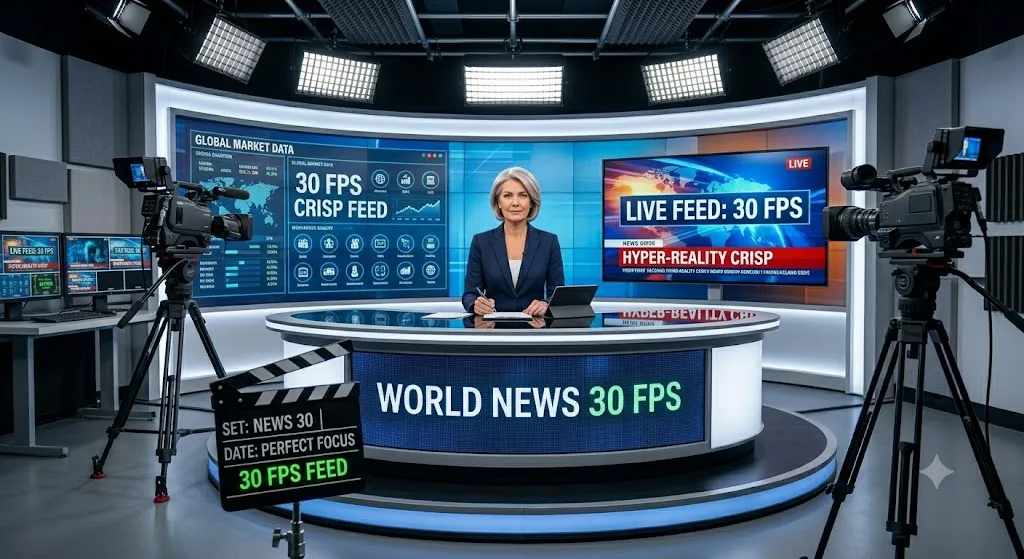
30fps provides a noticeably smoother image than 24fps while retaining a natural, "documentary" feel. It is the gold standard for live broadcasts, news, and most YouTube content. It is also the standard frame rate for most smartphone video.
24fps vs 30fps: Head to Head
| Factor | 24fps | 30fps |
|---|---|---|
| Motion Blur | High — 41.7ms per frame | Moderate — 33.3ms per frame |
| Visual Feel | Dreamlike, immersive, "cinematic" | Realistic, immediate, "live" |
| Best For | Narrative films, music videos, documentaries | Vlogs, news, TV shows, sports |
| File Size | ~25% smaller than 30fps | ~25% larger than 24fps |
| Slow Motion | Poor — stutters below ~80% speed | Fair — usable down to ~70% speed |
60fps: Action & Slow Motion
60fps doubles the temporal information of 30fps and provides near-zero motion blur in individual frames. The result is hyper-realistic, ultra-smooth motion that feels immediate and present.
60fps is the standard for sports broadcasts, gaming content, and as a recording frame rate for slow-motion B-roll. When played back at 24fps on your timeline, 60fps footage produces a smooth 40% slow motion effect.
120fps & Beyond: Extreme Slow Motion
120fps, 240fps, and even 960fps are used for extreme slow-motion effects. These frame rates require specialized cameras and massive amounts of storage space. On a 24fps timeline, 120fps footage plays back at 20% speed — a 5× slow-motion effect.
| Recording FPS | Playback Speed | Slow-Mo Factor | Timeline FPS |
|---|---|---|---|
| 60fps | ~40% speed | 2.5× slower | 24fps |
| 120fps | ~20% speed | 5× slower | 24fps |
| 240fps | ~10% speed | 10× slower | 24fps |
| 960fps | ~2.5% speed | 40× slower | 24fps |
The 180-Degree Shutter Rule
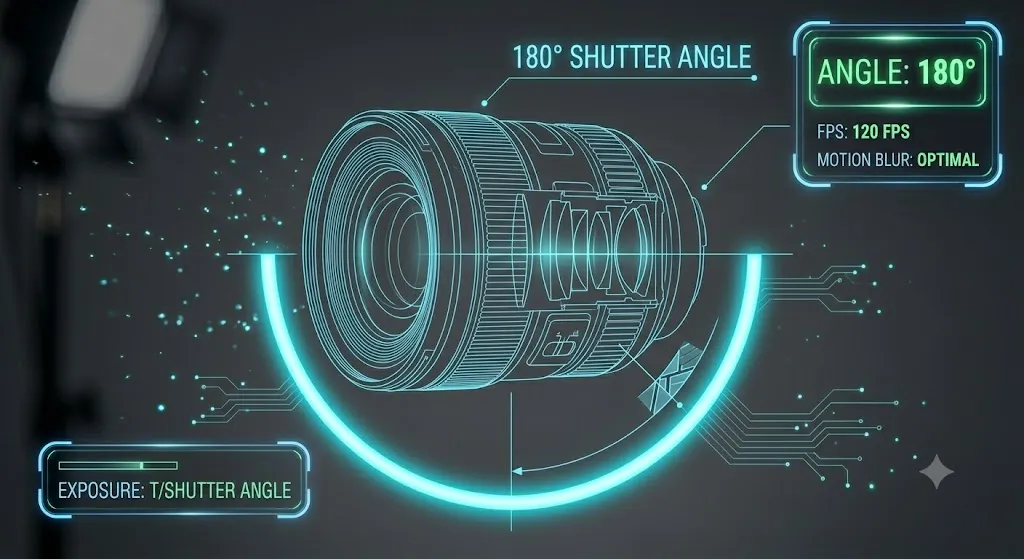
The 180-degree shutter rule states that your shutter speed should be double your frame rate:
24fps → Shutter speed 1/48s (or 1/50s)
30fps → Shutter speed 1/60s
60fps → Shutter speed 1/120s
120fps → Shutter speed 1/240s
This produces the natural amount of motion blur that the human eye finds pleasing. Breaking this rule deliberately can create specific effects — a faster shutter (360-degree) creates a stuttery, gladiatorial look, while a slower shutter (90-degree) creates a dreamy, over-blurred look.
Setting Your Timeline Frame Rate
In Premiere Pro: File → New → Sequence. Settings tab → Timebase. Choose 23.976fps for 24fps delivery, or 29.97fps for 30fps delivery.
In DaVinci Resolve: File → Project Settings → Timeline Format → Frame Rate. Choose 24 or 23.976 for cinematic projects, or 29.97 for broadcast/web.
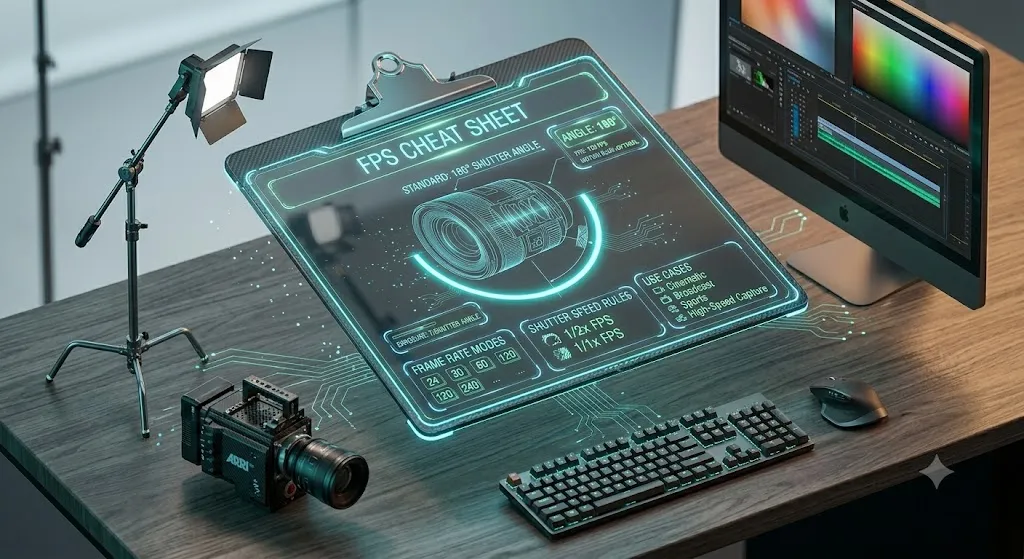
FPS Quick Reference
Look: Cinematic, film-like
Blur: High motion blur
Feel: Dreamlike, immersive
Best for: Films, documentaries, music videos
Look: Realistic, broadcast
Blur: Moderate blur
Feel: Crisp, immediate
Best for: Vlogs, TV, social media, tutorials
Look: Hyper-smooth, gaming
Blur: Minimal blur
Feel: Fluid, action-ready
Best for: Gaming, sports, slow-motion B-roll
Look: Extreme slow motion
Blur: Near-zero blur
Feel: Ultra-crisp detail
Best for: Slow-motion effects, product shots
Frequently Asked Questions
Say Goodbye to Frame Rate Confusion
Pin this reference card to your wall — you'll never need to Google "what frame rate should I use" again.
Download FPS Reference Card