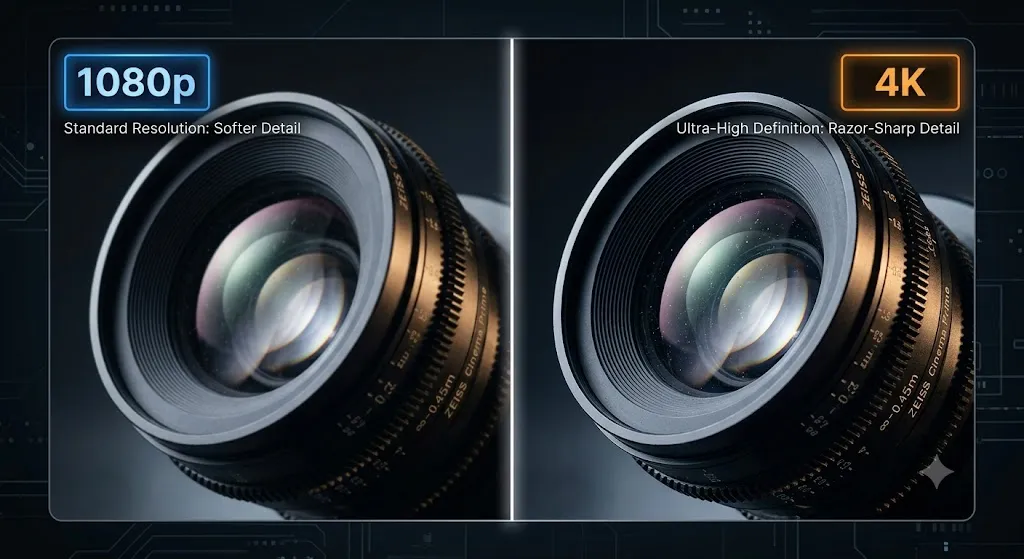
If you look at modern camera marketing, you would think that any video shot below 8K is unwatchable garbage. The reality of professional video editing is much different. This guide cuts through the marketing hype.
VSVansh Singh
Jun 23, 2026
11 min read
Camera companies desperately want you to believe that if you aren't shooting in the highest resolution possible, your video is obsolete. But the truth is far more nuanced. Understanding video resolution is about balancing quality, file size, processing power, and the viewing platform.
This comprehensive guide covers exactly what resolution means, the standard formats you'll encounter, and the truth about whether you actually need to shoot in 4K.
The more pixels an image has, the more fine detail it can display.
What is Video Resolution?
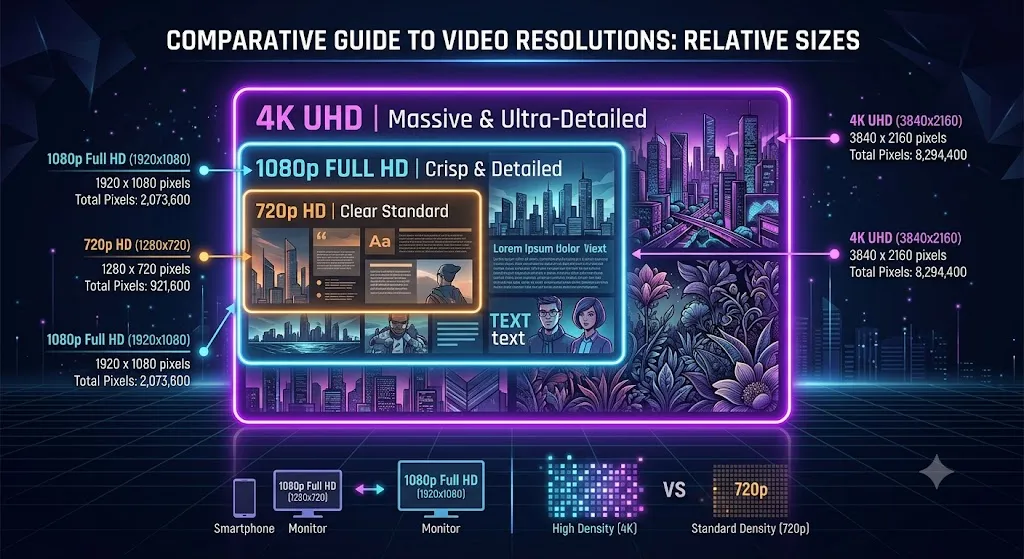
Video resolution refers to the number of individual pixels that make up a single frame of video. It is typically expressed as width × height (e.g., 1920 × 1080). The more pixels an image has, the more fine detail it can display.
When you hear a resolution referred to by a single number with a "p" or "K" (like 1080p or 4K), there are two different naming conventions at play:
The "p" (progressive) number refers to the vertical pixel count (1080 pixels high).
The "K" (kilo/thousands) number loosely refers to the horizontal pixel count (roughly 4,000 pixels wide).
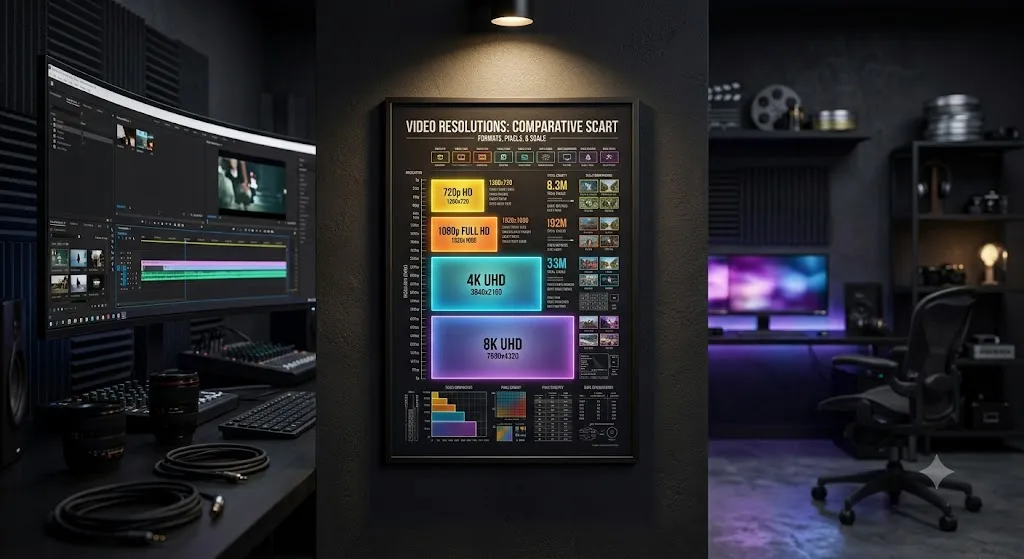
Each resolution step is a massive jump in total pixel count.
Standard Resolutions Explained
Here are the resolutions you'll encounter in professional video editing, from entry-level to cutting edge.
720p (HD)
1280 × 720
The entry point to HD video. While revolutionary in 2005, it is now considered the bare minimum for acceptable web video. Many video conferencing platforms default to 720p to save bandwidth.
1080p (Full HD)
1920 × 1080
The current universal standard. Excellent clarity on phones, laptops, and most TVs while keeping file sizes manageable. The vast majority of YouTube, Netflix, and broadcast television is consumed in 1080p.
1440p (QHD / 2K)
2560 × 1440
The sweet spot for PC gaming and some modern smartphone displays. Noticeably sharper images than 1080p without the massive processing requirements of 4K.
4K (Ultra HD)
3840 × 2160
The current high-end standard with exactly four times the pixels of 1080p. Provides stunning detail on large televisions and 4K computer monitors.
8K (Full Ultra HD)
7680 × 4320
The bleeding edge. Four times the pixels of 4K, sixteen times the pixels of 1080p. Currently, very few people own 8K displays, and the file sizes are astronomically large.
The Great 4K Debate: Do You Need It?
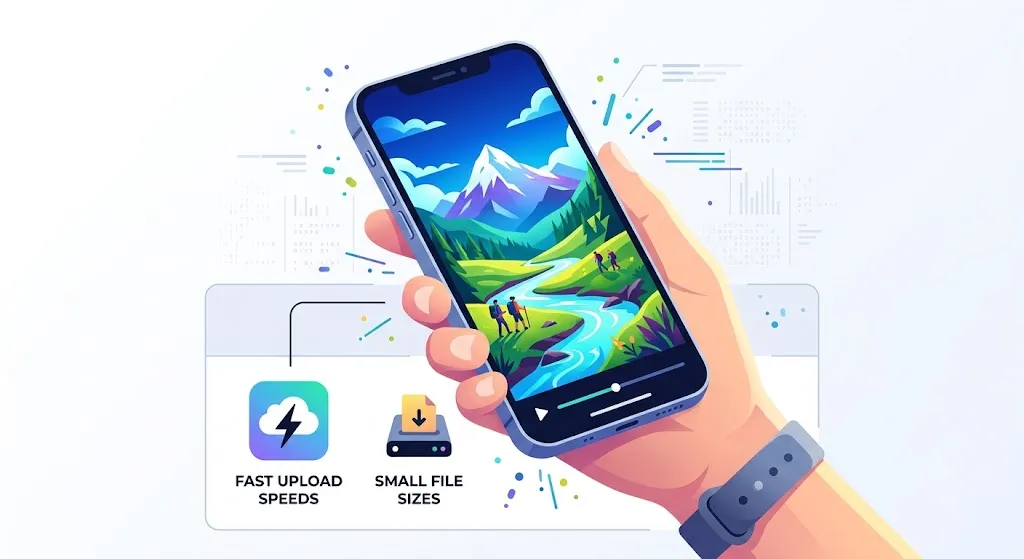
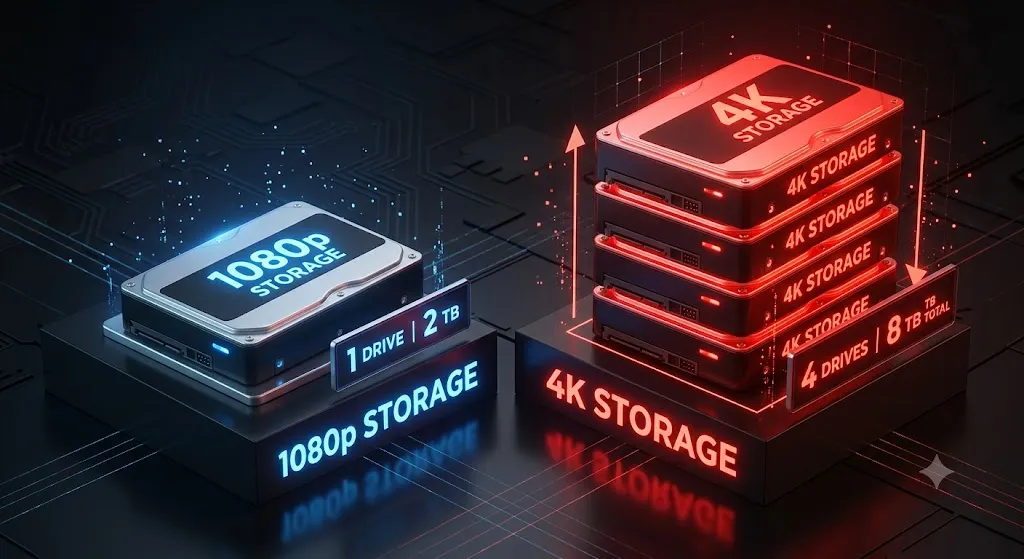
The Argument Against 4K: Most viewers cannot tell the difference between a high-bitrate 1080p video and a 4K video when watching on a smartphone (where over 60% of YouTube is consumed). 4K requires massive hard drives, expensive memory cards, and powerful editing computers.
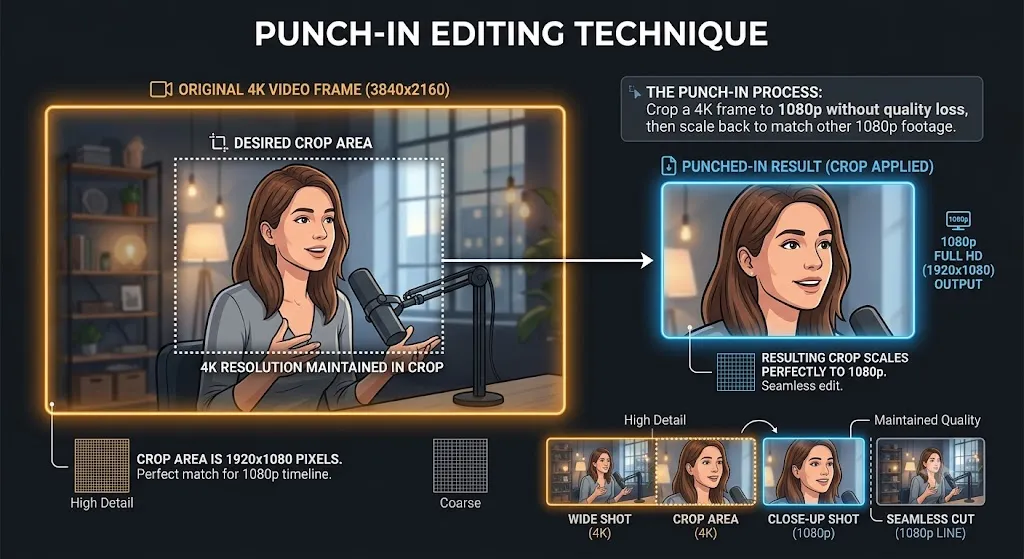
The Argument For 4K (The Editor's Perspective): Professionals don't shoot in 4K because they intend to deliver in 4K. They shoot in 4K to deliver in 1080p. Shooting in 4K gives you "resolution headroom" — the ability to:
Zoom in up to 200% without losing quality
Reframe a wide shot into a close-up
Add digital camera movement to a static shot
Stabilize shaky footage without dropping below 1080p
💡
Editor's Opinion #1
From the editing desk of Vansh Singh
"I deliver 95% of my client projects in 1080p. But I shoot absolutely everything in 4K. The ability to crop a single 4K interview shot into a wide, a medium, and a tight close-up on a 1080p timeline means I only need one camera to do a three-camera setup. 4K isn't a viewing format for me — it's an editing tool."
One 4K shot becomes three angles on a 1080p timeline — all without losing quality.
Bitrate: The Hidden Half of Video Quality
Here is a technical truth that confuses many beginners: a 1080p video can look significantly better than a 4K video. Resolution only dictates the number of pixels. Bitrate dictates how much data is assigned to those pixels.
A 4K video exported at a very low bitrate (e.g., 5 Mbps) will look blocky and muddy. A 1080p video exported at a high bitrate (e.g., 25 Mbps) will look vastly cleaner, sharper, and more professional than the starved 4K file.
The Golden Rule
If you are going to shoot or export in 4K, you must use a high enough bitrate to support those extra pixels, or you are defeating the purpose of 4K entirely.
Bitrate matters as much as resolution — sometimes more.
Editing High-Resolution Footage (The Proxy Workflow)
If you shoot in 4K or 8K, your timeline will lag, stutter, and crash on a standard laptop. The professional solution is the Proxy Workflow.
Instead of editing massive 4K original files, your editing software generates low-resolution, lightweight copies (proxies) — usually at 720p or 1080p. You edit these smoothly in real-time. When you click "Export," the software automatically links back to the 4K originals for maximum quality.
💡
Editor's Opinion #2
From the editing desk of Vansh Singh
"Don't let an older computer stop you from shooting 4K. I've edited 6K RED RAW footage on a five-year-old MacBook Air using ProRes Proxy files. The proxy workflow is the great equalizer in post-production. It separates the resolution you edit at from the resolution you deliver at."
The proxy workflow: edit on lightweight copies, export from full-quality originals.
Social Media Resolutions and Aspect Ratios
While traditional video is horizontal (16:9), modern social media platforms require different aspect ratios and resolutions.
9:16
Vertical Video
TikTok, Reels, Shorts
1080 × 1920
1:1
Square Video
Instagram Feed
1080 × 1080
4:5
Portrait Feed
Instagram, Facebook
1080 × 1350
Know your platform's resolution — every one is different.
Upscaling vs. Downscaling
Downscaling (4K → 1080p): Taking a 4K image and rendering it onto a 1080p timeline. This results in a highly detailed, extremely sharp 1080p image because the software averages 4 pixels into 1. This is standard professional practice.
Upscaling (1080p → 4K): Taking a 1080p image and stretching it onto a 4K timeline. This does not create detail — the software simply duplicates pixels, resulting in a soft, blurry image. Exception: Modern AI upscaling tools (Topaz Video AI, DaVinci Resolve's Super Scale) can generate surprisingly close to true 4K.
💡
Editor's Opinion #3
From the editing desk of Vansh Singh
"A lot of YouTubers upscale their 1080p footage to 4K purely so YouTube gives them the '4K' badge, or because YouTube allocates higher bitrates to 4K uploads. It's a technical hack. But if you have mixed footage on a timeline (some 4K, some 1080p), always set your sequence to 1080p. It's better to have universally crisp 1080p than to have true 4K mixed with blurry, upscaled 1080p."
Native 4K beats upscaled 1080p every time — but AI upscaling is closing the gap.
Resolution Requirements for Social Media
Every social media platform has its own resolution sweet spot. Uploading at the wrong resolution means the platform will re-encode and compress your video, often degrading quality significantly. Here is exactly what each major platform expects.
9:16
TikTok / Reels / Shorts
1080 × 1920
1080p vertical is perfect. Do not upload horizontal video here — the platform will letterbox it and it will look terrible.
16:9
YouTube
1920 × 1080 (min) / 3840 × 2160 (preferred)
1080p is the baseline, but YouTube encodes 4K uploads at a significantly higher bitrate. Even 1080p viewers benefit from a 4K upload.
1:1 or 4:5
Instagram Feed
1080 × 1080 or 1080 × 1350
4:5 is the tallest option in the feed and takes up more screen real estate. Use it whenever possible for maximum visibility.
9:16
Instagram Stories
1080 × 1920
Full-screen vertical. Same resolution as TikTok — keep your subject centered within the safe zone to avoid UI overlap.
16:9
Twitter / X
1280 × 720 (minimum)
Twitter compresses aggressively. Upload at 1080p minimum and use a high bitrate to combat the compression.
Upload at the Highest Resolution Possible
YouTube gives priority to 4K uploads in its encoding pipeline. Even if your viewers are watching on a 1080p screen, a 4K upload will look noticeably sharper because YouTube assigns it a higher bitrate than a native 1080p upload. If you want the absolute best quality on YouTube, upload in 4K — even if you shot in 1080p (the AI upscale is worth it for the bitrate bump alone).
Image slotSide-by-side comparison of the same video uploaded at different resolutions across social media platforms
The same footage can look dramatically different depending on the platform and resolution used.
The 4K Downscale Advantage
One of the most powerful techniques in professional editing is shooting in 4K and delivering in 1080p. This is not a compromise — it is a deliberate workflow choice that gives you significant creative and technical advantages.
When you downscale 4K footage to a 1080p timeline, the editing software combines 4 source pixels into 1 output pixel. This process produces an image that is noticeably sharper and more detailed than native 1080p footage. But the visual quality boost is just the beginning.
Reframing in post: Need to remove a boom mic from the edge of frame, or shift a subject slightly left? With 4K on a 1080p timeline, you have a 200% zoom range to work with — no quality loss whatsoever.
Sharper downscaled output: A downscaled 4K frame has finer detail rendering than a native 1080p frame. Skin textures, fabric weaves, and distant foliage all retain more definition.
Digital stabilization headroom: Stabilization software crops into the frame to smooth out shakes. If you are working with native 1080p, that crop can push you below HD quality. With 4K, even aggressive stabilization keeps you well above 1080p.
Future-proofing: Your project files remain valuable for years. A 4K master can be re-exported in 8K someday, or reframed for vertical social media crops without touching the original camera setup.
💡
Editor's Opinion #4
From the editing desk of Vansh Singh
"If your camera can shoot 4K and your storage can handle it, there is no reason not to. I see too many creators shoot in 1080p to 'save space' only to wish they had the flexibility of 4K in post. Storage is cheap. The creative freedom that 4K gives you on a 1080p timeline is priceless. Always shoot 4K if you can — your future self will thank you when you are trying to rescue a shot that is 15% off-center."
Image slotDemonstration of reframing a 4K shot into multiple compositions on a 1080p timeline without quality loss
A single 4K shot cropped into three different compositions — all delivered at full 1080p quality.
Frequently Asked Questions
Optimize Your Workflow for Any Resolution
Download our Export Settings Guide — the exact bitrates and resolution settings you need for YouTube, TikTok, and client deliveries.