The difference between a basic slow-motion effect and a truly cinematic speed ramp is the smoothness of the transition. When a speed ramp is done well, it feels organic — like the world itself is shifting. When it's done poorly, it looks jarring and amateur.
This guide teaches you how to set up time remapping in Premiere Pro and DaVinci Resolve, the curve editor that makes ramps smooth, and the common mistakes that ruin them.
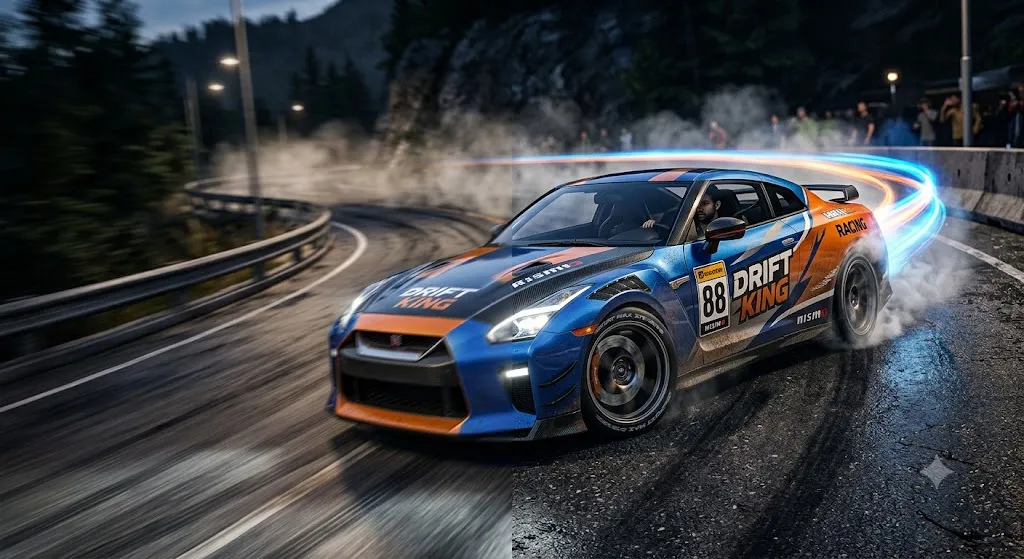
What is Speed Ramping?
Speed ramping (also called time remapping) is the technique of smoothly transitioning between different playback speeds within a single clip. Instead of an abrupt jump from 100% to 40% speed, you create a gradual curve that eases into and out of the slow motion.
Common speed ramp scenarios:
- Normal → Slow → Normal: The classic. A person jumps, the middle of the jump goes slow, then it snaps back to normal as they land.
- Normal → Fast → Slow: A quick whip-pan movement that settles into a lingering slow-motion reveal.
- Slow → Normal: Starting in slow motion for a dramatic opening, then snapping to real-time as the action begins.
The Golden Rules of Shooting for Speed Ramps
A speed ramp is only as good as the footage it's applied to. No amount of editing wizardry can fix footage that wasn't shot with this technique in mind. Here are the non-negotiable camera settings you need before you even touch the timeline.
Rule 1: Always shoot at a high frame rate. This is the single most important factor. If you shoot at 24fps and try to slow it down to 40%, you'll get choppy, stuttering footage because there simply aren't enough frames. The minimum is 60fps for moderate slow motion (40-60% speed). For extreme slow motion (25% or below), you need 120fps or higher.
Rule 2: Use the 180-degree shutter rule. Set your shutter speed to double your frame rate. Shooting at 60fps? Use 1/120s. Shooting at 120fps? Use 1/240s. This gives you natural motion blur that looks cinematic. If your shutter speed is too fast (like 1/1000s), your slow motion will look jittery and unnaturally crisp — like a strobe light effect.
Rule 3: Plan your speed ramp moments before you shoot. Don't just hope you'll find a good moment to ramp in post. Choreograph it. Tell your subject: "Do the action slowly at first, then explode into the movement." This gives you a natural ramp-in point and ensures you capture the full arc of motion.
Rule 4: Shoot longer than you think you need. Speed ramps eat up timeline real estate. A 3-second slow-motion sequence at 40% speed becomes 7.5 seconds in the timeline. Always capture at least 5-8 seconds of continuous footage for each ramp moment so you have room to work with.

Setting Up Speed Ramps in Premiere Pro
Premiere Pro's time remapping tool gives you full control over the speed curve of any clip.
Step-by-step:
- 1. Right-click the clip in the timeline → Show Clip Keyframes → Time Remapping → Speed.
- 2. A horizontal line appears across the clip — this represents 100% speed.
- 3. Hold Ctrl (Cmd on Mac) and click on the line to add a keyframe (speed point).
- 4. Drag the line up to speed up, or down to slow down.
- 5. To make the transition smooth, drag the keyframe handles apart — this creates the Bezier curve (the "ramp").

Audio and Speed Ramps
When you speed ramp a clip, the audio is also affected. Slowing down the audio pitch-shifts it down (creating a deep, warped sound). Speeding it up creates a "chipmunk" effect. This usually sounds terrible.
The solution: Always unlink the audio before applying speed ramps. Right-click the clip → Unlink. Delete or mute the original audio and replace it with a clean background track, music, or sound effects that complement the visual speed change.

DaVinci Resolve: The Curve Editor
DaVinci Resolve uses a curve editor that gives you precise visual control over the speed ramp — arguably more intuitive than Premiere Pro's method.
Step-by-step:
- 1. Select the clip. Right-click → Retime Controls.
- 2. Click the dropdown arrow on the clip → Change Speed.
- 3. Set a speed point where you want the ramp to begin.
- 4. Change the speed for the section (e.g., 50% for slow motion).
- 5. Open the Curve Editor (the small curve icon on the clip). Drag the speed keyframe to create a smooth bezier curve.
The curve editor in Resolve shows you the exact speed profile visually. The flatter the curve, the more gradual the transition.

Sound Design: The Secret Sauce
A speed ramp without proper sound design feels hollow — like watching a movie with the volume turned off. The audio is what makes the viewer feel the speed change, even if they don't consciously notice it. This is the section most tutorials skip, and it's the one that separates amateur edits from professional ones.
Layer 1: Whoosh sounds for the transition. When the speed changes, add a subtle whoosh or swoosh sound effect that matches the timing of the ramp. Short whooshes (0.3-0.5 seconds) work for quick ramps. Longer risers (1-2 seconds) work for dramatic slow-motion reveals. Place the peak of the whoosh exactly where the speed curve is steepest.
Layer 2: Ambient sound matching the speed. If your clip has ambient sound (wind, crowd noise, engine sounds), you can create a convincing speed ramp by also adjusting the ambient audio. Slow the ambient down during the slow-motion section using pitch-shifting tools, then bring it back to normal as the speed returns. This creates an immersive, cohesive experience.
Layer 3: Music beat synchronization. The most satisfying speed ramps are synced to the beat of the background music. Time your ramp so the slow-motion moment lands exactly on a beat drop or bass hit. This creates a visceral, music-video feel that keeps viewers watching. Use the waveform visualization in your editor to visually align the ramp point with the beat.
Layer 4: Impact sounds at the ramp endpoint. When the speed returns to normal, add a subtle impact sound — a low thud, a bass hit, or a snap. This creates a satisfying "landing" that signals the end of the slow-motion moment. It's like the audio equivalent of a period at the end of a sentence.
Combining Speed Ramps with Other Effects
Speed ramps become truly cinematic when layered with complementary effects. Here are the combinations that professional editors use to create jaw-dropping sequences.
Speed ramp + zoom: As the speed ramps down to slow motion, simultaneously apply a slow digital zoom (105-115% over 2 seconds). This creates a "pulling the viewer in" effect that amplifies the dramatic moment. In Premiere Pro, use the Scale property with keyframes. In DaVinci Resolve, use the Transform tool.
Speed ramp + color shift: Shift the color grade during the slow-motion section. For example, desaturate slightly and add a cool blue tint during the slow-motion, then snap back to full, warm color when speed returns to normal. This creates a dreamlike quality that makes the slow-motion feel intentional and artistic.
Speed ramp + depth of field change: If you're shooting with a fast lens (f/1.8 or wider), rack focus during the speed ramp. Start focused on the foreground, and as the speed slows down, shift focus to the background. The combination of slow motion and shifting focus creates an incredibly cinematic, dreamlike sequence.
Speed ramp + shake/vibration: Add a subtle camera shake effect that intensifies during the speed ramp and fades as the speed normalizes. This works especially well for action sequences, sports highlights, and music videos. Keep the shake subtle — 2-3 pixels of random movement is enough.
Speed Ramps for TikTok, Reels & Shorts
Speed ramping is one of the most popular effects on short-form platforms. TikTok and Instagram Reels are flooded with speed ramp transitions, and for good reason — they grab attention in the first 0.5 seconds and keep viewers watching.
The "outfit change" ramp: The most viral speed ramp format. Film yourself in one outfit, walk toward the camera, and at the closest point, speed ramp to fast motion. Cut to a new outfit with the speed ramping back to slow motion. The transition is seamless and endlessly rewatchable.
The "location snap" ramp: Film in one location, use a whip-pan or spin as the speed ramp point, and cut to a new location as the speed returns to normal. The fast-motion blur of the whip-pan masks the cut perfectly.
The "music drop" ramp: This is the classic TikTok format. Build up with normal-speed footage, then at the exact moment the beat drops, snap into slow motion with a dramatic visual reveal. The synchronization of audio and visual speed change is what makes this format addictive.
CapCut tip: If you're editing in CapCut, use the "Speed Curve" tool in the Speed panel. It gives you preset ramp curves (Montage, Hero, Bullet, etc.) that you can customize. It's not as precise as Premiere Pro's time remapping, but for quick TikTok edits, it's incredibly efficient.

Common Speed Ramp Mistakes to Avoid
- Speed ramping 24fps footage below 50%: This creates choppy, stuttering slow motion because there aren't enough frames. Shoot at 60fps+ for smooth ramps.
- Ramping audio without unlinking: Results in distorted, warped audio that ruins the effect. Always unlink and replace audio.
- Too many ramps in one video: Overuse diminishes the impact. Use speed ramps for key moments — not every clip.
- Not using Bezier curves: Linear speed changes look robotic. Always pull the keyframe handles to create smooth curves.
