You're watching back footage from a perfect shoot — the lighting is golden, the composition is right, and then you notice it: every handheld shot is jittery. Modern post-production stabilization tools are genuinely magical, but they also have very real limitations.
This guide covers exactly how to stabilize footage in both Premiere Pro and DaVinci Resolve, when to use each method, and the common pitfalls that make stabilized footage look worse than the original.
How Stabilization Works
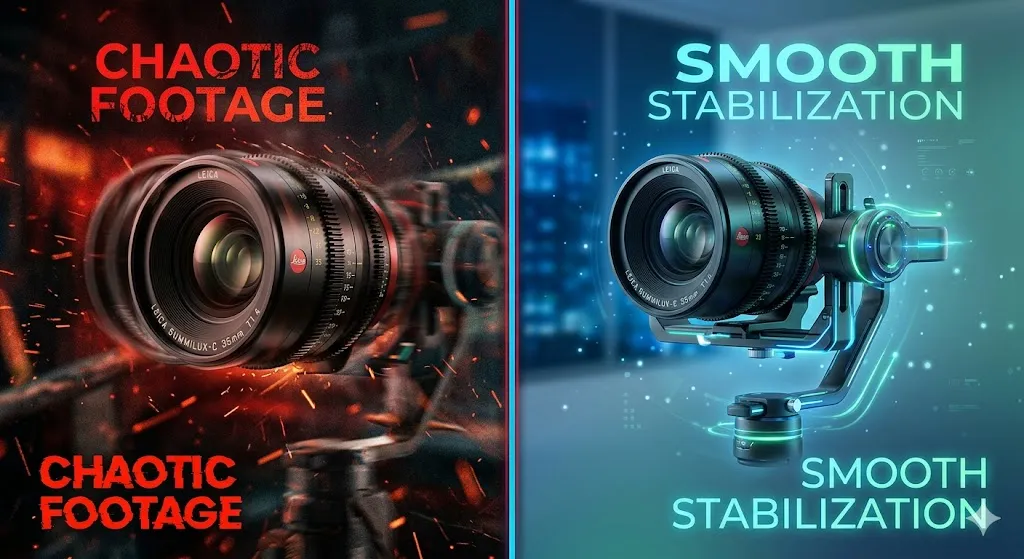
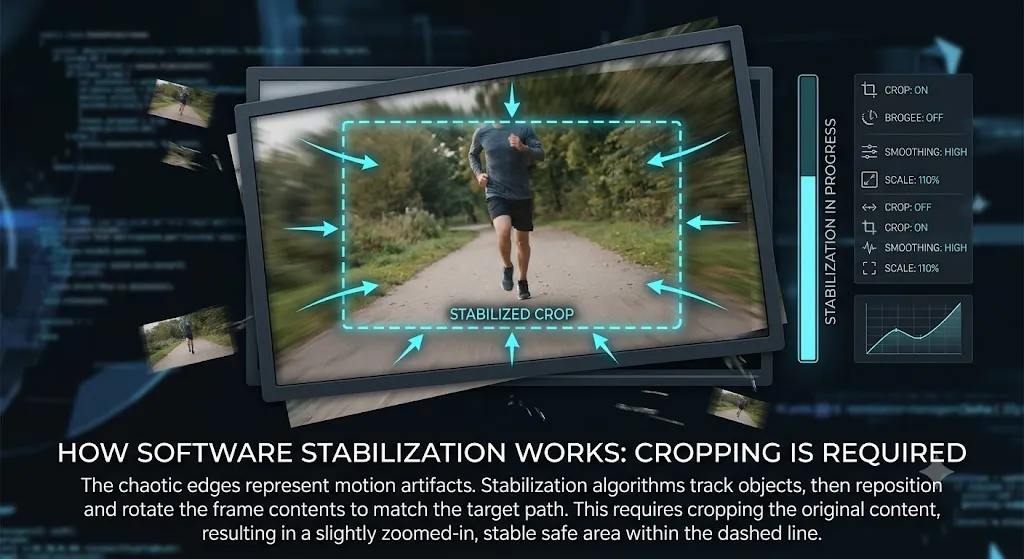
Video stabilization works by analyzing the motion in your footage frame by frame, tracking specific points across the image, and then counteracting unwanted movement by repositioning (and often cropping) the frame.
The two main approaches are in-camera stabilization (gimbals, IBIS, EIS) and post-production stabilization (software-based). This guide focuses on post-production, since it's the most common scenario editors face.
Physical Stabilization: Prevention is Better Than Cure
The best stabilization happens before you even press record. No software can perfectly replicate the organic smoothness of a well-executed physical technique. Here are the methods professional camera operators use to get buttery-smooth handheld footage without any gear.
The Ninja Walk: Bend your knees slightly, tuck your elbows into your sides, and walk heel-to-toe like a cat. This turns your body into a human gimbal. Your arms act as shock absorbers, and the bent knees absorb the impact of each step. Practice this for 10 minutes and you'll be amazed at how smooth your handheld footage becomes.
The Strap Trick: Pull your camera strap tight against the back of your neck while holding the camera out in front of you. This creates tension that eliminates micro-jitters. The strap acts as a stabilizer, similar to a Steadicam sled. This is especially effective for walking shots and static handheld holds.
Lean Against Something: If you're shooting a static handheld shot, lean your back against a wall, tree, or doorframe. Press your elbows into your body for additional stability. This three-point contact (back, elbows, grip) dramatically reduces shake.
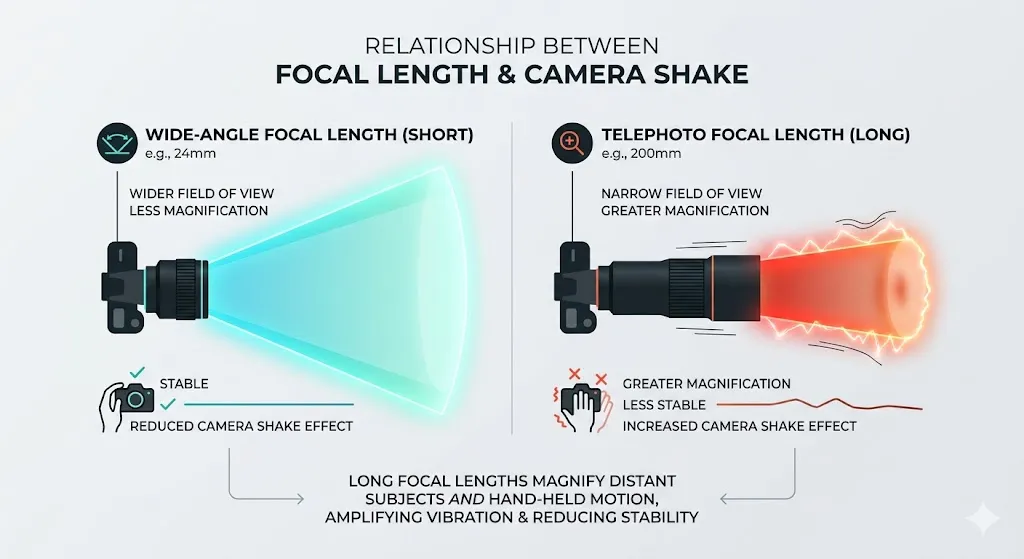
Shoot Wider to Crop Later: If you know you'll need to stabilize in post, shoot at a slightly wider focal length than your final framing. This gives the stabilization algorithm extra pixels to work with, so you won't lose as much of your composition when it crops in.

The "Jello Effect" and How to Fix It
The jello effect (also called rolling shutter artifacts) is the biggest enemy of software stabilization. It happens when your camera uses a CMOS sensor that scans the image line by line from top to bottom. If the camera moves during this scan, different parts of the frame are captured at slightly different moments in time, causing a wobbly, gelatin-like distortion.
When you apply stabilization to footage with rolling shutter, the algorithm tries to correct the position of the frame, but the wobbly distortion remains. The result is footage that looks like it's melting or breathing — distracting and unprofessional.
How to minimize jello: Use a camera with a global shutter (like the Blackmagic Pocket Cinema Camera) if possible. If not, increase your shutter speed slightly above the 180-degree rule — try 1/200s instead of 1/120s for 60fps. This reduces the rolling shutter effect per frame. Avoid whipping the camera side-to-side, which makes jello much worse.
The warp stabilizer's secret weapon: In Premiere Pro, try switching the Warp Stabilizer method from "Subspace Warp" to "Position, Scale, Rotation." Subspace Warp tries to warp individual parts of the frame, which can exaggerate jello artifacts. The simpler method avoids this entirely.
Premiere Pro: Warp Stabilizer
Warp Stabilizer is Premiere Pro's built-in stabilization effect. It analyzes your clip and smooths out unwanted camera movement with impressive accuracy.
How to apply it: Select your clip in the timeline, go to Effects > Video Effects > Distort > Warp Stabilizer. Apply it to the clip. Premiere will automatically begin analyzing in the background.
Key settings:
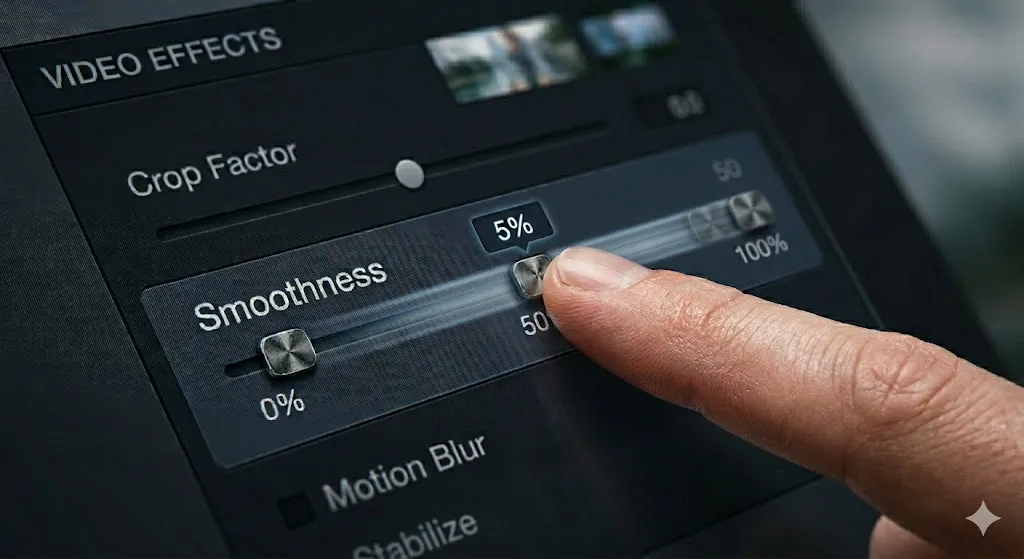
- Smoothness (default 50%): Controls how much stabilization is applied. Start at 50% and reduce if the result looks unnatural.
- Method: "Position" is the simplest (no cropping). "Subspace Warp" is the most powerful but can introduce distortion.
- Border: "Stabilize, Crop, Auto Scale" crops the edges and zooms in to hide repositioning. "Stabilize Only" shows the black borders.
DaVinci Resolve: Built-in Stabilization
DaVinci Resolve includes excellent stabilization directly in the Cut, Edit, and Color pages — and it's free.
How to apply it: Select your clip in the timeline, open the Inspector (top-right). In the Video tab, find the Stabilization section. Click "Stabilize."
Key settings:
- Mode: "Perspective" is the most comprehensive (similar to Subspace Warp). "Similarity" is simpler and faster. "Translation" only adjusts X and Y position.
- Cropping Ratio: Controls how much of the frame can be cropped. Lower values = more cropping allowed = more stabilization.
- Smooth: How aggressively to smooth the motion. Start with the default and adjust.
- Strength: The intensity of the stabilization. Lower strength = more natural look.

When Stabilization Fails
Stabilization is not magic. There are situations where it will produce terrible results:
- Extreme shake: If the camera was moving wildly, there isn't enough stable information for the algorithm to work with.
- Motion blur: Stabilization cannot fix motion blur. If the individual frames are blurry, the stabilized result will still be blurry.
- Zooming or panning shots: The stabilizer may try to "stabilize" intentional camera movement, resulting in a jerky, confused motion.
Best Practices for Stabilization
- Always stabilize before color grading. Stabilization can slightly shift colors and exposure at frame boundaries. Grade after you stabilize.
- Use proxy workflows for 4K. Stabilization analysis is CPU-intensive. Use proxies during the stabilization process, then switch back to full-res for the final render.
- Check the entire clip. Stabilization can look great for 80% of a clip and then introduce a sudden warp or jump. Scrub through the whole clip after applying.
- Consider shooting at a higher frame rate. 60fps footage stabilized in post typically looks smoother than 24fps footage because there are more data points for the algorithm to work with.
Stabilizing Mobile Phone Footage
Modern smartphones (iPhone 15 Pro, Samsung S24, Pixel 8) have incredibly good built-in stabilization — often better than many dedicated cameras. But when their internal stabilization isn't enough, you have several options.
iPhone users: The Action Mode on iPhone 15 Pro shoots at 2.8K with aggressive stabilization. It crops significantly, but the result is gimbal-like smoothness. If you already shot without Action Mode, use CapCut's stabilization tool or import into Premiere/Resolve for Warp Stabilizer.
Samsung/Pixel users: Google's Video Stabilization in the Photos app is surprisingly effective for basic shake. For more control, import into DaVinci Resolve (free) and use the stabilization panel.
The resolution trade-off: Most phone stabilization (both in-camera and post-production) crops the frame by 15-30%. This means 4K phone footage becomes closer to 3K after stabilization. If you're shooting for social media (1080p delivery), this is perfectly fine. For YouTube or broadcast delivery, shoot at the highest resolution your phone supports.