The difference between a hobbyist and a professional isn't knowing that you can trim and split — it's knowing exactly when, where, and how to do it with speed and precision. This guide covers trimming and splitting comprehensively, from basic mechanics to advanced techniques.

What is Trimming?
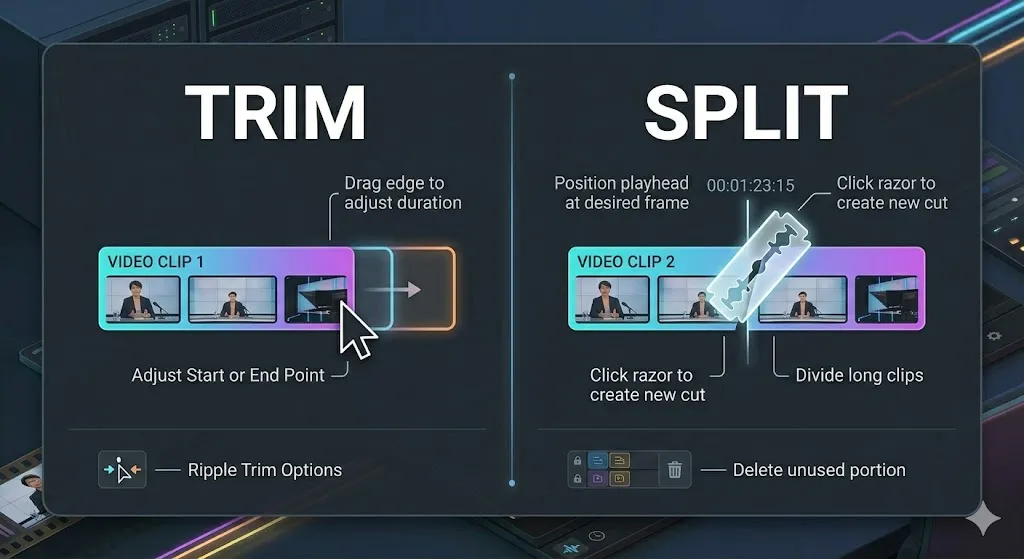
Trimming is the act of adjusting the In point (start) or Out point (end) of a clip on the timeline to remove unwanted frames. The original media file is never touched — trimming is non-destructive.
Two types of trim:
- Standard Trim (Resize): Dragging the edge of a clip shorter, leaving a gap where the trimmed frames were.
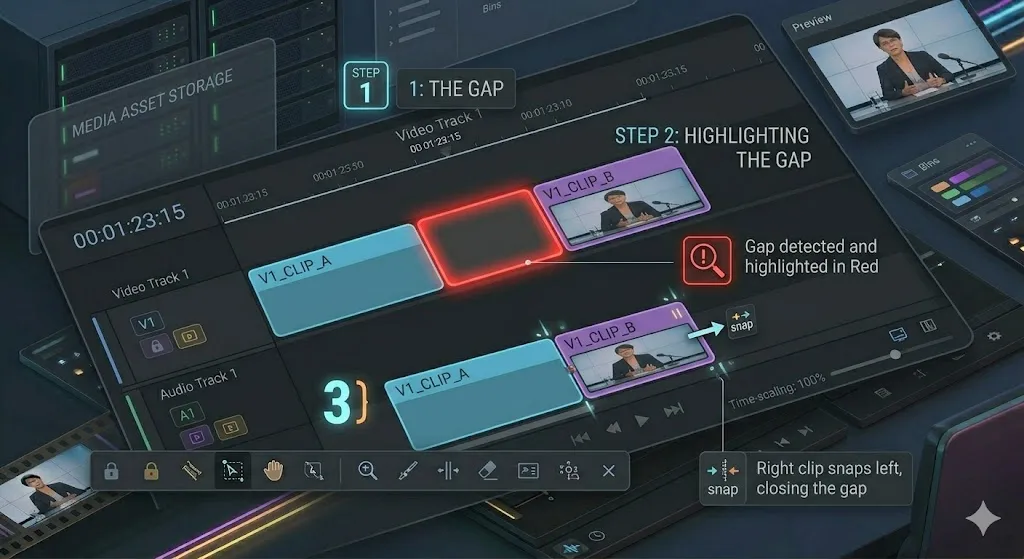
- Ripple Trim: Dragging the edge of a clip shorter while automatically closing the gap — all clips after the trim point shift to fill the space.
Standard Trim: Mechanics and When to Use It
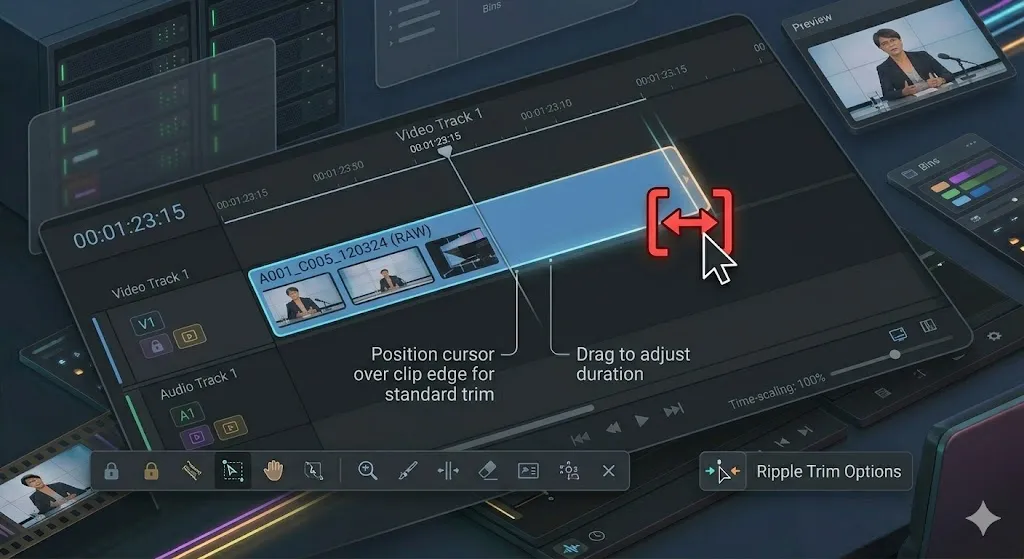
How to perform a standard trim: Hover over the beginning or end edge of a clip — the cursor changes to a bracket icon. Click and drag inward to shorten the clip, or outward to extend it (if unused media exists). A gap appears where the clip was shortened.
When to use standard trim: When you want to intentionally create a gap (for a title card or pause), when trimming a clip that is not adjacent to anything, or when you want to slip-trim without affecting the rest of the timeline.
Ripple Trim: The Professional's Default
Ripple Edit removes frames from the edge of a clip and automatically closes the gap, pulling all subsequent clips backward. It is the most important trim type for narrative editing.
In Premiere Pro: Select the Ripple Edit tool (B key). Hover over the edge of the clip, click and drag. All downstream clips move automatically.
In DaVinci Resolve: Press T to enter Trim mode. Hover over the edge of a clip, drag inward or outward. Downstream clips shift.
Splitting Clips: The Cut Command
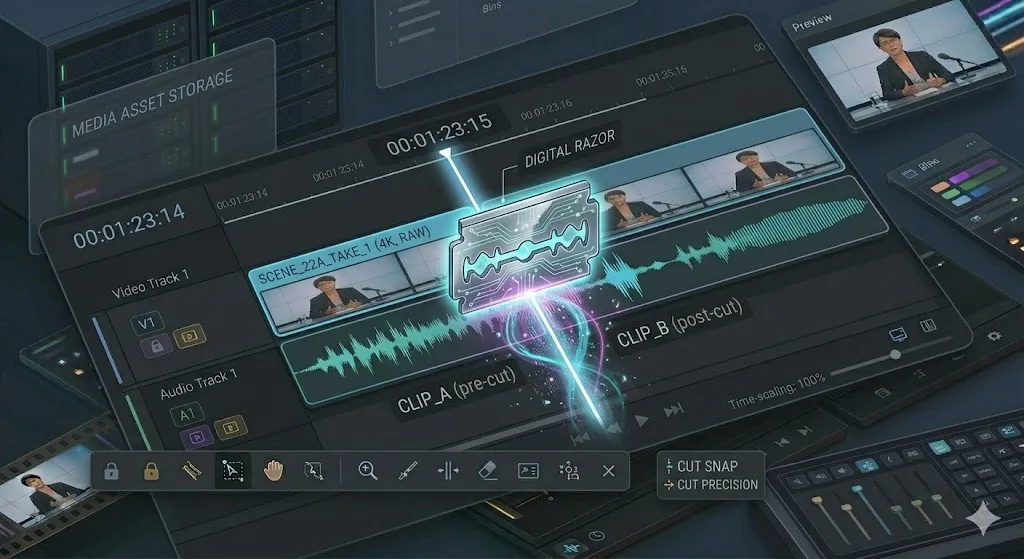
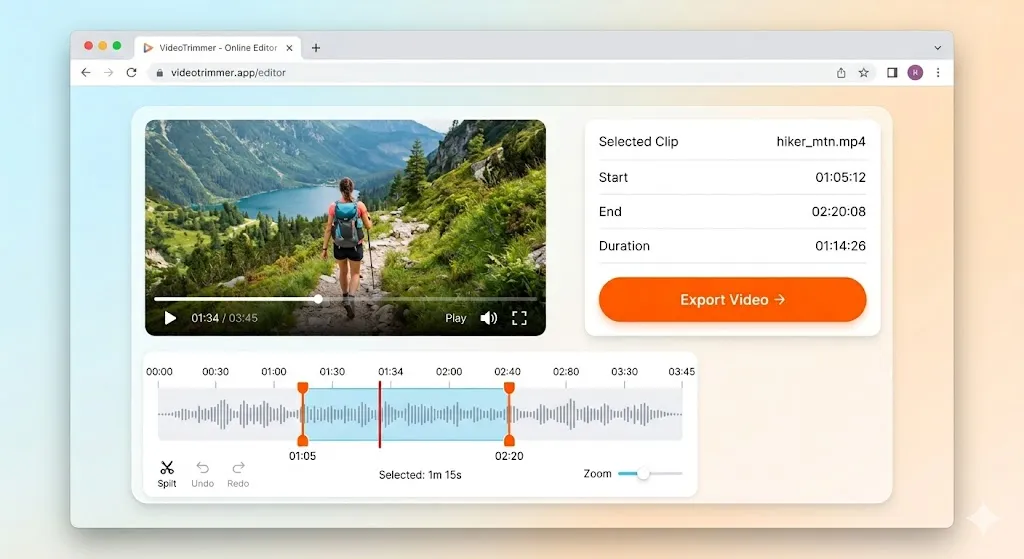
Splitting divides a clip into two separate pieces at the playhead position. This is how you remove sections from the middle of a clip.
Premiere Pro: Press Ctrl+K to split at the playhead.
DaVinci Resolve: Press Ctrl+\ to split at the playhead.
CapCut: Press Ctrl+B to split.
The Ripple Delete: Remove a Section Cleanly
The combination of splitting and ripple deletion is the most common editing operation. Here's the workflow:
Roll Edit: Adjusting the Cut Point
A Roll Edit moves the Out point of one clip and the In point of the next clip simultaneously. The total sequence duration stays exactly the same — you're simply moving where the cut happens between two adjacent clips.
Premiere: Press N for the Roll Edit tool, hover between two clips, drag left or right.
Resolve: Press T for Trim mode, click between two clips, drag to roll.
Extend Edit: Jump the Clip Edge to the Playhead
Instead of dragging a clip edge precisely, position your playhead exactly where you want the clip to end, then press a single key to instantly move the nearest clip edge to the playhead position.
Premiere Pro: Select a clip, move the playhead, press E to extend.
DaVinci Resolve: Position the playhead, hold Shift and press ] to extend Out, or [ to extend In.
Trimming Audio vs. Video Independently
Sometimes you want to trim video and audio to different lengths — for example, to create an L-cut where the audio continues after the visual has cut away.
Premiere: Select the clip, press Ctrl+L to unlink. Trim each layer independently.
Resolve: Hold Alt while clicking a clip edge to enter asymmetric trim mode.
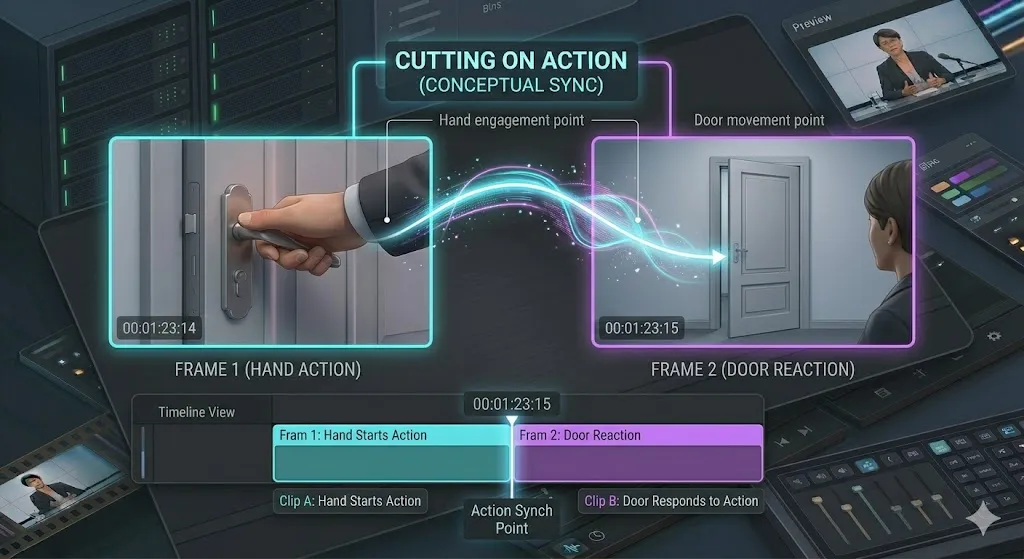
Frame-Level Precision Trimming
For the most precise edits — particularly with music or dialogue — use frame-level trimming:
] — Extend Out point by one frame
[ — Shorten Out point by one frame
Shift + ] or Shift + [ — 5-frame increments
The Trim Monitor (Premiere): Double-click a cut point to see the last frame of the outgoing clip and the first frame of the incoming clip side by side. Adjust frame by frame with the +/- buttons.
Keyboard Shortcuts for Trimming
Speed is everything in trimming. Memorizing these keyboard shortcuts will transform your editing workflow from slow and clicky to fast and fluid. Here is a reference for every major trimming operation across the three most popular NLEs:
Multi-Track Trimming
Once you move beyond a single video and audio track, trimming becomes more complex — and more dangerous. Here's what you need to know:
- How ripple trim affects tracks below: By default, ripple trim only affects the track you're trimming. Tracks below (or above) stay in place. This means a ripple trim on V1 won't shift V2, V3, or any audio tracks unless those tracks are also selected.
- Using Linked Selection to trim audio and video together: Toggle Linked Selection (the chain icon in the timeline header) to ensure that trimming a video clip also trims its linked audio simultaneously. This keeps dialogue and picture perfectly in sync.
- Sync Lock on/off: Each track has a sync lock toggle. When sync lock is ON, ripple operations on other tracks will shift this track to maintain sync. When it's OFF, the track stays put regardless of what happens on other tracks. Use sync lock carefully — it can be a lifesaver or a headache depending on context.
- The danger of trimming without checking all tracks: A ripple trim on one track can knock other tracks out of sync without any visible warning. Always zoom out and visually verify that every track is still aligned after performing multi-track ripple edits.
Trimming for Different Platforms
How aggressively you trim depends heavily on where your final video will live. Each platform has a different pacing expectation, and your trimming decisions should reflect that.